Everything it does,
on one page
A guided tour of Bibliofile: what each feature is for, and how to use it. Every section ends with a link into the full manual, where the step-by-step detail and the troubleshooting live.
Overview
Bibliofile is a BibTeX library manager. Point it at a .bib file and it gives you a three-pane window for browsing, searching, grouping, editing, annotating and citing your references, on macOS, Windows and Linux. It is a fresh desktop rewrite of the classic macOS BibDesk, so if you have used BibDesk you will feel at home straight away.
Four ideas shape the whole design.
Your .bib file is the single source of truth. There is no hidden database holding your library hostage. Entries, @string macros, the @preamble, your saved groups and your file attachments all live inside the file itself. Keep it in Git, sync it with Dropbox, email it to a colleague or feed it to bibtex and biber: it stays an ordinary BibTeX file throughout.
Nothing is written until you save. Every edit changes an in-memory copy of the library. The file on disk changes only when you press ⌘S, or when autosave does it for you, if you have chosen to turn it on.
Round trips are byte-faithful. Bibliofile's own BibTeX parser and serialiser reproduce BibDesk's exact on-disk format, so a file BibDesk has written is read and re-written byte for byte identically, down to the group definitions and attachment blobs. Edit the same library in BibDesk on one machine and in Bibliofile on another, with no conversion step in between.
Richer views than a text editor. Staying faithful to the format doesn't mean settling for a bare table. The detail pane typesets each entry with rendered mathematics, Markdown abstracts and notes, keyword tags and formatted citations, in light or dark.
Under the hood Bibliofile is a pnpm monorepo. The core/* packages (the TeX codec, BibTeX name parsing, the data model, the parser and serialiser, the format mini-languages and the smart-group evaluator) are platform-agnostic TypeScript with no Electron or DOM dependency, and run headless under Vitest. The parser and serialiser are held to a golden round-trip corpus that includes a real BibDesk-authored library.
Plain-Text Library
No sidecar database and no import step. The .bib you open is the library, and the only thing kept outside it is a disposable search cache.
Byte-Faithful BibTeX
Macros, preambles, BibDesk's groups and Bdsk-File-N attachments all survive a save, so a library moves freely between Bibliofile and BibDesk.
Search Everything
Live, ranked search over every field, with quoted phrases, plus optional full-text search inside your attached PDFs.
Groups That Keep Up
Static and smart groups, nestable folders, and Author and Keyword categories that rebuild themselves from your entries.
A Typeset Preview
MathJax in titles and abstracts, journal covers, keyword tags and a live CSL citation for every entry.
Cross-Platform
One codebase for macOS, Windows and Linux, built to live alongside BibDesk, LaTeX and the rest of your TeX toolchain.
.bib file is the single source of truth, and edits are not written until you save. If the file has changed on disk since you opened it, saving stops to ask (Overwrite, Reload from Disk or Cancel), so an edit made outside the app is never silently replaced.The Window
Each library opens in its own window, laid out so that you work from left to right: pick a scope in the sidebar, find an entry in the table, then read it in the detail pane. A header and toolbar run across the top, and a status bar along the bottom always tells you what you're looking at.
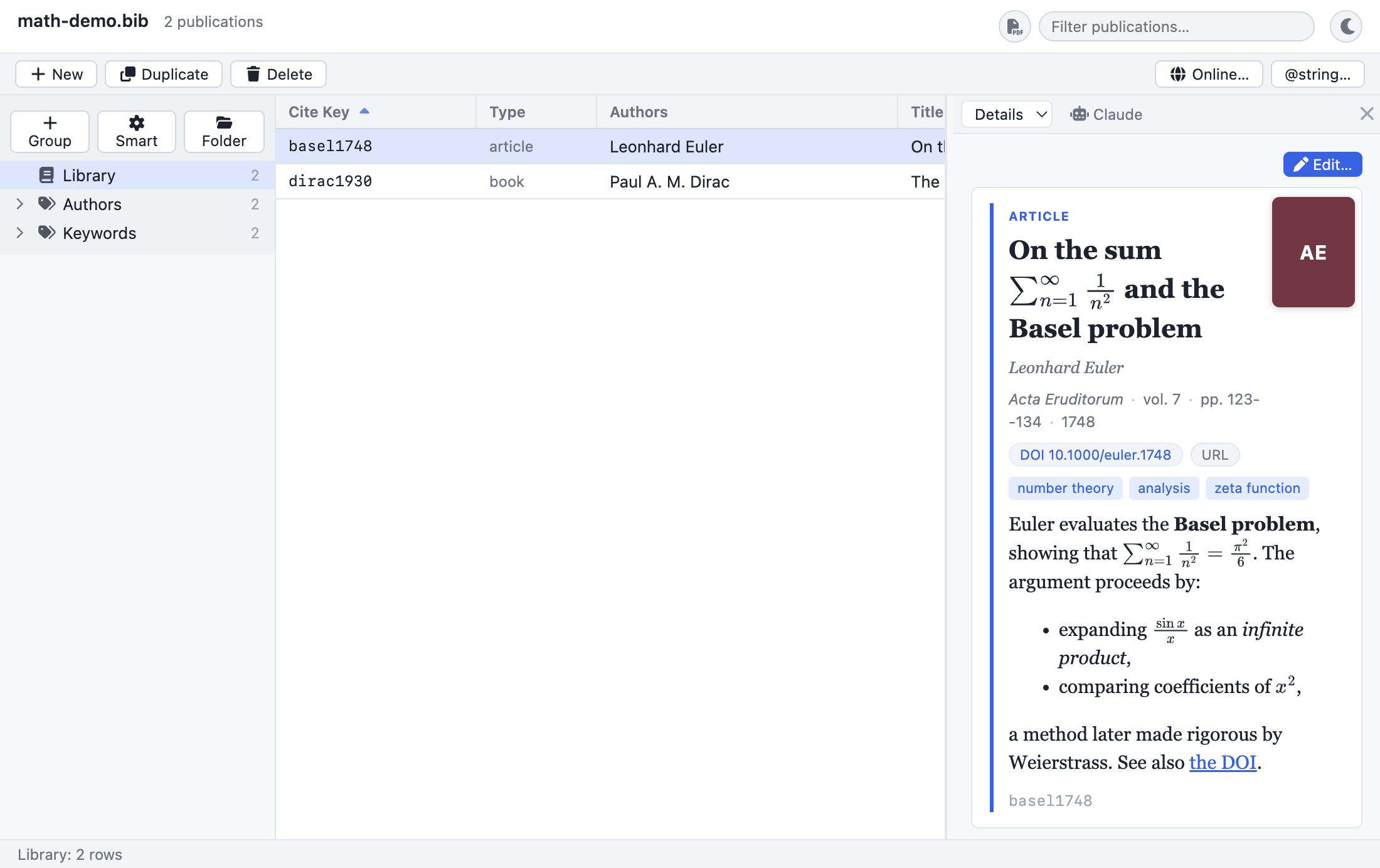
math-demo.bib that ships with the source. The footer reads Library: 2 rows.Above it all sits the menu bar (File, Edit, Publication, Tools, View, Window and Help), which is the complete inventory of commands, each with its shortcut. The toolbar only duplicates the most common ones. On Windows and Linux the menu bar is attached to the window, and Preferences… and Quit sit at the bottom of the File menu.
Header & Toolbar
The header shows the file's name and its publication count, plus a • after the name whenever you have unsaved changes; it reads (saving…) while a write is under way. A warnings badge appears only if the file produced parse warnings as it loaded. On the right are the Filter publications… search box with its round PDF button, and the ☾ / ☀ theme toggle.
Below it, the toolbar holds + New, Duplicate and Delete on the left, and Online… (search CrossRef, arXiv and other databases) and @string… (the macro editor) on the right. There is deliberately no Save button: you save with ⌘S and watch the dot.
Groups Sidebar
The left pane lists Library (everything), your saved static and smart groups, the folders you have filed them into, and the automatic Authors and Keywords sections. Three buttons at its top (Group, Smart and Folder) create new ones. Drag the divider to make it wider or narrower.
Publications Table
The centre pane shows one row per reference. Out of the box the columns are Cite Key, Type, Authors, Title and Year, plus compact icon columns for keywords, attachments and read status, but the column set is yours to change. The table is virtualised, so it stays smooth with tens of thousands of entries.
Detail Pane
The right pane is a typeset, read-only card for the selected entry: title, authors, venue, keyword tags, DOI, URL and attachment chips, the rendered abstract and notes, and a formatted citation. To change anything, click Edit… (or double-click the row) to open the entry's editor window. A dropdown at the top of the pane swaps it for the Claude assistant, and View → Toggle Side Panel (⌥⌘S) hides it altogether.
Bottom Panel
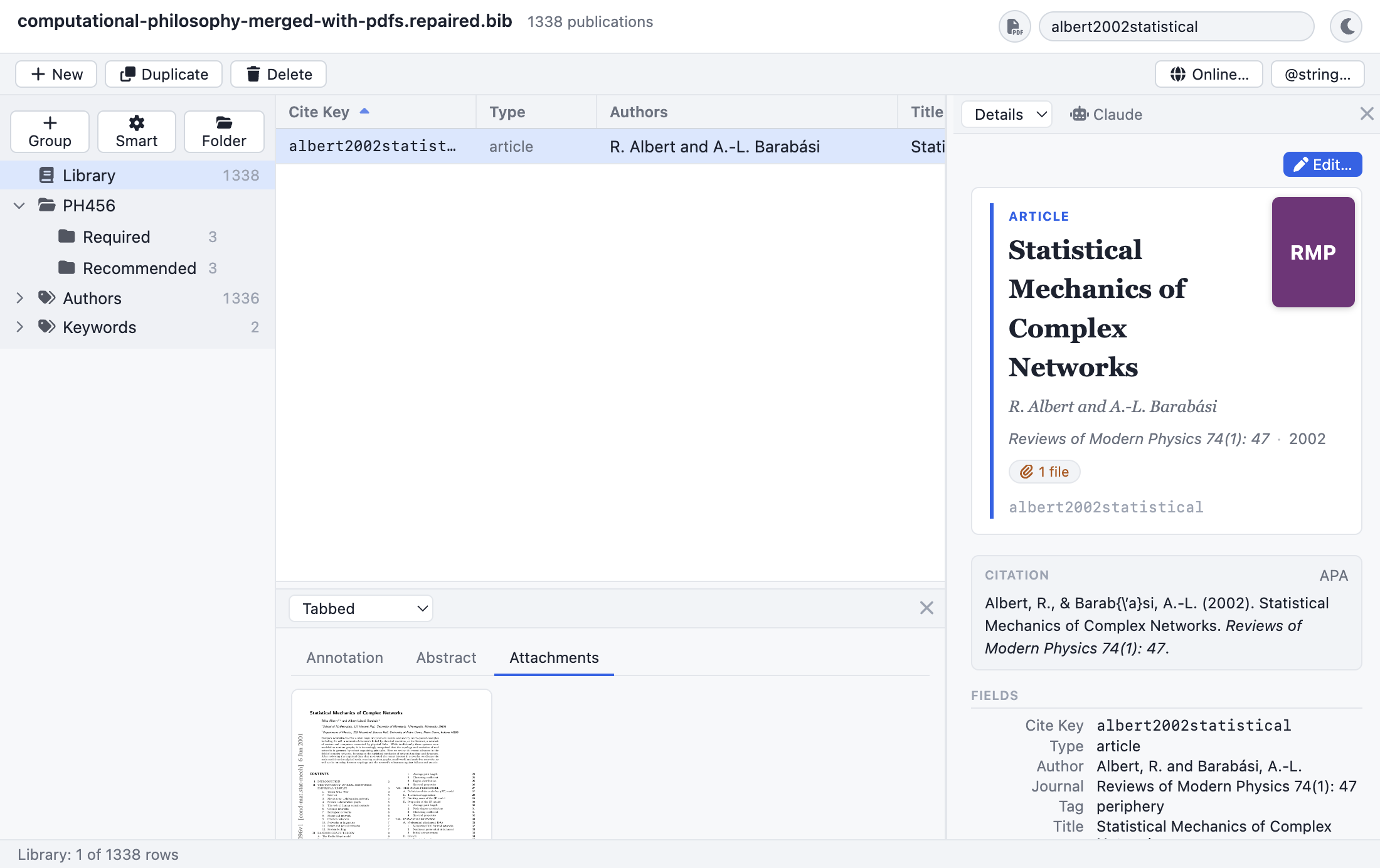
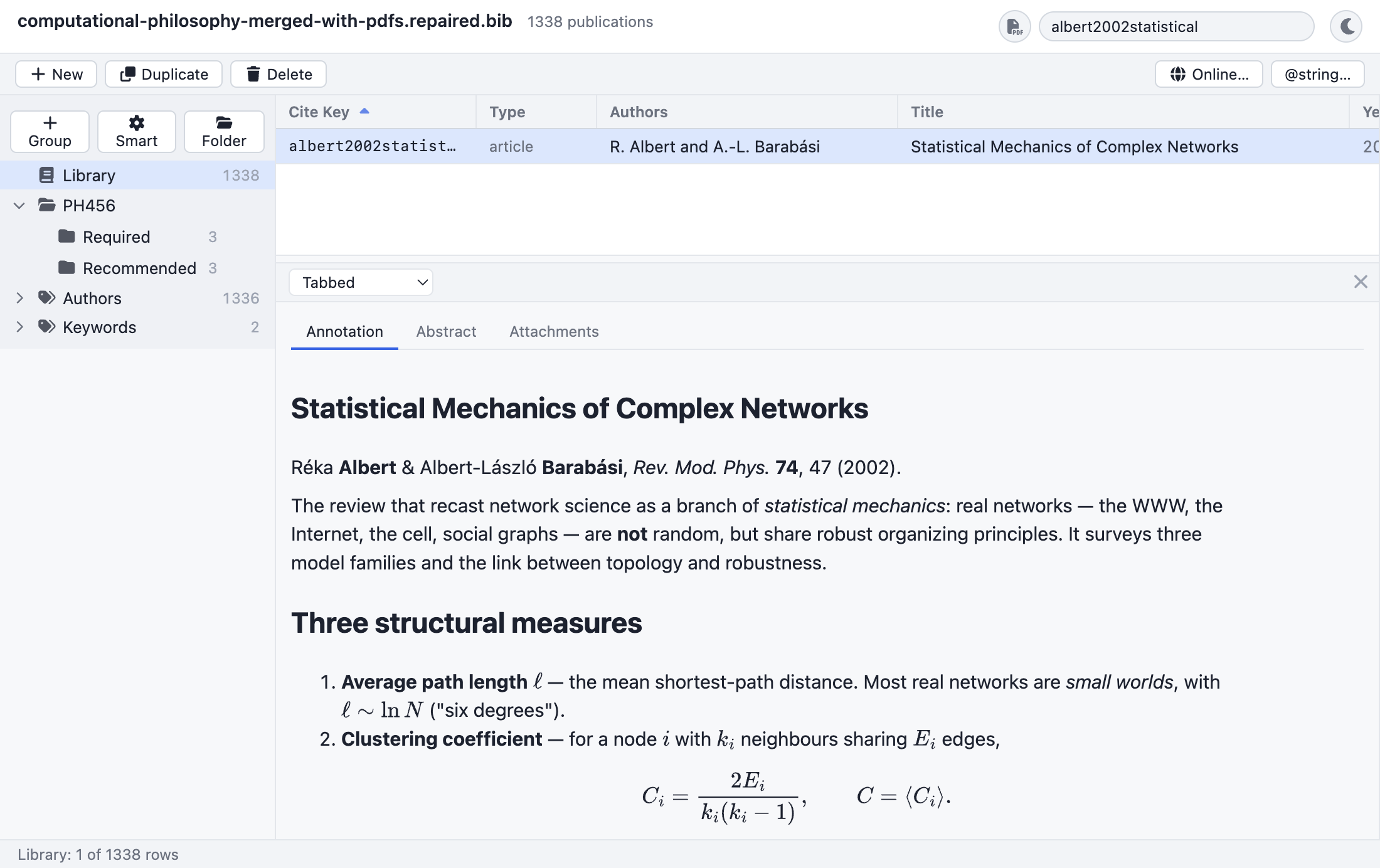
A fourth area can open beneath the table with View → Toggle Bottom Panel (⇧⌘B). It shows the entry's Annotation, a Tabbed view of annotation, abstract and attachment thumbnails, or a true BibTeX LaTeX Preview of the selection.
Status Bar
The footer answers "what am I looking at?" at a glance: the selected group's name, then the row count, adjusted for any search. Library: 123 rows is the whole library; To read: 8 rows is a group; Library: 42 of 123 rows means a search is narrowing the view. It also reports loading, import progress and errors.
Light & Dark
Click ☾ / ☀ in the header, or choose View → Toggle Light / Dark Theme (⇧⌘L). For finer control, Preferences → General → Appearance → Theme offers System (the default), Light and Dark. The toggle always picks an explicit Light or Dark, taking you out of System; choose System in Preferences to return to following your OS. The theme is an application preference, never written into your .bib, so switching it never marks your library as changed.
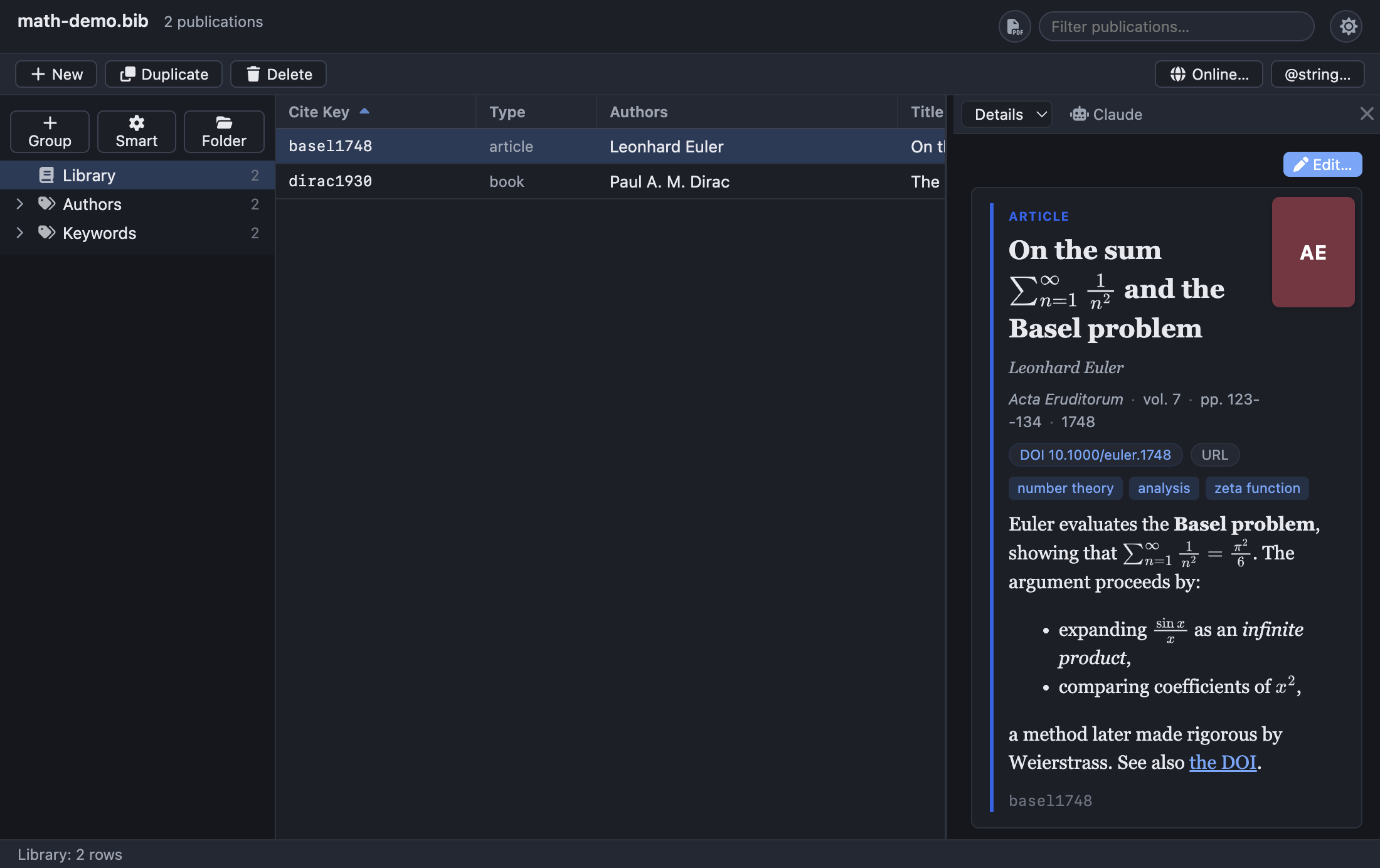
The theme is applied by setting data-theme on the document's root element, which flips a set of CSS variables, so the table, sidebar, preview card and MathJax output re-colour together. It is stored in settings.json in the per-user application-data folder. On System, the OS appearance is read at start-up; a live OS switch is picked up on the next launch or preference change.
Libraries & Saving
A library is simply a .bib file. Bibliofile reads it into memory, lets you work on it, and writes that same file back when you save, carefully enough that nothing you didn't change is disturbed.
Opening a Library
With no library open, Bibliofile shows a welcome screen with two buttons: Open a Bibliography… for an existing file, and New Bibliography, which asks where to save an empty file and opens it ready for entries. You can also drag a .bib file onto the welcome screen.
From then on, File → Open… (⌘O) and File → Open Recent open further libraries, each in its own window, and opening a file that is already open simply brings its window to the front. A .bib handed over by the operating system, such as one you double-clicked, opens directly. For scripting, pass the path as a command-line argument, or set BIBDESK_OPEN to an absolute path before launch.
The text encoding is detected for you: a byte-order mark first, then UTF-8, falling back to Windows-1252. If an old 8-bit file is guessed wrong, re-read it under the right encoding, or Convert to UTF-8, from File → Text Encoding.
.bib onto the publications table of an open library merges its entries into that library; it doesn't open the file. Only the welcome screen opens a dropped file.The Save Model
Editing is explicit-save by default. A field change, a new cite key, a deleted entry, a macro or an attachment all change the in-memory library, and your file on disk is untouched until you save. This keeps editing fast, and it lets you make a batch of changes, check them in the live preview, and commit them together.
Save with ⌘S or File → Save. The shortcut works from every window, including an entry's editor window, which hands the save to its library, and the field you are typing in is committed first. A save does four things, in order:
- Checks that the file hasn't changed on disk since Bibliofile last read or wrote it.
- Serialises the whole library back to BibTeX in BibDesk's exact on-disk format.
- Backs up the existing file as
yourfile.bib.bak. - Writes atomically, to a temporary file in the same folder that is then renamed over the original. A crash or power cut leaves either the complete old file or the complete new one, never a half-written mixture.
The .bak is one level deep: it holds the version from just before your most recent save. For real history, keep the library under version control, which the plain-text format suits perfectly. File → Revert to Saved throws away unsaved changes and reloads the last saved version.
Autosave
If you'd rather not think about saving, turn on Preferences → General → Saving → Autosave. The library is then saved about a second and a half after it gains unsaved changes, with the same check, backup and atomic write as a manual save. It is off by default for three reasons: you decide when the file changes, it plays safely with other tools editing the same file, and each .bak marks a deliberate save point. Undo and redo work the same either way.
When the File Changes on Disk
Because your library is an ordinary text file, other things can write to it while it is open: macOS BibDesk, a text editor, a Git checkout, a sync client. Bibliofile remembers the file's modification time and size, and if they no longer match when you save, it stops and asks, under the heading This file has changed on disk:
| Choice | What happens |
|---|---|
| Overwrite | Your in-memory version replaces the external changes. |
| Reload from Disk | Your unsaved edits are discarded and the on-disk version is read back in. |
| Cancel | Nothing is written or discarded, so you can go and look first. This is the default. |
The check runs when you save, not continuously. Closing a window with unsaved changes runs the same guard with just Overwrite and Cancel. A save issued from a script, with nobody to ask, fails with an error naming the file rather than overwriting it.
The comparison is a modification-time-and-size check, not a content hash: fast, and it never cries wolf, though an external edit of exactly the same byte length landing within the same clock tick could slip past. Save As… to a different path isn't guarded this way, since the system save dialog already asks before replacing a file. Encodings that Node's Buffer can't write, such as Windows-1252 and Mac Roman, go through iconv-lite, and a save warns before it would drop a character the current encoding can't represent.
Cloning a Library
Before you try something drastic (a sweeping Find & Replace, a re-run of AutoFile, OCR over a pile of scans), use File → Clone Bibliography…. It writes a complete, self-contained copy, consisting of a new .bib plus copies of every file it links, and opens it in its own window. Unlike Save As…, which moves your window to the new file, cloning leaves the original exactly as it was: its file, its unsaved state, its undo history and every attachment.
The copies go into your Papers folder, named by your AutoFile format, or, if no Papers folder is set, into a «clone name» Papers folder beside the clone. Copies never overwrite an existing file, unsaved edits come along into the clone, and anything that couldn't be copied is listed in the summary.
Read more: Editing Entries Read more: Importing & ExportingBrowsing & Search
Three independent controls decide what you see. The selected group sets the scope, the live search filters within it, and the sort orders whatever is left. The footer reports the net result, so you always know how much of your library is in view.
The Publications Table
Every column is derived from the entry's fields and formatted for reading: the table never shows raw, brace-cluttered BibTeX. Titles are de-TeXified, so {C}alabi--{Y}au manifolds reads as "Calabi–Yau manifolds", while braces inside $…$ are left alone and the maths renders. Authors are formatted and joined, ending in et al. when the field says and others, with Editor standing in when there are no authors.
Click a header to sort; click it again to reverse. Shift-click a second header to break ties with it, and each sorted header shows a small priority number. Sorting is case-insensitive and numeric-aware, so 2, 9, 10 sort by value. Drag a header sideways to reorder the columns, or drag its right edge to resize; both are remembered across launches.
Choosing Columns
View → Columns is a checklist of common columns: the defaults plus Rating, Journal, Booktitle, Publisher, DOI, URL and Month. For anything else, open Preferences → Display → Columns, where you can remove a column with its ×, add a built-in from Add column…, or type any BibTeX field name, so that a custom Funding or Project field becomes a column of its own. Columns are an application preference and are never written into your .bib.
| Icon column | What it shows |
|---|---|
| Keywords | A key when the entry has a non-empty Keywords field |
| Attachments | A paperclip, with a count badge when there is more than one file |
| Read | A checked box for read, an empty box for explicitly unread, nothing when unset |
| Rating | The Rating field as filled stars out of five (not shown by default) |
| Annotation | A file icon when the entry has notes (add it from Preferences) |
Moving Around
With the table focused, ↑↓ move the selection, Shift extends it, ⌘A selects every row shown, and Enter opens the entry's editor. Start typing and the selection jumps to the next row that begins with what you type, matched on the column you're sorted by. ⌘-click and ⇧-click build a multiple selection, and whenever an edit re-sorts the selected row, the table scrolls it back into view.
Drag a row out of the table into a TeX editor to insert a \cite{…}; drag part of a multiple selection and every cite key comes along. Right-click a row for Edit Annotation…, Find Open-Access PDF…, Delete and a strip of Finder-style colour-label dots. A label tints the whole row and is stored in the entry's Bdsk-Color field, so it round-trips with BibDesk.
Live Search
Type in the Filter publications… box (⌘F focuses it) and the table narrows instantly, with no button to press. Search covers every field: cite key, type, authors, title and year, but also abstracts, notes, keywords and the rest. It is case-insensitive, ranked by relevance, and matches by word prefix, so bargain finds bargaining. Several words must all appear, in any order; wrap words in double quotes to require an exact phrase.
| You type | What it matches |
|---|---|
game theory | Entries containing game and theory, in any order, anywhere |
"game theory" | Only entries where game theory appears as a contiguous phrase |
survey "machine learning" | survey anywhere, and the phrase machine learning |
Searching Inside PDFs
The round PDF button beside the search box turns on full-text search, so that your query also matches the text inside attached PDFs. It is off by default, deliberately: a paper's body mentions plenty of names and terms that aren't really about it (an author cited in its references, for instance), so results get noisier. Switch it on when you're hunting for something you know is inside a paper. It is the same setting as Preferences → General → Full-text search.
The button also decides whether PDFs are indexed at all; while it is off, no text is extracted. Switch it on and an Indexing PDFs card reports progress in the lower left while you keep working. The index lives on disk and is shared by every library you open, so the cost is paid once per file. Reopening a library whose PDFs haven't changed does no extraction at all, and a file that was merely touched, re-synced by a cloud client or renamed by AutoFile isn't read again.
By default the first 40 pages of each PDF are indexed, which is plenty for articles. For long books, choose At most N pages or All under Preferences → General → Full-text search. A scanned page holds no text until you run Publication → OCR Scanned PDFs…; entries that gain a text layer are re-indexed automatically.
Two Indexes, on Purpose
Search is two SQLite FTS5 indexes with opposite characteristics. Field text is a few megabytes, changes on every edit, and is keyed by item ids that are fresh UUIDs on every parse, so it is held in memory (porter unicode61 tokeniser, bm25 ranking) and rebuilt when the library opens. PDF text can run to hundreds of megabytes, changes only when a file does, and is keyed by the file's absolute path, which is stable, so it is persisted to pdf-index.db. That table is contentless (content='', contentless_delete=1): bodies are never read back, and a query answers with paths. Dropping the stored bodies shrank one real index from 641 MB to 141 MB.
Freshness is decided by modification time and size; only a stamp that has moved triggers an MD5 check, which is why AutoFile moves and cloud re-syncs cost nothing. If the native SQLite module is unavailable in a build, the box falls back to a case-insensitive substring filter over the five built-in text columns.
Finding Duplicates
Publication → Find Duplicates… scans the whole library and groups what it finds in two ways. Identical cite key catches two records that collided on a key, of which BibTeX would only ever see the first. Equivalent content catches the same work under different keys: same entry type, matching bibliographic fields, and author names compared fuzzily, so A. Einstein and Einstein, Albert count as one person, mirroring BibDesk's own duplicate test.
Click any entry to jump to it in the main table. Each group also has a Merge button that folds the group into its first entry, filling in missing fields from the others, uniting keywords and attachments, and deleting the rest, all as one undoable step.
Large Libraries
Bibliofile is built for big libraries. The table is virtualised, drawing only the rows in view, so its cost depends on the size of your window rather than of your library. Author and Keyword category membership is computed up front, so selecting a category is an instant set lookup, while smart groups are evaluated on demand, so they are always correct as you edit.
Read more: Browsing & Searching Read more: Finding DuplicatesGroups
The sidebar lets you focus on a slice of your library. Click a group and the table re-scopes to its members, with the group's name and count in the footer; click Library to drop the scope again. Some groups are saved in your .bib, and others build themselves from your data.
Library
Everything in the file. Always at the top, and its count always matches the header's publication count.
Static Groups
A hand-picked list of cite keys, such as "the papers I'm citing in this chapter". Create one with Group, then drag rows from the table onto it to add members.
Smart Groups
Rules rather than lists. Each condition is a field, a comparison (contains, does not contain, is, is not, starts with, ends with) and a value, matched on all of the conditions or any of them. Membership is evaluated live, so an entry you edit into line joins automatically.
Folders
Containers for groups and other folders, nested as deeply as you like. Folders are Bibliofile's own addition, still stored in the .bib. A folder's export button copies the files attached to its groups into a matching tree of directories.
Authors
One entry per distinct author across your library, de-duplicated by a normalised form of the name and counted by the number of entries that list them.
Keywords
One entry per distinct keyword, split from each Keywords field on commas and semicolons and matched case-insensitively.
URL & Script Groups
BibDesk's network- and script-driven groups are preserved faithfully in the file and listed in the sidebar, but not evaluated, so they show a count of 0.
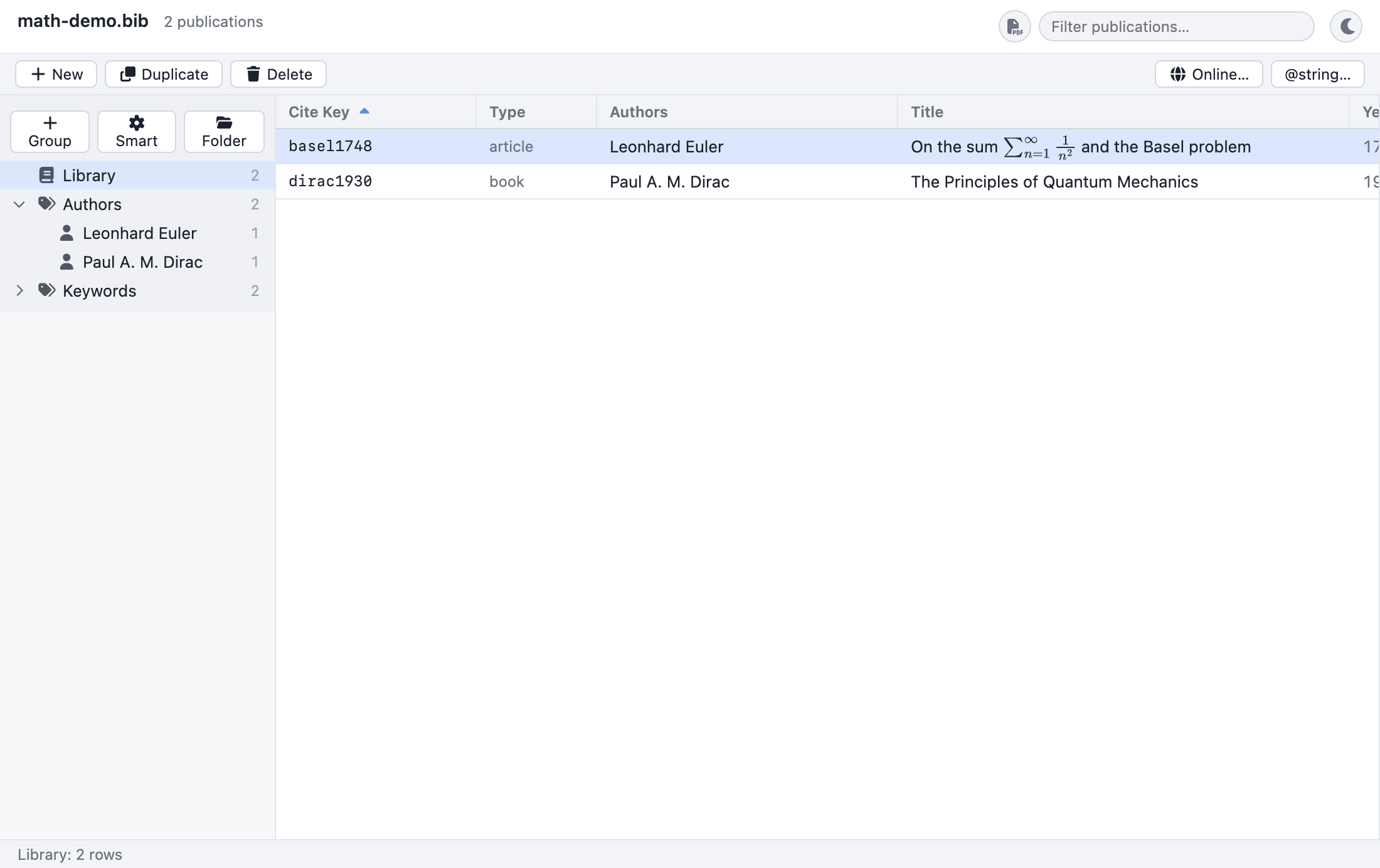
Creating & Organising Groups
The three buttons at the top of the sidebar create a static group, a smart group (opening the condition editor) and a folder. Double-click a group to rename it, or right-click for Rename and Delete; a smart group's pencil reopens its conditions. Drag a group or folder onto a folder to file it there, or onto Library to move it back to the top level.
Author & Keyword Categories
The Authors and Keywords sections mirror BibDesk's category groups. They are recomputed from the live library, so there is nothing to maintain: add a keyword to an entry and its category appears. Both start collapsed, because a library with thousands of authors would otherwise bury everything else, and children are sorted alphabetically.
Double-click an author to rename them everywhere. The new name replaces that author in every entry's Author and Editor field in a single undoable step. This is also how you merge two spellings of the same person: rename Smith, J. to Smith, John and the two categories collapse into one. Matching uses BibTeX's canonical Last, First form, so two different people who merely share a surname are never fused.
Combining Groups & Search
The group and the search box compose. Select the Einstein author category, type 1905, and the footer reads something like Einstein: 3 of 24 rows: the group, the matches and the group total, all at once. Clear the search to keep the group, or click Library to keep the search.
@comment blocks, and smart-group conditions are evaluated by the predicate engine in core/groups. The folder tree is a separate, namespaced @comment{BibDesk-Electron Folders{…}} block holding base64-encoded JSON, which BibDesk treats as an ordinary comment and ignores.Editing Entries
The pane on the right of the main window is a read-only view of the selected publication, so you can browse without any risk of changing something by accident. Editing happens in a separate editor window: click Edit… at the top of the view pane, double-click a row, press Enter with the table focused, or choose Publication → Edit Publication… (⌘E). Open as many as you like — one per entry — and asking for one that is already open simply brings it to the front.
Changes made in an editor window update the main window live, and ⌘S works from the editor window too: it hands the save to its library.
The Editor Window
The editor is laid out in two columns. On the left sits a read-only preview — the journal cover, the typeset preview card and the formatted citation — which re-renders every time you commit a change. On the right is the form itself:
Identity
The cite key, with a Generate button, and the entry's BibTeX Type.
Fields
Every stored field as an editable row, the fields the entry's type expects but doesn't have yet, and a green + for adding new ones.
Annotation
The entry's Markdown notes, with an Edit / Done toggle.
Attachments
The files attached to the entry, with controls to add and remove them.
Because the preview lives in its own column, it can grow and shrink as a title wraps or an abstract lengthens without ever moving the field you are typing in. Each column scrolls independently; drag the window narrower than about 560px and it folds back into a single stacked column.
Fields & Autocomplete
The single most important thing to know: you edit the raw BibTeX, not the pretty display. The table and preview show a cleaned-up rendering, with protective braces stripped and TeX accents turned into Unicode. The editor gives you the text that will actually be written to your file — so a title stored as The {C}alabi-{Y}au Manifold appears with its braces. Brace a word yourself to protect its capitalisation, and type accents either as Unicode (Erdős) or as TeX (Erd\H{o}s); both round-trip.
Short fields commit when you press Enter or click away. Long values — anything over 60 characters, and always the Abstract — open as a multi-line box where Enter starts a new line and clicking away commits. A few fields get purpose-built controls: Read is a checkbox, Rating is a row of five stars, and Keywords is a chip editor.
Shared-vocabulary fields such as Journal, Publisher, Series, Editor and Author offer autocomplete from the values already used in that field elsewhere in your library, so a journal name is spelled the same way every time. Add a field with the green + below the list; remove one with its red −, or by clearing its value — an empty field is deleted rather than stored as {}. Fields the entry's type requires carry a req marker instead of a −.
Cite Keys & Types
Type a cite key by hand, or click Generate (or choose Publication → Generate Cite Key, ⌘K) to derive one from the entry's own fields. Characters BibTeX cannot hold in a key are filtered out as you type, and a warning triangle appears beside the box when the key is empty, duplicates another entry's, or contains characters TeX finds fragile.
Keys come from a configurable format language, set in Preferences → Cite keys → Format. The default, %p[/][/etal1]2:%Y%u0, gives Smith:2020 for one author, Smith/Doe:2020 for two and Smith/etal:2020 for three or more, appending a, b, … only when the key is already taken. Generate acts on the whole selection: select a hundred entries and press ⌘K to rekey them all in a single undo step, unique across the batch, with any Crossref pointing at a renamed entry updated so nothing dangles.
The Type dropdown offers every type BibDesk knows — article, book, incollection, inproceedings, phdthesis and the rest — plus any custom types you define in Preferences → Fields → Entry types. Changing the type relabels the entry; it never adds or removes your stored fields.
The format language lives in the platform-agnostic core/formats package and is shared with AutoFile's file-name format. Cite-key comparison is case-insensitive throughout, matching BibDesk's itemForCiteKey:; when the app must invent a key itself, for a new or duplicated entry, it appends -1, -2, … until the key is unique.
New, Duplicate & Delete
| Command | What it does |
|---|---|
| New Publication ⌘ N | Creates an empty entry of your default type (set in Preferences → Fields), selects it, and opens its editor window straight away. |
| Duplicate ⇧ ⌘ D | Copies the selected entry, every field included, under a new -copy cite key — the quickest way to enter a run of similar papers. |
| Delete / ⌫ | Removes the whole selection in one undo step. The toolbar's Delete button removes the focused row only. |
| New Publications from Clipboard ⌥ ⌘ L | Adds the BibTeX entries on the clipboard to your library. |
Crossref, Macros, Find & Replace
Crossref inheritance. Set a child entry's Crossref field to the cite key of its parent — a chapter pointing at its edited book, say — and the parent's fields the child lacks appear in the child's list, muted and marked (inherited). Editing an inherited row writes a local override onto the child alone; the parent and its other children are untouched. As in BibTeX itself, inheritance is exactly one level deep.
@string macros. The @string… toolbar button (or Publication → Macros (@string)…) opens the macro editor, where you define abbreviations such as prl for “Physical Review Letters”. Macros are written to the file in dependency order, so the result is valid BibTeX however you defined them.
Find & Replace. Edit → Find & Replace… (⌥⌘F) fixes a misspelled journal or swaps one keyword for another across many entries. Scope it to one field or all of them, tick Regular expression to use capture groups like $1, and press Find first: it lists every match as before → after without changing anything. Only then does Replace All apply the lot. The operation is scoped to the selected group and, if the search box has text in it, to the rows you can see.
Find & Replace always skips the managed Bdsk-File-N attachment blobs, so a careless “All fields” regex can never corrupt an attachment. For the four types inbook, incollection, inproceedings and conference, the app also reproduces BibDesk's booktitle workaround, copying an entry's own Title into an empty Booktitle.
Copying & Dragging Citations
The Edit menu bridges your library and the document you are writing:
| Command | Copies |
|---|---|
| ⌥ ⌘ K | Copy Cite Key — the bare key, e.g. einstein1905 |
| ⌥ ⌘ C | Copy \cite{…} — a LaTeX citation command |
| — | Copy Citation — the formatted citation, as plain text |
| ⌥ ⌘ R | Copy Citation as RTF — the same citation as rich text, italics intact |
| ⌥ ⌘ B | Copy as BibTeX — the entry's complete BibTeX source |
| — | Copy As ▸ RIS, Minimal BibTeX, or LaTeX \bibitem — for the whole selection |
You can also drag rows straight out of the table into a TeX editor to drop in \cite{einstein1905,bohr1913}. Both the drag and Copy \cite{…} use the template in Preferences → Citations → Cite command (TeX) — change the default \cite{%K} to \citep{%K} or \autocite{%K} to suit natbib or biblatex.
Editing Many Entries at Once
Select two or more rows and a floating batch-edit bar appears near the bottom of the window. Type a field name and a value and click Set to write that field on every selected entry (leave the value empty to remove it), or type a keyword and use the + and − Keyword buttons to add it to, or strip it from, the whole selection. Colour labels are set from the row's right-click menu or Publication → Color Label ▸, which also act on everything selected.
Undo & Redo
Every edit in this section is undoable with ⌘Z and redoable with ⇧⌘Z, and the menu names what it is about to undo — Undo Set Field, Undo Generate Cite Key. Each library keeps its own history, and a batch operation — twelve deletions, a Replace All, a script run — comes back in a single step. Edits stay in memory until you save with ⌘S.
An undo step is a whole-library snapshot rather than a keystroke, kept to 100 steps per document. Each step also records the entries' internal ids, which the rebuild reassigns whenever the entry count matches, so an editor window left open on an entry stays attached to it across an undo and managed attachments still resolve.
Read more: Editing EntriesAttachments
A reference is rarely just metadata — the paper itself usually lives somewhere on your disk. Each entry can carry any number of attachments: the PDF of the article, supplementary data, slides, a scanned figure. They are stored inside your .bib in exactly the format macOS BibDesk uses, so a library moves freely between the two.
Files and Links
An entry shows two kinds of resource in two separate lists. Attachments are local files that the app manages, each stored as a numbered Bdsk-File-N field. Links are synthesised from the entry's ordinary Url and Doi fields; to change one, edit the field. Links are not files, so they never count towards the entry's attachment total.
Adding, Opening & Removing
In the editor window's Attachments section, click + Add — or choose Publication → Add File Attachment… — and pick one or more files. Quicker still, drag a file onto the detail pane on the right to attach it to the entry shown there. Adding records a link to the file where it sits; nothing is copied or moved.
Click an attachment to open it in your operating system's default application, exactly as if you had double-clicked it in Finder. The 📎 N files chip on the preview card opens a single attachment directly, or drops down a menu when there are several. Removing an attachment deletes only the link; the file stays on disk, and the removal is undoable.
Finding Open-Access PDFs
Rather than tracking a paper down yourself, select some entries and choose Publication → Find Open-Access PDFs…. For each one the app asks Unpaywall for a legal, open-access copy — using Crossref to find a DOI first when an entry lacks one — and downloads and attaches whatever it finds. A small progress panel fills in the results as it goes without blocking the app, and entries that already have a file are skipped.
With a DOI the lookup is exact. Without one, the app searches by title, author and year: a confident match is attached automatically, but a merely possible match is never attached on a guess — click Review… to open it in the app, then Attach or Discard it yourself.
Drop a PDF, Get an Entry
Drop PDFs onto the publications table and each one is searched for a DOI, then an arXiv id, and looked up online to create a fully populated entry with the file already attached. If you already have that paper, the PDF is attached to the existing entry instead. PDFs with no identifier open a review dialog, and nothing is added to your library until you click Accept.
AutoFile
AutoFile keeps your papers tidy for you. Choose a Papers folder and a file-name format in Preferences → Files → AutoFile, then run Publication → AutoFile Linked Files on a selection, or Publication → Consolidate Linked Files… on the whole library. Each attached file is moved into the Papers folder, renamed, and re-linked. The default format, %p1/%T5, files every paper in a subfolder named after its first author and names it by the first significant words of its title. Extensions and collision suffixes are added for you, and LaTeX markup is stripped from the name.
Tick AutoFile attachments when added and new attachments are filed the moment they arrive, whether by drag and drop, the file picker or a PDF import.
OCR for Scanned PDFs
A scanned book chapter or an old photocopy has no text in it at all, so you can't select a word and search can't read it. Publication → OCR Scanned PDFs… checks each attached PDF for a text layer and, where there isn't one, reads the pages and writes the PDF back with an invisible, selectable text layer over the original scan. It runs entirely offline, with the recogniser bundled in the app, and once a PDF gains its text layer, full-text search picks it up by itself (provided full-text search is switched on).
The OCR stack is fully bundled and permissively licensed: pdf.js rasterises each page at 200 DPI through @napi-rs/canvas, tesseract.js and its WebAssembly core recognise it in a worker thread, and pdf-lib stitches the per-page searchable PDFs back into one document. No Python, no system install.
Broken Links
When files move or a library arrives from another machine, Publication → Find Broken Links… scans every entry and lists each attachment whose file is missing, with the path it expected. Locate… points the link at the file's new home; Remove drops the dangling link.
Working Alongside macOS BibDesk
Each Bdsk-File-N value is a base64-encoded binary property list, the same container BibDesk writes, and inside it the file's path is recorded relative to your .bib. That is what makes a library portable: keep the .bib and its papers together and every link resolves on any machine.
MyLibrary/
├── library.bib
└── pdfs/
    ├── einstein1905.pdf
    └── ng2024types.pdf
On macOS, Bibliofile also writes the Apple file bookmark BibDesk uses to follow a renamed or moved file — when you add an attachment, when AutoFile moves one, when you Locate… a broken link, and when a cloned library is repointed at its copies. Bookmarks already in the file are preserved byte for byte, and Consolidate Linked Files… tops up an older library's attachments with bookmarks without moving anything.
Bookmarks come from a small Node-API Foundation addon that makes exactly BibDesk's call, bookmarkDataWithOptions:0 includingResourceValuesForKeys:nil relativeToURL:nil. Node-API is ABI-stable across Node and Electron, so one binary serves both. Where the app copies an attachment, as Clone Bibliography… does, it uses copyfile(3) with COPYFILE_ALL | COPYFILE_EXCL, so Finder tags, comments and ACLs survive the copy and an existing file is never overwritten.
Notes & Abstracts
Every reference can carry two kinds of prose, an Abstract and your own Notes, and both are written in Markdown with typeset mathematics. The formatting is applied only when the app displays a value, so no HTML is ever written into your .bib.
Abstract
The summary of the work itself, stored in the standard Abstract field. It is rendered on the preview card and handed to citation styles that ask for an abstract. Edit it like any other field in the editor window.
Notes
Your commentary — what you thought, how it connects, where the key result lives. Shown in the Annotation section, and able to hold cross-references, formatted citations and embeds as well.
Writing Notes
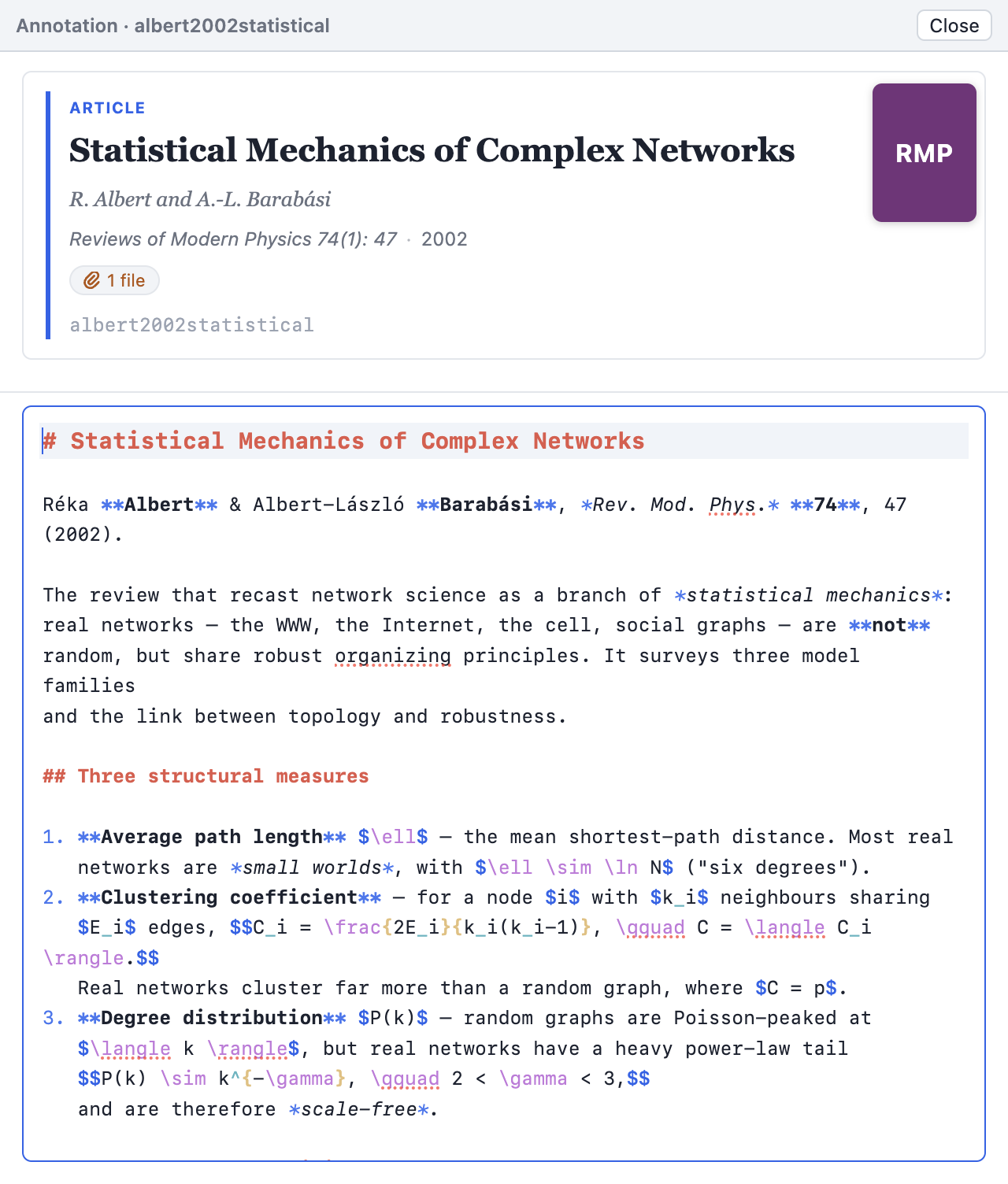
Open the entry's editor window (⌘E), scroll to Annotation and click Edit. The section becomes a Markdown editor with syntax highlighting for headings, emphasis and maths; click Done to see the rendered result. Headings, emphasis, lists, links, code blocks and blockquotes all work. Links open in your external browser rather than inside the app.
Euler's famous sum, as told in \citet{dunham1999}:
$$\sum_{n=1}^{\infty} \frac{1}{n^2} = \frac{\pi^2}{6}$$
The original paper is [[basel1748]]; its trick is the
product formula for $\sin x / x$.
## References
@references
Rendered, that note shows a typeset equation, a clickable link to the basel1748 entry, a citation reading “Dunham (1999)” in your chosen style, and a formatted reference list of every work the note cites.
Mathematics
Write inline maths with $…$ or \(…\) and display maths with $$…$$ or \[…\], in both abstracts and notes. MathJax ships with the app and runs fully offline. Maths is protected before the Markdown is parsed, so $x_1$ gives a subscript rather than italics, and braces inside $\frac{a}{b}$ survive intact. Write \$ for a literal dollar sign.
Cross-References & Citations
Notes can link to other entries in the same library with a wiki-style [[citeKey]]. Click one and the table jumps to that entry, switching to the whole Library if it isn't in the current group. A key that matches nothing is drawn in a warning style, which turns your notes into a lightweight to-import list: jot [[chen2024]] while reading, and the link lights up the moment you add the paper.
For prose that reads like a paper, use the familiar LaTeX commands. They render a properly formatted citation in your inline citation style, and each one is clickable:
| You write | It renders as |
|---|---|
\citet{einstein1905} or \cite{…} | Einstein (1905) |
\citep{einstein1905} | (Einstein, 1905) |
\citep[see][p. 5]{einstein1905} | (see Einstein, 1905, p. 5) |
\citeauthor{einstein1905} | Einstein |
\fullcite{einstein1905} | The full reference, inline |
\nocite{einstein1905} | Nothing — but the work joins the reference list |
@references on its own line | A formatted bibliography of everything the note cites |
Several keys can share one command — \citep{a, b} — and an unknown key shows a muted ?key marker so typos stand out. Cross-references, citations and @references are interpreted in Notes only.
Inline Embeds
Notes may also contain an <iframe>, so a conference talk, slide deck or interactive demo can sit right inside your commentary. Paste the provider's embed markup into the note. Only http and https sources are accepted, and only a fixed set of presentation attributes survives.
<iframe> in a colleague's .bib contacts their chosen host as soon as you view that note.The Annotation Editor
For a longer stretch of writing, right-click an entry and choose Edit Annotation…. A separate, non-blocking window opens, with the entry's preview card — journal cover and all — at the top and a full-height Markdown editor below. Its title bar reads Annotation · cite key, so several can be open at once. There is no Save button: your text is auto-saved to the entry about a second after you stop typing, and again when the editor loses focus or the window closes. A Saving… / Saved indicator confirms it.
Brace-Safe Storage
Markdown routinely contains an unbalanced }, and a single one would terminate a BibTeX field early and corrupt your .bib. So notes are encoded by default, and you choose how in Preferences → Files → Annotation storage:
- Compressed (the default) — compressed onto a single line in a private
Bdsk-Annotationfield. Brace-safe by construction and compact, but opaque to other tools. - Readable — kept in the standard
Annotefield, with only%,{and}percent-escaped. Legible anywhere, at the cost of a little%7Bnoise.
Abstracts are stored as plain text by default, so they stay portable and readable by BibTeX and BibDesk. If you need the same protection, Preferences → Files → Abstract storage offers the same two encodings. Reading never depends on the setting: compressed, readable and plain BibDesk-written notes all decode, so switching modes or opening someone else's file never loses a word.
The compressed form is lz-string's compressToBase64, whose alphabet A–Za-z0-9+/= contains no braces at all; Markdown compresses well enough that the blob is often smaller than the raw text. Rendering happens in the main process: maths spans are swapped for placeholders, the text goes through marked and then sanitize-html, and the maths is restored HTML-escaped. There are two allow-lists, a strict one for abstracts and one for notes that adds iframe. Links become inert spans that the app opens externally. Tables and images are not on either allow-list, so Markdown tables and images are stripped — use a list or a code block instead.
Preview & Citations
Bibliofile treats browsing your library as something to enjoy. Select an entry and the view pane shows two reading views above its fields: a typeset preview card, and the entry rendered as a finished citation in a real citation style. Both adapt to the light or dark theme, both typeset maths, and both appear again in the editor window's left column, updating live as you edit.
The Preview Card
The card is a magazine-style summary set in a serif face, so it reads like a printed reference rather than a form. Top to bottom, it shows whatever the entry has:
- The entry type as a small uppercase label, with a coloured left border keyed to the type.
- The title, de-TeXified and with protective braces removed, but with any
$…$maths typeset — so On $SU(2)$ gauge fields renders properly. - The authors in italics, falling back to the editors, with “et al.” when the field ends in
and others. - A dot-separated venue line: journal or book title, volume, pages and year.
- Clickable chips for the DOI, the URL and the attached files.
- Keyword tags, one pill per keyword.
- The abstract, rendered from Markdown, and finally the cite key in a muted monospace.
Beside the card sits the journal cover: a real thumbnail when the app recognises the journal, or a generated stand-in otherwise. Tools → Download Missing Journal Covers… looks up the missing ones online, and you can drop any image onto the cover to set it yourself.
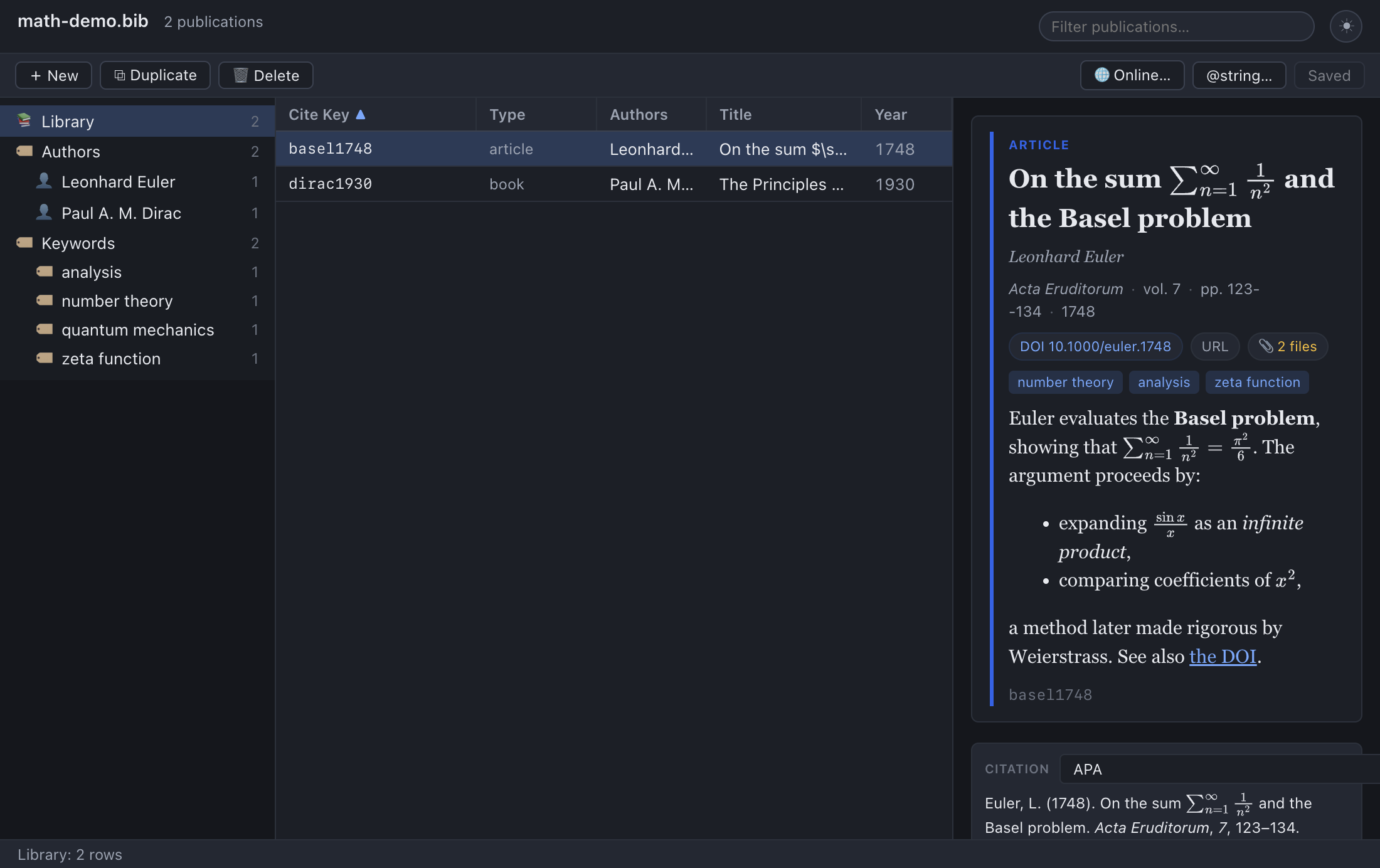
The card's HTML is composed in the main process, not the browser. Field text is HTML-escaped and run through the display transform, which is maths-aware so $…$ spans pass through untouched. The markup uses semantic classes (bd-card__title, bd-chip, bd-tag) and CSS variables rather than inline colours, which is why a theme switch is instant. MathJax runs over the card only when it actually contains a maths delimiter.
Formatted Citations
Below the card, the Citation block renders the entry through a genuine CSL (Citation Style Language) processor — author ordering, italics, punctuation, page conventions and all — ready to paste into an email or a reading list. Three styles are bundled: APA, Vancouver and Harvard. Everything is set in Preferences → Citations:
Default style
The style for every citation block, and for Print…, Copy Citation, Copy Citation as RTF, Copy As → LaTeX \bibitem and the RTF bibliography export.
Inline citation style
A separate style for the \cite{…} commands and @references lists in your notes. Keep the detail pane in APA while your notes read in a numbered style, or leave it on Same as default style.
Citation styles
Install CSL file… adds any style — from the Zotero repository, say — once it has passed a trial format. Installed styles appear in both menus marked with a ★, and a × removes one you no longer need.
Link URLs & DOIs
On by default: URLs and https://doi.org/… DOIs in citations become clickable links that open in your browser, in the detail pane and in notes alike.
Installing a style never switches to it; choose it from a menu afterwards. To copy an entry elsewhere, use Edit → Copy Citation (plain text), Copy Citation as RTF (⌥⌘R, italics intact) or Copy as BibTeX (⌥⌘B). The full set of copy commands is listed under Editing Entries.
Formatting is two steps. The entry is first mapped to CSL-JSON: article becomes article-journal, inproceedings becomes paper-conference, -- in pages becomes an en dash, and names are parsed into family, given, particle and suffix. The item is then handed to citeproc-js, via citation-js, with the en-US locale. It runs fully offline, and it is the app's one deliberately accepted non-permissive dependency (AGPL/CPAL).
Light & Dark
The ☾ / ☀ toggle in the window header, or View → Toggle Light / Dark Theme (⇧⌘L), switches the whole preview at once: the card, its accent, the chips and tags, the abstract and the citation. Typeset maths takes the current text colour, so equations stay legible in either theme. Preferences → General → Appearance → Theme also offers System, which follows your operating system.
Honest Limitations
- CSL is not
.bst. A CSL style of the “same name” can differ in small ways from the BibTeX style you typeset with. For exactly whatbibtexwill produce, use the LaTeX Preview in the bottom panel, which runs your local TeX with your chosen.bst. - Styles are added by file, not browsed. There is no in-app browser of the CSL repository; you supply the
.cslyourself. - English locale. Citations are formatted in
en-USwhatever the interface language, so a style's “and” and “eds.” stay English. - One entry at a time. With several rows selected, the pane shows a list of preview cards rather than citations. For many at once, use Copy As → LaTeX
\bibitem, File → Print… or the RTF export.
Import & Export
Every import adds entries to the library you have open — nothing is replaced, merged over, or deleted — and, like every other edit, nothing reaches your .bib until you save. Missing cite keys are generated from your cite-key format, clashing keys get a -1, -2, … suffix, and when the import finishes the sidebar returns to the whole Library with the first new entry selected, so you can see what arrived.
Four Ways In
Paste BibTeX
Edit → Paste Publication (⇧⌘V), also in the Publication menu as New Publications from Clipboard (⌥⌘L). Or just press ⌘V while the table has focus. One entry or a whole block — straight from Google Scholar or a publisher's page.
Drag and drop
Drop files on the publications table: .bib, .ris, EndNote .enw/.enl/.xml, PDFs, or anything else. Watch for the "Drop .bib or files to import" overlay.
Import from a file
File → Import → From File (BibTeX / RIS / EndNote)… (⇧⌘I) — a dialog-driven import of one or several files at once.
Online search
Query CrossRef, OpenAlex, PubMed, arXiv, or a DOI or ISBN, and import the results — see Online Search.
Drop a PDF, Get an Entry
Drop a pile of PDFs on the table and each one is read for a DOI, then an arXiv id, in its first pages. When one turns up, the reference is looked up online (CrossRef or arXiv) and a fully populated entry is created with the PDF attached. If that paper is already in your library, the PDF is attached to the existing entry instead of creating a duplicate. The status bar sums it up: "Imported: 3 from identifier, 1 linked to existing, 2 to review."
PDFs with no identifier — an older scan, a working paper — aren't auto-added. They open a review dialog: the PDFs listed on the left, the normal entry editor on the right. Fill one in and Accept to create the entry and attach the file, or Discard it. Nothing is added to your library until you Accept, so a big library never fills up with empty placeholders.
.bib, or let AutoFile move it into your Papers folder (immediately, if AutoFile attachments when added is switched on).Ways Out
File → Export writes the library in any of these formats:
BibTeX
A standard .bib in BibDesk's canonical format — the same serialisation a Save produces.
RIS
One record per entry, types and fields mapped to RIS tags, values converted to plain Unicode.
CSV
A spreadsheet with fixed columns, from cite key and authors to journal, pages, and DOI.
HTML
A self-contained, styled bibliography page with clickable DOIs, ready to email or publish.
RTF
One CSL-formatted reference per paragraph in your default citation style, italics included.
Your Templates
Any export template you define, for the whole library, the shown entries, or the selection.
The five built-in formats always write the entire library. For just the highlighted rows, use File → Export → Selected Entries (BibTeX)…; for a single entry, Edit → Copy as BibTeX. File → Print… (⌘P) follows what you're looking at instead — the selection, or everything the table is showing — as a CSL-formatted bibliography, and on macOS the print dialog's Save as PDF turns that into a reading list in seconds.
Clone Bibliography
File → Clone Bibliography… makes a complete, self-contained copy of the open library — including its attached files — and opens it in a new window. It's for the moment you want to try something drastic, like a big Find & Replace or an OCR run over a pile of scans, without risking the library you depend on. Every linked file is copied into your Papers folder, named by your AutoFile format (or into a «clone name» Papers folder beside the clone), and the clone's links point at the copies.
The original is left exactly as it was: its file, its unsaved changes, its undo history, and every file it links. Unsaved edits come along into the clone, no existing file is ever overwritten by a copy, and cloning onto a .bib that is currently open is refused.
Round-Trip Robustness
A merged .bib is re-serialised on the next save, so the parser is careful where careless ones aren't. A % comment line inside an entry can't knock the field splitting out of step, while @comment{…} and @preamble{…} bodies are left untouched. A missing } damages only its own entry — the parser resynchronises at the next @type{ that starts a line. A value with an unmatched brace is written out with the balanced control words {\textbraceleft} and {\textbraceright}, which read back as the same characters.
RIS and EndNote records are mapped deterministically: RIS JOUR becomes article, CHAP becomes incollection, CPAPER/CONF become inproceedings, and unknown types fall back to misc. Tags the importer doesn't recognise are ignored rather than guessed at.
Online Search
Need a reference you don't have yet? Query the big bibliographic databases from inside Bibliofile and pull results straight into your library as new entries — no browser, no copy-and-paste, no hand-typed author lists. Click the 🌐 Online… button in the toolbar, or choose File → Import → Search Online (CrossRef / arXiv)… (⇧⌘O). The menu item still names only two sources; the window itself offers six.
Six Sources
Four are searches — type words and get a ranked list of up to 20 results. Two are lookups — type one identifier and get the single work it names.
CrossRef
The default source. Formally published works with a DOI: articles, conference papers, chapters, books, reports, dissertations, and datasets. Mix title words and author surnames freely.
OpenAlex
An open catalogue of scholarly works — the published literature plus preprints, with volume, issue, and pages when it has them.
PubMed
Biomedical and life-sciences literature. Entries carry the journal details, the Pmid, and the abstract.
arXiv
Preprints in physics, mathematics, computer science, statistics, economics, and more. Entries carry the abstract, the Eprint id, and Archiveprefix = arXiv — exactly what biblatex expects.
DOI lookup
One exact work, fetched from CrossRef. Paste the DOI in any form — a leading https://doi.org/ or doi: is stripped for you.
ISBN (book)
One exact book, fetched from Open Library. Hyphens and spaces are ignored; if an edition isn't catalogued, try its other ISBN.
Abstract with them; the app writes only what a source actually returns.Search, Then Import
Pick a source, type into the Search title, author, DOI… box, and press Enter. Each result shows its title, then a citation line of authors, year, venue, and DOI. Click Import and the result becomes a new entry of the right type, with a cite key generated from your format and guaranteed unique. It is selected at once, so the detail pane is right there for tidying an ALL-CAPS title or an abbreviated venue. The button changes to Imported, and you can import as many results from one search as you like.
As with every other edit, imports live in memory until you save — the • beside the library's name in the header tells you there are unsaved changes.
Duplicate Awareness
Online search doesn't check your library before importing, and the Imported flag only lasts for the current set of results. Before you import, a quick look in the main search box for a title word or the DOI tells you whether you already have the paper. If duplicates do slip in, Publication → Find Duplicates… catches them in bulk.
Searches run in the Electron main process, not in the page, which sidesteps the browser's CORS restrictions on these services. CrossRef, OpenAlex, and Open Library answer in JSON, arXiv in an Atom XML feed, and PubMed in its own XML; each is parsed into the same normalised result shape before it reaches the window, which is why every source presents and imports identically. PubMed costs two requests — one for the ids of up to twenty matches, then one for the records themselves. Requests carry a descriptive User-Agent; the Contact email preference is not sent here (only Find Open-Access PDFs uses it). There is no offline cache, so a search needs a connection.
Configurable Panels
Bibliofile's window is built from panels you can resize, hide, and switch. Drag any divider to resize — the groups sidebar, the detail pane on the right, and the bottom panel all remember their sizes between launches. What each pane shows is up to you too, from a dropdown in its header, the View menu, or a keyboard shortcut.
The Side Pane
The detail pane on the right follows the selected entry. Hide or show it with View → Toggle Side Panel (⌥⌘S) or the × in its header. The header also carries a content dropdown (Details) and a separate 🤖 Claude button that swaps the pane for the Claude assistant. Click the button again — or the × in the assistant's own title bar — to return to Details.
The Bottom Panel
View → Toggle Bottom Panel (⇧⌘B) opens a wide, selection-driven reader beneath the publications table. Its dropdown chooses one of three views:
Annotation
The default. The selected entry's annotation in a wide, comfortable format — ideal for long notes that feel cramped in the side pane.
Tabbed
A three-tab reader: Annotation and Abstract, both rendered from Markdown, and Attachments — a grid of large thumbnails.
LaTeX Preview
The selected entries' bibliography, typeset by your own TeX installation with a real BibTeX .bst style.
The Attachments tab shows the first page of each PDF and the picture itself for images (PNG, JPG, GIF, WebP, BMP, SVG, AVIF); anything else gets a generic file icon. Double-click a thumbnail to open the file in its native application, or click the small × in its corner to remove that attachment from the entry — the file itself stays on disk.
Switching from the Keyboard
Every pane switch has a shortcut in the View menu. Choosing one also reveals the panel if it was hidden, so a single keystroke both shows the panel and picks its content.
| Shortcut | Shows |
|---|---|
| ⌥ ⌘ 1 | Side pane → Details |
| ⌥ ⌘ 2 | Side pane → Claude |
| ⌥ ⌘ 3 | Bottom panel → Annotation |
| ⌥ ⌘ 4 | Bottom panel → Tabbed |
| ⌥ ⌘ 5 | Bottom panel → LaTeX Preview |
| ⌥ ⌘ S | Toggle the side panel |
| ⇧ ⌘ B | Toggle the bottom panel |
LaTeX Preview
Where the detail pane's citation block is a copy-ready CSL rendering, the LaTeX preview shows exactly what bibtex will make of your entries in a paper. It runs your local TeX installation — MacTeX, TeX Live, or MiKTeX — over the current selection. Open it from the bottom panel's dropdown, with ⌥⌘5, or from Tools → LaTeX Preview.
- Small selections render as SVG. Twenty entries or fewer (with
dvisvgmin your TeX install) are traced to crisp vector SVG that takes on the pane's text colour, so it stays sharp at any zoom and recolours with light and dark mode. - Larger selections render as PDF. More than twenty entries — or a TeX install without
dvisvgm— compile to a PDF, shown page by page. - It follows the selection. The preview re-renders by itself whenever the selection changes, so there is no refresh button. With nothing selected it shows a hint and runs nothing.
Choose the style under Preferences → Citations → BibTeX style (.bst) — plain, abbrv, ieeetr, or any other you have installed. If your TeX binaries aren't on the PATH, set the TeX bin directory there too (for example /Library/TeX/texbin). When no TeX is found, or a compile fails, the pane says so and shows the first few LaTeX error lines.
The re-render is debounced, so arrow-keying through rows doesn't spawn one TeX run per row. The PDF path is rendered with PDF.js; past twenty entries, one rasterised page scales better than dozens of inline SVGs.
Working with a Selection
Select two or more rows (⌘+Click, ⇧+Click, or ⌘A) and both panes switch to a multi-select view: a sticky "Multiple entries selected" header with a count, above a scrollable list — each entry's preview in the side pane, each entry's annotation in the bottom panel. Up to 50 entries are drawn; a final "+N more not shown" line counts the rest. (A side pane showing Claude stays on Claude, and the LaTeX preview simply typesets the whole selection.)
A floating batch-edit bar appears at the same time. Set writes one field on every selected entry (leave the value empty to remove the field), and the two Keyword buttons, marked + and −, add a keyword to or strip it from every entry's Keywords. Each tool acts on the whole selection — not just the 50 drawn — in a single undo step.
The Row Context Menu
Right-click a row for a compact menu: Edit Annotation… opens the standalone annotation editor, Find Open-Access PDF… looks for a freely available copy to attach, a row of colour-label dots (with a ✕ to clear) labels the selection, and Delete entry — or Delete N entries — removes it in one undoable step. A right-click on a row outside the current selection first selects just that row, so you can label or delete one entry without disturbing a multi-selection elsewhere.
Panel sizes are clamped and persisted: the groups sidebar to 150–500 px, the detail pane to 240–800 px, and the bottom panel to 80–600 px tall.
Read more: Configurable PanelsTemplates
Don't like how the detail pane is laid out? Redesign it. Both the detail pane and the bottom panel are drawn from Handlebars templates — ordinary HTML sprinkled with {{…}} placeholders — and you can replace either with one of your own. The same engine powers your own export formats under File → Export.
All of this is optional. Out of the box the panes use built-in layouts, and you never have to touch a template.
Forks and Presets
Open Preferences → Panels. There is one manager for the Detail pane and one for the Bottom panel, and they work identically. Fork default makes an editable copy of the built-in layout; New from preset… starts instead from one of three ready-made designs — Horizontal card (wide), Compact summary, or Reading view. The Active dropdown picks which template the pane uses, and switching it changes the live pane immediately.
Edits save when the editor loses focus. Preview renders your template against the first entry in the open library, with a Text / HTML toggle for checking the raw markup. To go back to the original look, set Active to Built-in default — your forks are kept.
Writing a Template
A panel template is rendered against the selected entry. The everyday values — title, authors, year, venue, doi — are one placeholder away. fields loops over every field row, attachments and links list the entry's files and URLs, and previewHtml, notesHtml and abstractHtml carry ready-rendered HTML.
{{#if title}}
  <h2>{{title}}</h2>
{{/if}}
<p><em>{{authors}}</em> · {{year}}</p>

<bd-citation doc-id="{{documentId}}"
  item-id="{{id}}"
  cite-style="{{citeStyle}}"></bd-citation>

{{#each attachments}}
  <button type="button"
          data-open-file="{{url}}">
    {{icon "file"}} {{displayName}}
  </button>
{{/each}}
- The title as a heading — only when the entry has one.
- Authors and year, safely HTML-escaped by the double-stache.
- A live, formatted citation in your default CSL style.
- One button per attached file. Clicking opens it in its own application — no JavaScript required.
Two live widgets fetch their own content: <bd-journal-cover> draws the journal's cover, or a generated initials-and-colour fallback, and <bd-citation> draws the formatted citation. data-* hooks make any element interactive with no code at all: data-open-url, data-open-file, data-open-files, data-cite to jump to another entry, and data-action="edit" to open the editor window. Two more conventions, bd-tabs and data-thumb, give you tabbed views and live attachment thumbnails — the built-in Tabbed bottom panel is made of exactly these.
{{value}} for every plain string — it is HTML-escaped, so a stray < in a title can never inject markup. Reserve the triple-stache {{{…}}} for the fields that are already rendered HTML, such as previewHtml and notesHtml.Export Templates
Under Preferences → Templates, each export template is a named Handlebars body plus a file extension. Every one you define appears in the File → Export submenu with three scopes: Whole Library…, Shown Entries… (the current group as filtered by the search box), and Selected Entries…. An export template renders against { title, count, entries }, and adds two helpers: {{field "journal"}} for a case-insensitive field lookup, and {{join authors "; "}}. A new template starts from this:
{{#each entries}}
{{authorsText}} ({{year}}). {{title}}. {{venue}}. [{{citeKey}}]
{{/each}}
The formatted citation, Copy Citation, and printing are a different matter: they come from the CSL engine, so you choose a citation style rather than author a layout.
How Rendering Works
When you select an entry, the main process builds the template context, compiles your Handlebars body (or the built-in default), and renders it to an HTML string. The renderer drops that string into the pane and hydrates it: one delegated click handler serves every data-* action, the <bd-*> widgets are upgraded and fetch their own content, and a MathJax pass typesets any $…$ math. That is why the two live widgets don't appear in the Preferences preview — it runs in a sandboxed <iframe> with no IPC.
A broken template can't lock you out. If the active fork throws, main sends the pane no HTML at all: the detail pane falls back to drawing itself the built-in way, while the bottom panel shows nothing — a permanently empty bottom panel is the symptom of a throwing fork, not a missing annotation. A failing export template stops with "Template error: …" and writes no file. The two multi-select templates are built-in only.
Read more: Customizing Panels & Outputs Read more: Customizing outputsClaude Assistant
An optional AI assistant lives in the side pane. Ask about your library in plain English — find duplicates, tidy a field across many entries, regenerate cite keys, summarise what you have, export a subset — and it does the work through the same operations the app itself uses. It reads freely, but asks before it changes anything.
Open it with Tools → Claude Assistant… (⌘J), View → Side Panel → Claude (⌥⌘2), or the 🤖 Claude button in the side pane's header. It works on the library you have open.
Bring Your Own Key
The first time you open it, the panel asks for your Anthropic API key. The key is stored encrypted on your machine using the operating system's own encryption — never in plain text, and never in your .bib. The model is a preference, under Preferences → Claude Assistant, and New chat starts a fresh conversation.
What Claude Can Do
Read & Search
List every entry, read one entry's fields in full, or search the library.
Find Duplicates
Spot entries with identical cite keys or equivalent content.
Export
Produce BibTeX, RIS, CSV, or HTML for the whole library or a list of entries.
Edit Fields
Set or clear a field on one entry — or on many, even the whole library, in one go.
Cite Keys
Regenerate one entry's key, or a whole batch, from your cite-key format.
Add & Delete
Create a new entry from given fields, or delete one by its cite key.
.bib until you save.Example Conversation
einstein1935 and einstein1935-1 have the same title and authors, and so do turing1950 and turing1950-1. Shall I delete the second of each?
einstein1935-1 and turing1950-1. Press ⌘S when you're happy to write the change to disk.
The turn loop runs in the main process, which calls the Anthropic Messages API directly with a fixed tool catalogue — list_entries, get_entry, search, find_duplicates, export, set_field, batch_set_field, generate_cite_key, regenerate_cite_keys, add_entry, delete_entry. Read tools run at once; every mutating tool is gated on a native approval dialog, and a declined call is reported back to the model as such. A turn is capped at twelve tool rounds, and the conversation is kept per document in main. The key is encrypted with Electron's safeStorage into the app's data folder, and won't be saved at all if OS encryption is unavailable. The default model is claude-opus-4-8.
Scripting
Bibliofile can be driven by JavaScript — the cross-platform successor to AppleScript. Write a short program against the open library and run it: read and edit entries, import and export, read and write files, make web requests, and react to changes as you work.
Two Ways to Run
The Script Console — Tools → Script Console… (⌥⌘J) — is a JavaScript editor with a Run button (⌘↵) and an output pane. It's the place to experiment: type, run against the open library, see the result immediately.
Saved scripts are the .js files in your Scripts folder, and they appear under Tools → Scripts. New Script… creates a starter file and opens it in your text editor; Open Scripts Folder reveals the folder. Because a folder script may not be yours, Bibliofile asks you to confirm the first time it runs — and again after it has been edited. The Console, where you typed the code yourself, never asks.
Plain, Synchronous Code
Every call returns its value directly — no Promises, no await, no callbacks. return a value to see it in the output pane (objects are shown as JSON), or use console.log. And however many entries a run changes, one ⌘Z reverts the entire run — the Edit menu calls it Undo Run Script.
// Which entries have no file attached? (A Url link doesn't count.)
const doc = bibliofile.activeDocument;
const bare = doc.filter((e) => e.attachments().every((a) => a.kind !== 'file'));
console.log(bare.length + ' of ' + doc.count() + ' entries have no file');
return bare.map((e) => e.citeKey);
Edits are just as direct. This one-liner normalises every cite key to your configured format:
for (const e of bibliofile.activeDocument.entries()) e.generateCiteKey();The bibliofile API
Entries
entries(), get(), filter(), search(), findDuplicates(), plus groups and @string macros.
Editing
setField(), setType(), setCiteKey(), generateCiteKey(), attach(), autoFile(), delete().
Import & Export
addEntry(), import() of BibTeX text, export() to BibTeX, RIS, CSV, HTML, or RTF, and save().
Citations
entry.citation(), doc.bibliography(), and natbib-style doc.cite() in any installed CSL style.
Files & Network
bibliofile.io.readText(), writeText(), exists(), and a synchronous bibliofile.fetch().
Change Hooks
bibliofile.onChange() runs a handler after later edits — for validation or automatic tidying.
For autocomplete and inline docs in your own editor, bibliofile.d.ts describes the whole API; it isn't bundled with the app yet, so take it from the source repository. To drive Bibliofile from outside — AppleScript, a shell script, a Shortcut — use the x-bibdesk:// URL scheme described under BibDesk Compatibility.
Under the Hood
Scripts run in a node:vm context in the main process, where the document store lives — which is what makes the API synchronous. The context is scope isolation, not a security sandbox: the curated global (no require, process, fs, or timers) prevents accidents, not attacks, which is why scripts are trusted like AppleScript. Every mutation routes through the document store, so undo, full-text re-indexing, crossref handling, and the notes codecs all keep working, and a whole run is wrapped in one undo group. A run has a wall-clock limit of about ten seconds.
bibliofile.fetch() is synchronous because a worker thread makes the request while the main thread parks on Atomics.wait; the response comes back through a SharedArrayBuffer, since a parked event loop can't receive messages. Requests time out after eight seconds and are capped at about 8 MB. onChange handlers persist until the next run or until the document closes, each runs in its own undo step labelled Script hook, and — unlike a run — has no time limit, so keep them quick.
Keyboard Shortcuts
Every command lives in the menu bar, and the common ones have accelerators. Shortcuts are shown here in their macOS form; on Windows and Linux, ⌘ is Ctrl and ⌥ is Alt, so ⌥ ⌘ F becomes Alt Ctrl F. On those platforms Preferences… and Quit move to the bottom of the File menu.
Files
| Shortcut | Action |
|---|---|
| ⌘ O | Open… a .bib library (each library gets its own window) |
| ⌘ S | Save — works even while you are typing in a field, which is committed first |
| ⇧ ⌘ S | Save As… |
| ⌘ P | Print… a CSL-formatted bibliography of the selection, or of every row shown |
| ⇧ ⌘ I | Import → From File (BibTeX / RIS / EndNote)… |
| ⇧ ⌘ O | Import → Search Online… |
| ⌘ , | Preferences… |
Publications
| Shortcut | Action |
|---|---|
| ⌘ N | New Publication |
| ⌘ E | Edit Publication… in its own editor window (or double-click the row) |
| ⇧ ⌘ D | Duplicate the selected entry under a new cite key |
| ⌘ K | Generate Cite Key — for every selected entry, in one undo step |
| ⇧ ⌘ V | Paste Publication — add BibTeX from the clipboard as new entries |
| ⌥ ⌘ L | New Publications from Clipboard (the same command, under BibDesk's name) |
| Delete / Backspace | Delete the selected entries (with the table focused; undoable) |
Editing & Copying
| Shortcut | Action |
|---|---|
| ⌘ Z | Undo — the menu names the action, e.g. Undo Delete |
| ⇧ ⌘ Z | Redo |
| ⌘ F | Find — focus the search box |
| ⌥ ⌘ F | Find & Replace… across field values |
| ⌥ ⌘ K | Copy Cite Key |
| ⌥ ⌘ C | Copy \cite{…}, using your cite-command template |
| ⌥ ⌘ R | Copy Citation as RTF, so italics survive a paste into a word processor |
| ⌥ ⌘ B | Copy as BibTeX |
| Enter | Commit a single-line field, the cite key or the add-field row; run an online search or a Find preview |
View & Panels
| Shortcut | Action |
|---|---|
| ⌥ ⌘ S | Toggle Side Panel (the detail pane) |
| ⇧ ⌘ B | Toggle Bottom Panel |
| ⌥ ⌘ 1 / 2 | Side panel shows Details / Claude |
| ⌥ ⌘ 3 / 4 / 5 | Bottom panel shows Annotation / Tabbed / LaTeX Preview |
| ⇧ ⌘ L | Toggle Light / Dark Theme |
| ⌘ 0 / + / − | Actual Size / Zoom In / Zoom Out |
Tools & Help
| Shortcut | Action |
|---|---|
| ⌘ J | Claude Assistant, in the side pane |
| ⌥ ⌘ J | Script Console… for JavaScript automation |
| F1 | Bibliofile Help (Windows and Linux; on macOS use the Help menu) |
In the Publications Table
These keys act on the table itself, so click a row once to give it focus.
| Key | Action |
|---|---|
| ↑ ↓ | Move the selection one row in the current sort order |
| Page Up / Page Down | Move roughly one screenful |
| Home / End | Jump to the first / last row |
| ⇧ + any of the above | Extend the selection instead of replacing it |
| ⌘ A | Select every row currently shown |
| Enter | Open the selected entry in its editor window |
| Any letter or digit | Type-select: jump to the next row starting with what you type, matched on the sort column |
With the Mouse
| Gesture | Action |
|---|---|
| ⌘+Click / ⇧+Click | Add a row to the selection / select a range; two or more rows switch both panels to the multi-select view |
| Click a column header | Sort by it; click again to flip the direction |
| ⇧+Click a column header | Add it as a secondary sort key; again to flip it, a third time to drop it |
| Double-click a row | Open the entry's editor window |
| Right-click a row | Edit Annotation…, Find Open-Access PDF…, colour labels and Delete |
| Drag a row out | Drop a \cite{…} into a TeX editor — a multi-selection becomes \cite{key1,key2} |
| Drag files onto the table | Import .bib, .ris and PDF files |
BibDesk Compatibility
Bibliofile is built to live alongside macOS BibDesk, not to replace it. It reads and writes BibDesk's exact on-disk format, so you can edit a library in BibDesk on a Mac and in Bibliofile on another machine, cite it from LaTeX, and run it through bibtex or biber — with no conversion step in between.
What Round-Trips
BibDesk keeps a handful of extras inside the .bib itself, using BibTeX's own comment and string mechanisms. Bibliofile reads, preserves and rewrites every one of them:
@string macros and @preamble
Macro definitions are kept and editable in the @string… editor; a @preamble is preserved verbatim.
Groups
Static, Smart, URL and Script groups, stored as BibDesk's @comment blocks. Static and Smart groups work fully here; URL and Script groups are preserved but not evaluated.
Bdsk-File-N attachments
Each linked file is a base64 binary plist holding a relative path and, on macOS, an Apple bookmark. Attachments you don't touch are re-emitted byte-for-byte.
Colour labels, Read and Rating
Stored in the Bdsk-Color, Read and Rating fields, so they travel with the file.
@bibdesk_info
BibDesk's document-info block, with its window and display state, is carried through untouched.
Folders
Bibliofile's own addition: nestable containers for groups, stored in a namespaced comment that BibDesk simply ignores.
What Changes on Save
The serializer reproduces BibDesk's own formatting rules, so a saved file is tidied into BibDesk's canonical shape:
- Field names and entry types are lower-cased (
Author→author,@Article→@article). - Fields are sorted within each entry, with the
bdsk-file-Nandbdsk-url-Nfields last. - Values are wrapped in
{…}, except those built from@stringmacros or bare numbers. - Empty fields are dropped, and a stray
{or}is written as{\textbraceleft}/{\textbraceright}. - Text fields are TeXified (accented characters become their TeX forms); URL, file and note fields are left alone.
Attachments and Bookmarks
BibDesk pairs each attachment's relative path with an Apple bookmark, which lets it find a file after it has been moved or renamed. On macOS, Bibliofile writes the same pair for every attachment it creates, and Publication → Consolidate Linked Files… backfills bookmarks into older libraries without moving anything. On Windows and Linux it writes the relative path alone, which BibDesk reads normally.
Bibliofile itself, though, still finds attachments by relative path only. Keep your PDFs in a folder beside the .bib, move the two together, and every link keeps working in both applications.
Notes in Both Apps
Markdown notes often contain an unbalanced }, which would corrupt a .bib. So by default Bibliofile stores them compressed in a private Bdsk-Annotation field — safe, but opaque to other tools, including BibDesk, which reads notes from Annote. If you want your notes readable in BibDesk too, choose Readable under Preferences → Files → Annotation storage; notes then stay in Annote with only %, { and } escaped. Either way, Bibliofile reads every form, including notes BibDesk wrote.
Automation
Like BibDesk, Bibliofile registers the x-bibdesk:// URL scheme, so AppleScript (open location "x-bibdesk://…"), a shell script, a Shortcut or your text editor can drive it:
| URL | Action |
|---|---|
x-bibdesk://open?file=<path> | Open a .bib file |
x-bibdesk://import?doi=<doi> | Look the DOI up online and add it to the front library |
x-bibdesk://import?bibtex=<encoded> | Add the given BibTeX entries |
x-bibdesk://new?type=<type>&… | Create an entry from the given fields |
Since any web page can emit such a URL, every one of them asks first, with Cancel as the default, and open?file= refuses anything that is not a .bib. For anything a URL can't express — queries, bulk edits, change hooks — use the JavaScript Script Console, the cross-platform successor to AppleScript.
On launch the app also starts a loopback-only, token-authenticated HTTP bridge (127.0.0.1, an ephemeral port) and writes the port and token to bridge.json in its data folder. It answers ping, list, get, search, export, add and set, and is the hook for native helper apps; see docs/automation/. A full AppleScript dictionary exists as a native addon but is not yet bundled with release builds.
The serializer mirrors BibDesk's own writer (BibDocument.m and BibItem.m): header, preamble, @bibdesk_info, macros, entries, then group blocks, with the exact whitespace between them. It even keeps BibDesk's hard guard, rejecting any entry with 98 or more fields.
Architecture
Bibliofile is a pnpm monorepo of TypeScript packages. All the bibliography logic lives in framework-free core/* packages that know nothing of Electron or the DOM, and run headless under Vitest. The app's document logic is one pure, unit-tested module, document-service.ts; the Electron shell around it is deliberately thin, and file I/O happens only at the app layer.
@comment groups and Bdsk-File plistswindow.bibdesk API through contextBridgeTech Stack
Electron 33
The cross-platform desktop shell: one codebase for macOS, Windows and Linux.
React & Zustand
The renderer UI, with a single store for the data flow.
TanStack Table & Virtual
A virtualized publications table, built to stay smooth on very large libraries.
Handlebars
The template engine for customisable panels and export formats.
citation-js & citeproc-js
Offline CSL citation formatting. citeproc-js is the project's one deliberately non-permissive dependency.
MathJax 3
Typeset maths in titles, abstracts and notes.
PDF.js
PDF text extraction for search, first-page thumbnails, and rasterising pages for OCR.
SQLite FTS5
Full-text search through better-sqlite3, over field text and extracted PDF text.
Tesseract.js & pdf-lib
Offline OCR that adds a searchable text layer to scanned PDFs.
marked & sanitize-html
Markdown for abstracts, notes and the help manual, sanitised before display.
CodeMirror 6
The source editors: the Script Console, the annotation window, and the template editors in Preferences.
electron-vite & Vite
Builds the main, preload and renderer bundles.
TypeScript
Strict throughout, including a typed IPC contract that tsc checks end to end.
Vitest
Unit and integration tests for every package.
The Byte-Faithful Parser
Bibliofile uses its own BibTeX parser and serializer rather than a third-party library, because BibDesk's on-disk details — group records stored as Apple XML property lists, base64 binary plists for attachments, @string macros with # concatenation, its brace and quote rules — must survive exactly. The parser scans top-level blocks with brace, quote and parenthesis nesting, then dispatches on type: macros, preamble, group comments, the document-info block, or a publication.
A golden corpus pins the behaviour, including a real BibDesk-authored library. Files already in canonical form must round-trip byte-exact, and the rest must match after the documented normalisations. The July 2026 code audit added integrity tests for the subtle cases: unbalanced braces, % comments inside an entry, and recovery from a missing }.
Search Indexes
Full-text search runs over two FTS5 indexes, split by how their data behaves. Field text is small, changes on every edit and is keyed by per-session item ids, so it lives in memory and is rebuilt when a library opens. Extracted PDF text can run to hundreds of megabytes but changes only when a file does, so it lives on disk in pdf-index.db, keyed by each PDF's absolute path — the stable key that makes it persistable at all.
The on-disk table is contentless (content=''): it keeps only the inverted index, since bodies are never read back. On the author's own library that measured 141 MB, against 641 MB with the text stored. Freshness is checked by modification time and size, with an MD5 hash only when those change, so AutoFile moves and cloud re-syncs don't trigger re-extraction. Either index is a cache: delete it and it rebuilds from the .bib and the PDFs.
Testing
At the 0.12.0 release commit (60d40b0, 5 September 2026), pnpm test ran 1,910 tests, all passing, none skipped, and every package typechecked clean. CI on macOS runs lint, tsc, the app build, native-addon assertions and the full suite from a cold install. Even the manual is tested: a test walks every in-manual cross-link and fails on any that resolves to nothing.
Design Principles
A few commitments shape every decision in Bibliofile, from the file format to the menus.
The .bib Is the Library
No hidden database holds your data hostage. Entries, groups, macros, notes and attachment links all live in the plain-text file you opened. SQLite is only a rebuildable search cache.
Never Clobber Your File
Nothing is written until you save. Saves are atomic, keep a .bak of the previous version, and stop to ask if the file changed on disk behind the app's back.
Byte-Faithful Round-Trip
A custom parser and serializer reproduce BibDesk's exact format, proven against a golden test corpus. Use your library with BibDesk, Git and LaTeX, with no conversion step.
Pure Core, Thin Shell
All bibliography logic lives in platform-agnostic packages that run headless under test. Electron is a thin wrapper, which keeps the app portable and its logic verifiable.
Modernise, Don't Copy
The original BibDesk is consulted as a reference, never copied. Its best ideas are kept, and Mac-only or legacy machinery is left behind in favour of cross-platform equivalents.
Richer Views, Same Plain File
Typeset previews, rendered maths, Markdown notes and formatted citations — all offline, all derived from ordinary BibTeX that any other tool can still read.
Status & Roadmap
Bibliofile is in beta and under active development. The current release is version 0.12.0 (5 September 2026), built for Apple silicon and signed and notarised by Apple. On Windows, Linux and Intel Macs you can build it from source today, since the core is platform-agnostic and the app is cross-platform by design.
x-bibdesk:// automation, multi-select batch edits, drop-a-PDF import, printing, a window per library, custom entry types, colour labels, LaTeX preview, JavaScript scripting, open-access PDFs and OCR.Current Limitations
None of these affect the integrity of your .bib file; they are missing conveniences, not data hazards.
- Moved attachments: Bibliofile writes macOS bookmarks for BibDesk but resolves attachments by relative path only, so a file moved on its own needs Find Broken Links….
- Some commands use one entry: Copy Cite Key, Copy
\cite{…}, Copy Citation, Copy Citation as RTF, Copy as BibTeX and Duplicate act on the focused entry even when several rows are selected. - Plain-text field editing: keywords, ratings and flags have purpose-built widgets, but there are no dedicated person or date editors yet, and the field editor stores literal strings rather than
@stringmacro values. - URL and Script groups from BibDesk are preserved on disk but not evaluated.
- Citation styles are added by file: APA, Vancouver and Harvard ship built in; install any other
.cslfile yourself, as there is no in-app style browser. - Autosave is opt-in: saving is explicit unless you enable it in Preferences → General → Saving.
Languages
The interface has scaffolding for 30 languages, chosen under Preferences → General → Appearance → Language. English is complete; the others are machine-seeded and awaiting review by native speakers, and any untranslated text falls back to English.
Locale catalogues live in shared/src/locales/, and a test checks all 30 of them: formatting markers balance, and every literal code run (format strings such as %p1/%T5) matches English verbatim, so a translation can't break a format string.