This chapter is about finding your way around an open library. It covers the three tools you use to locate and focus on references: the publications table in the center, the live search filter in the header, and the groups sidebar on the left. It explains not only how to use each one, but how each works underneath — what is matched, how sorting and counting behave, where the groups come from, and how they combine — so that you can predict the application's behaviour rather than guess at it.
If you have not opened a library yet, start with Getting started.
2.1 How browsing works (the mental model)#
Three independent controls determine which rows you see and in what order:
- The selected group (sidebar) sets the scope — which subset of the library is in play (the whole Library, a saved group, or one author/keyword category).
- The live search (header) applies a text filter within that scope.
- The sort (table header) sets the order of whatever survives the first two.
The footer always reports the net result: the active group's name and the row count, adjusted for any live search. Keeping this three-control model in mind makes everything below predictable. The rest of the chapter takes each control in turn.
2.2 The publications table#
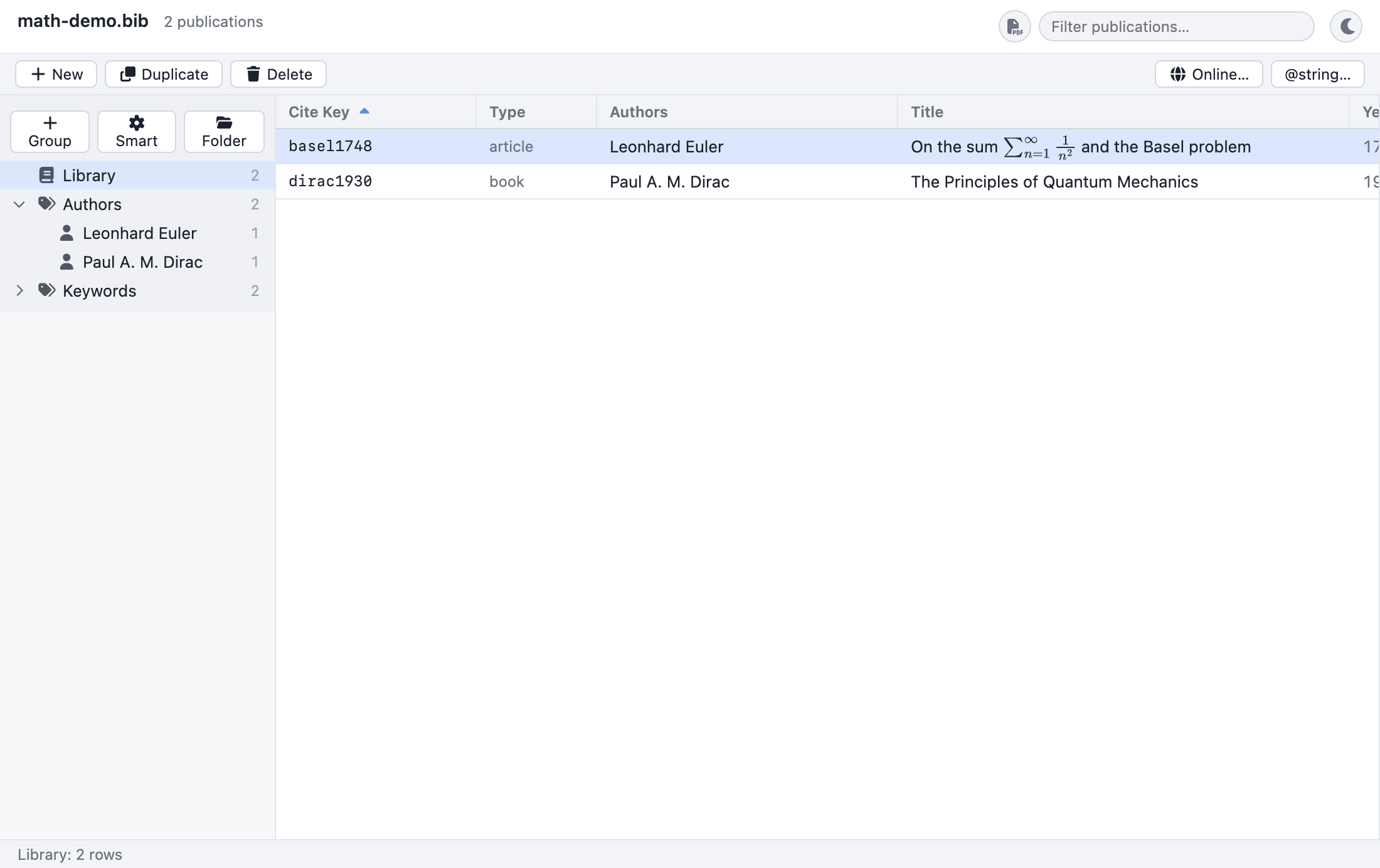
The center pane lists your references, one per row.
2.2.1 The columns#
By default the table shows eight columns: five text columns and three compact icon columns. Each text column is derived from your entry's BibTeX fields and formatted for reading — the table never shows raw, brace-cluttered BibTeX. The set of columns is configurable (see §2.2.6), so you can add, remove, and reorder them; the defaults are:
| Column | What it shows | Where it comes from |
|---|---|---|
| Cite Key | The entry's citation key, in a monospaced font. | The entry's BibTeX key, e.g. einstein1905. |
| Type | The entry type. | The BibTeX entry type, normalised to lower case, e.g. article, book, inproceedings. |
| Authors | A readable author list. | Parsed from the Author field (falling back to Editor when there are no authors); names are formatted and joined, with a trailing et al. when the field ended in and others. |
| Title | The title, cleaned for display. | The Title field, de-TeXified and stripped of BibTeX protective braces. |
| Year | The publication year. | The Year field. |
| Keywords (icon) | A 🔑 key icon when the entry has any keywords. | Non-empty Keywords field. |
| Attachments (icon) | A 📎 paperclip (with a small count badge if more than one) when the entry has attached files. | The entry's Bdsk-File-N attachments (and a Local-Url, if any). |
| Read (icon) | A checked box when the entry is marked read, an empty box when explicitly unread, nothing when unset. | The Read field (a boolean, shown three ways — see below). |
| Annotation (icon, not shown by default) | A 📄 file icon when the entry has an annotation. | Non-empty notes/Annote content (including markdown annotations). |
A few details worth knowing about how the text values are produced:
De-TeXifying titles. TeX escapes are converted to their Unicode equivalents and BibTeX protective braces are removed for display. For example a stored title
{C}alabi--{Y}au manifoldsis shown asCalabi–Yau manifolds, and{{Higgs boson}}is shown asHiggs boson. The brace-stripping is math-aware: braces inside a$…$or$$…$$math span are preserved, so a title likeThe $\frac{1}{2}$-spin casekeeps its math intact.@article{nakahara, author = {Nakahara, Mikio}, title = {{C}alabi--{Y}au {M}anifolds and Mirror Symmetry}, year = {2003} }This entry appears in the table as Cite Key
nakahara, Typearticle, AuthorsMikio Nakahara, TitleCalabi–Yau Manifolds and Mirror Symmetry, Year2003.Author formatting and "et al." Names from the
Authorfield are parsed into their components and rendered in a consistent display form; multiple authors are joined with commas and a final "and" (e.g.A. Einstein, B. Podolsky and N. Rosen). If the field is written withand others, the display ends in et al. When an entry has noAuthorfield, theEditorfield is used instead.
Note: The columns shown above are the defaults. You can change which columns appear, and their order, from the View → Columns menu or the Preferences "Columns" manager — see §2.2.6. Any BibTeX field can be added as its own column.
2.2.2 Column widths#
By default the Cite Key, Type, and Year columns have fixed widths and do not shrink, so the narrow Year and Type columns never collapse or truncate, while Authors and Title grow to absorb the remaining horizontal space.
To resize a column, drag its right-hand edge in the header (the cursor turns into a resize arrow). Once you set a width by hand, that column keeps it — the remaining growing columns take up any slack, and if you pin every column the table left-packs them. Widths are remembered per column across launches.
2.2.3 Sorting#
Click any column header to sort the table by that column.
- The first click on a header sorts ascending by that column.
- Clicking the same header again flips the direction to descending.
- A small ▲ (ascending) or ▼ (descending) arrow appears on the active column to show the current direction.
- Clicking a different header sorts by the new column, starting again at ascending.
The default sort, on first opening a library, is Cite Key, ascending.
How the sort behaves#
Sorting is a case-insensitive, numeric-aware string comparison. Two practical consequences:
- Case does not matter:
Appleandapplesort together rather than in two separate alphabetical runs. - Numeric runs sort by value, not by character. So years and numbered keys
sort
2,9,10rather than the naïve10,2,9.
Every column sorts as text by this rule, including Year — which is fine because years are numeric strings and the numeric-aware comparison orders them correctly.
Sorting by more than one column#
Shift-click a header to add it as an additional sort key rather than replacing the current one. "Sort by year, then by author" is a click on Year followed by a Shift-click on Authors: rows are ordered by year, and rows sharing a year are ordered by author.
- When more than one column is sorted, each sorted header shows a small priority number beside its arrow — 1 is the primary key, 2 the tie-breaker, and so on.
- Shift-clicking a column that is already in the sort cycles it: ascending → descending → removed. Remove the last remaining key and the table falls back to the default Cite Key, ascending.
- A plain (un-shifted) click always collapses the sort back to that one column alone.
The header tooltip is a reminder of all three header gestures: Click to sort · Shift-click to add a secondary sort · drag to reorder.
2.2.4 Virtualization (why the table stays fast)#
The table is virtualized: only the rows currently visible in the viewport (plus a small overscan buffer just above and below) are actually rendered into the window. As you scroll, rows are recycled. This is why the table stays smooth and responsive even with very large libraries of thousands — or tens of thousands — of entries: the cost of drawing the table depends on the size of the window, not on the size of the library.
The whole list is still loaded into memory and is fully searchable and sortable; virtualization affects only what is drawn, not what is available.
Tip: Because rows are recycled as you scroll, the scrollbar reflects the full list height — drag it to jump anywhere in a long library instantly.
2.2.5 Selection and viewing details#
Click a row to select it. The selected row is highlighted, and its full details load into the right-hand pane: a typeset entry card showing the title, authors, venue, keyword tags, abstract, clickable DOI/URL/attachment links, rendered math, notes, and a formatted citation. Selecting an entry is also the gateway to editing it.
The selected row is kept in view. If something moves the selected row — a new entry sorts in somewhere in the middle, or an edit re-sorts the row you are working on (renaming a cite key while sorted by Cite Key can throw it a long way off-screen) — the table scrolls the selection back into view and centres it. It scrolls only when the row is not fully visible, so re-sorting or filtering while the selection is already on screen never twitches the viewport.
For everything you can see and do in that pane, see Preview & citations, Editing entries, Attachments, and Notes & abstracts.
Tip: Notes can contain [[citeKey]] cross-reference links. Clicking one
jumps the selection to the linked entry — and if that entry is not in the
current group's view, the application automatically switches back to the full
Library so it can be selected. See Notes & abstracts.
Tip: You can drag a row out of the table into a TeX editor (or any text
field) to insert a \cite{…} command for that entry. If the row you drag is part
of a multi-row selection, the whole selection is dragged and the inserted
command carries every cite key. (The Edit-menu clipboard commands — copy the cite
key, a \cite{…}, a formatted citation, or the entry's BibTeX — work on the one
primary row instead.) See
Editing entries → Copying entries.
Color labels#
Right-click a row for a Finder-style context menu: Edit Annotation…,
Find Open-Access PDF…, a strip of label-color dots ending in a ✕
("No color"), and Delete entry (which reads Delete N entries when several
rows are selected). Click a dot to tag the entry — the whole row is then tinted
that color — or ✕ to clear it. Right-clicking a row outside the current
selection selects just that row first; right-clicking inside the selection acts
on the whole selection. You can also use Publication → Color Label. The color
applies to the current selection, so you can tag several rows at once, and it's a
single undo step. The label is stored in the entry's Bdsk-Color field, so it
round-trips with BibDesk.
2.2.6 Configuring the columns#
The table columns are not fixed: you can choose which fields appear, in what order, and how wide they are.
Reorder by dragging the header#
Drag a column header sideways onto another to reorder — drop it and it lands just before the column you dropped onto. (A short click still sorts; a drag reorders.) This is the quickest way to rearrange columns, and it replaces the old up/down buttons. The new order is remembered across launches.
From the View → Columns menu (quick toggles)#
View → Columns opens a checklist of common columns. Each item is a checkbox — tick it to show that column, untick it to hide it. The menu offers the eight default columns plus quick toggles for Rating (a ★ star column), Journal, Booktitle, Publisher, DOI, URL, and Month, and it also lists any custom field columns you have added. This is the fastest way to show or hide a column on the fly.
From the Preferences "Columns" manager (show / hide / add)#
Open Preferences (⌘, / Ctrl+,) and pick Display in the left-hand
rail. Its Columns section lists your current columns, each with a × to
remove it. Below the list, an
Add column… dropdown adds any of the built-in columns you do not yet have, and
an "Add a field (e.g. Journal)" text box lets you add any BibTeX field name
at all as a column — type the field name and press Enter. So if your entries
carry a custom Funding or Project field, you can surface it as a column.
(Reordering and resizing happen on the header itself — see above and
§2.2.2.)
Note: The Annotation indicator is the one built-in column the View →
Columns menu does not offer; add it here, by picking "Annotation" from the
Add column… dropdown — not by typing the raw Annote field, which gives a
plain (and empty) text column instead of the 📄 icon indicator. Once added it
appears in the View → Columns menu like any other configured column.
Your column configuration is saved with the application's other preferences (in
settings.json), so it persists across sessions and applies to every library you
open. It is not stored in any .bib file.
The icon columns#
Three of the default columns are compact icon columns rather than text:
- 🔑 Keywords — shows a key glyph when the entry has a non-empty
Keywordsfield (these are the same keywords that drive the Keywords category groups and the preview tags). The header is a key icon. - 📎 Attachments — shows a paperclip when the entry has attached files, with a
small number badge when there is more than one. The count includes the entry's
Bdsk-File-Nattachments (see Attachments). The header is a paperclip icon. - ✓ Read — a tri-state read marker driven by the entry's
Readfield: a filled, checked box when the field says read (1,yes,true, oron, in any case), an empty box for any other non-empty value — i.e. explicitly unread — and nothing when the field is absent or blank. The header is a checked-box icon. - ★ Rating (not shown by default) — when you add the Rating column, it shows
the entry's
Ratingfield as that many filled stars (out of five). - 📄 Annotation (not shown by default) — when you add the Annotation column, it
shows a file glyph in any row whose entry has an annotation — non-empty
notes/
Annotecontent, including markdown annotations.
Note: The icon columns are display-only indicators — they reflect the
underlying fields but you do not click them to toggle anything. To mark an entry
read or rate it, set its Read or Rating field in the
editor (Read takes 1/yes/true/on
for read; Rating is a number 0–5). The columns then update to match.
2.3 Live search#
Use the search box at the top-right of the window — the one labelled "Filter publications…", or "Search (incl. PDF text)…" when full-text search is switched on — to filter the table as you type.
- Click in the search box (it appears only when a library is open).
- Start typing.
The list narrows instantly, with no separate "search" button to press. Clear the box to see everything again.
2.3.1 What is matched#
The search queries an index of all of an entry's field text — the cite key, type, authors, title, year, and the abstract, notes, keywords, and every other field. So:
- Typing
quantumfinds the word in any title, abstract, or note. - Typing an author's surname finds their papers.
- Typing
articlefinds every entry of that type. - Typing
2019finds entries from that year — and also any field that happens to contain "2019". - Typing part of a cite key (e.g.
einstein) finds it directly.
Matching is case-insensitive (QUANTUM, Quantum, and quantum are
equivalent), results are ranked by relevance (best matches first), and terms
match by word prefix, so bargain finds bargaining. This field index is an
in-memory, rebuildable cache, built when the library opens and updated as you edit
— your .bib file stays the source of truth. (PDF text is indexed separately and
is kept on disk; see below and
§2.7.)
Multiple words and quoted phrases#
Typing several words finds entries that contain all of them, in any order
and anywhere in the indexed text (game theory matches an entry whose title has
"theory" and whose abstract has "game").
To require an exact phrase — those words, adjacent and in that order — wrap them in double quotes:
| You type | What it matches |
|---|---|
game theory |
entries containing game and theory (any order, anywhere) |
"game theory" |
only entries where game theory appears as a contiguous phrase |
survey "machine learning" |
survey anywhere and the phrase machine learning |
You can mix quoted phrases and bare words freely. An unclosed quote is treated as a phrase running to the end of what you've typed, so results still make sense mid-keystroke.
Including PDF contents (the PDF toggle)#
By default the search looks only at the bibliographic fields above — not the full text of attached PDFs. The round PDF button to the left of the search box toggles full-text search: switch it on (it highlights) and the search also matches the text extracted from attached PDFs, so a phrase from inside a paper finds it.
This is off by default on purpose: PDF bodies mention many names and terms that aren't really about the entry (an author's name printed in a paper's references, say), so full-text search can return far more — and less relevant — results. Turn it on when you're hunting for something you know is inside a paper; leave it off for ordinary "find this reference" filtering. Your choice is remembered, and it is the same setting as Preferences → General → Full-text search.
The toggle also decides whether PDFs are indexed at all. Reading the text out of every attached PDF is the expensive part, so the button does not merely filter results — while it is off, no PDF text is extracted or indexed. Nothing is spent on a library whose PDFs you never intend to search. Consequently:
- Switching the button on starts indexing every library you currently have open. A small Indexing PDFs card appears in the lower left with a progress count and the note "Building full-text search — you can keep working." You can dismiss the card; indexing carries on. It only shows up if indexing takes a moment, so an already-indexed library never flashes it.
- The first search after switching on may be incomplete until that pass finishes. Field matches are there immediately; PDF matches arrive as pages are read.
- The same happens, quietly, when you open a library with the button already on: indexing begins a couple of seconds after the window appears, so the initial load is not held up.
The PDF index is kept on disk, so this cost is paid once rather than once per
session. It lives in a database in the application's own data folder — never in
your .bib — keyed by each PDF's absolute path, and it is shared by every library
you open. Reopening a library whose PDFs are unchanged does no extraction at
all. A file is re-read only when its content genuinely changed (a modification
stamp that moved is confirmed against a checksum first, so a file merely touched,
re-synced by a cloud client, or AutoFiled to a new name is not re-extracted),
and entries for files that have since gone are pruned the next time the
application opens the index.
Scanned PDFs. A scanned page is an image: there is no text to extract, so it can never match — until you run Publication → OCR Scanned PDFs…, which adds a searchable text layer. Entries that gain one are re-indexed automatically as soon as the OCR run finishes (when full-text search is on), so they become searchable straight away. See Attachments.
How many PDF pages are indexed. By default only the first 40 pages of each PDF are scanned — plenty for articles, and it keeps indexing fast. For long or scanned books you can raise or remove that limit in Preferences → General → Full-text search: choose At most N pages (and set N), or All to index the whole document. Indexing all pages of large scanned books is slower and only finds text if the scan has a searchable text layer (OCR). Changing the limit invalidates the stored text, so it re-indexes any open libraries — which is why the page box commits when you leave it or press Enter, not on every keystroke. (Nothing is re-indexed if full-text search is off; the new limit applies when you next switch it on.)
Note (the substring fallback): Full-text search relies on a native component. If it isn't available for your build, the box automatically falls back to a case-insensitive substring filter over the five built-in text columns only — cite key, type, authors, title, and year (no abstracts, notes, other fields, or PDF text) — still useful, just not full-text. Quoted phrases still mean what they mean above, but bare words match as literal substrings rather than word prefixes, so
einmatches bothEinsteinandprotein. The same filter is what you briefly see while a full-text query is still in flight, which is why results sometimes tighten a moment after you stop typing. Developers can enable full-text search in a local build withpnpm --filter @bibdesk/app rebuild:electron.
2.3.2 The "N of M rows" footer#
As you type, the footer updates to tell you how much of the library is showing. The label has two forms:
| Footer label | Meaning |
|---|---|
123 rows |
No search (or the search matched everything); the count is the full set for the current group. |
42 of 123 rows |
A search is narrowing the rows: 42 match out of 123 in the current scope. |
The selected group's name is prefixed, e.g. To read: 8 of 40 rows. That includes
the Library group, which is selected by default — so the resting state of the
footer is Library: 123 rows.
Tip: The footer is the single most useful indicator in the window. It answers "what am I looking at right now?" at a glance — the group scope, the matched count, and the total.
2.4 The groups sidebar#
The left pane lets you focus on a slice of your library. Click any group to scope the table to it; the footer then shows the group's name and row count.
2.4.1 The kinds of group#
The sidebar can show several kinds of group, each with its own icon. Some are
read from the .bib file; others are computed automatically.
| Icon | Kind | Source | What it is |
|---|---|---|---|
| 📚 | Library | Synthetic | Everything in the file. Always present at the top. Selecting it clears any group scope. |
| 📁 | Static | From the file | A hand-picked set of entries (BibDesk Static group). Membership is an explicit list of cite keys. |
| ⚙ | Smart | From the file | A rule-based group (BibDesk Smart group). Membership is computed from a saved set of conditions. |
| 🏷 | Category | Computed | A category section heading (the Keywords section), and individual keyword values. |
| 👤 | Author | Computed | An individual author value under the Authors section. |
| 🔗 | URL | From the file | A BibDesk URL group. Stored for fidelity but type-only here (see caveat below). |
| 📜 | Script | From the file | A BibDesk Script group. Stored for fidelity but type-only here (see caveat below). |
| 🗂 | Folder | From the file | A container for other groups (and sub-folders). Folders hold groups, never publications directly — this application's own addition, stored in the .bib in a namespaced comment that BibDesk ignores. |
Each group row shows its icon, its name, and a count of how many entries it contains. Folders are the exception: they show no count, because they hold groups rather than entries.
2.4.2 The Library group#
📚 Library sits at the top and represents the entire file. Click it at any time to drop a group filter and return to seeing all entries. Its count is the total number of entries in the library, which always matches the publication count in the header.
2.4.3 Static and Smart groups (read from the file)#
If your .bib file was saved by BibDesk (or by this application) with saved
groups, they appear here, read directly from the file's group @comment blocks:
- 📁 Static groups are hand-picked collections — an explicit list of cite keys. Think "the papers I am citing in this chapter". Their count is the number of those keys that are actually present in the library.
- ⚙ Smart groups are rule-based. Each carries a saved set of conditions (with comparisons such as "contains", "is", date windows, and so on) combined with and/or. Membership is evaluated live against your current entries, so a Smart group always reflects the present state of the library — if you edit an entry so that it now matches the rules, it joins the group automatically.
Selecting a Static or Smart group scopes the table to its members; the footer shows the group's name and count.
Note: This version reads, evaluates, counts, and round-trips Static and Smart groups, and you can create and edit them in the app: add a Static group, build a Smart group in the condition editor, rename or delete from the sidebar's right-click menu, and organise them into nestable folders. URL and Script groups are still preserved-but-not-evaluated (see below).
2.4.4 URL and Script groups (type-only)#
🔗 URL and 📜 Script groups are preserved faithfully in the file so that your library round-trips without loss, and they appear in the sidebar for completeness. However, because they would require live network fetches or running an external script, they are type-only in this version: they are listed with a count of 0 and do not currently populate the table with members.
2.4.5 The dynamic Author and Keyword categories#
Below your saved groups, the sidebar builds two category sections automatically from the library itself:
- Authors — one 👤 child per distinct author found across all entries.
- Keywords — one 🏷 child per distinct keyword found across all entries.
These are dynamic: they are computed from what is actually in your file, so they always stay in sync — there is nothing to maintain by hand. They mirror BibDesk's "category groups".
How they are computed and counted#
Authors. Every entry's parsed author names are collected. Authors are de-duplicated by a normalised form of the name (so the same person written slightly differently is grouped together where possible) and labelled with their readable display name. Each author child's count is the number of entries that list that author.
Keywords. Each entry's
Keywordsfield is split into individual tags on commas and semicolons. Keywords are de-duplicated case-insensitively (the first-seen capitalisation becomes the label). Each keyword child's count is the number of entries that carry that keyword.@article{epr1935, author = {Einstein, A. and Podolsky, B. and Rosen, N.}, title = {Can Quantum-Mechanical Description Be Considered Complete?}, keywords = {quantum mechanics, foundations, EPR}, year = {1935} }This single entry contributes to three 👤 Author children (Einstein, Podolsky, Rosen) and three 🏷 Keyword children (
quantum mechanics,foundations,EPR), incrementing each of their counts by one.
The children within each section are sorted alphabetically by their display label. The section heading itself (Authors / Keywords) also carries a count — the number of distinct entries that have at least one author / at least one keyword, respectively (an entry that lists three authors is still counted once toward the Authors-section total).
Both category sections start collapsed — a library with a few thousand distinct authors would otherwise bury everything else in the sidebar. Click the disclosure triangle beside Authors or Keywords to expand it.
Tip: Because these categories are recomputed from the live library, they update automatically as you edit. Add a keyword to an entry and that keyword's category appears (or its count rises) the next time the sidebar refreshes after an edit.
Renaming an author (and merging duplicate name forms)#
Double-click an author in the sidebar to rename them. The new name replaces
that author everywhere they appear — in every entry's Author and Editor
field — in a single, undoable step. Only the matched name is touched; the other
names in each list are left exactly as they were.
This is also how you merge two spellings of the same person. If your library
has grown both a Smith, J. author and a Smith, John author, double-click
Smith, J. and type Smith, John: every Smith, J. becomes Smith, John, the
two author categories collapse into one, and citations that format the author now
agree. Matching is by BibTeX's canonical name form, so picking either spelling of
a name as the starting point works — you choose the spelling you want to keep by
what you type.
Note: Renaming is deliberately exact about which author it matches
(the canonical Last, First form), so it never silently fuses two genuinely
different people who merely share a surname. To merge an abbreviated form into a
full one, rename the abbreviated entry to the exact full name you want.
2.4.6 The shape of the tree#
The sidebar is a tree, indented one step per level. Top-level rows are the Library, your saved groups and folders, and the two category section headings (Authors, Keywords); the individual authors and keywords are children beneath their section heading.
Most of the tree is only two deep, because that is all the structure a category section or an unfiled group needs. Folders are the exception: a folder can hold groups and other folders, so you can nest them as deeply as you find useful. Drag a group or a folder onto a folder to file it there, or onto 📚 Library to move it back to the top level; a folder cannot be dropped inside itself. Category sections and their children are always top-level and cannot be filed into a folder.
2.4.7 Selecting and clearing a group#
- Select a group by clicking its row. The table immediately re-scopes to that group's members, and the footer shows the group name and count. The selected group is highlighted.
- Clear the group scope by clicking 📚 Library, which returns you to the full set of entries.
When you add, duplicate, delete, or merge entries, the selection returns to the Library scope, because such structural edits can change which dynamic categories exist.
2.5 Combining groups and search#
The group filter and the live search are independent and composable, exactly as the mental model in §2.1 describes:
- Pick a group (say, a specific author, or a Smart group) to set the scope.
- Type in the search box to filter within that scope.
For example: select the 👤 Einstein author category to limit the table to
his papers, then type 1905 to narrow further to the ones from that year. The
footer will read something like Einstein: 3 of 24 rows, telling you the group,
the matched count, and the group total all at once.
Clearing either control is independent: clear the search box to drop the text filter (keeping the group scope), or click 📚 Library to drop the group scope (keeping the search text).
2.6 Finding duplicates#
Over time — especially after importing from several sources — a library can pick up duplicate entries. Publication → Find Duplicates… scans the whole library and shows you any duplicates it finds, grouped so you can review and clean them up.
The command opens a window that runs the scan automatically. Its header shows how many duplicate groups were found and how many entries are involved (for example "Find Duplicates — 3 groups, 7 entries"); if there are none, it says "No duplicates found. 🎉". Each group is detected one of two ways, and its heading tells you which:
- Identical cite key. Two or more entries share the same cite key (case-insensitively). This is usually an outright mistake — two records that collided on a key — and BibTeX itself would only see the first of them, so these are worth resolving.
- Equivalent content. Two or more entries are the same work even though
their cite keys differ — they have the same entry type and matching
bibliographic fields. The comparison ignores the cite key, compares the fields
that matter for the type, and matches author names fuzzily (so
A. EinsteinandEinstein, Albertcount as the same person), mirroring BibDesk's own duplicate test. This is what catches the same paper imported twice from different databases.
Within each group, every member is listed with its cite key and title. Click an entry to jump to it: the window closes and that entry is selected in the main table (switching back to the full Library first if it was hidden by your current group), ready to inspect, edit, or delete.
Each group's heading also carries a Merge button, which folds the group into its first entry: missing fields are filled in from the others, keywords and file attachments are unioned, and the remaining entries are deleted. The window then re-scans, so the group you just merged disappears from the list. The whole merge is a single, undoable step (Edit → Undo Merge Entries).
Note: Nothing is merged or deleted unless you ask for it — the scan itself only finds and navigates. Merge is deliberately blunt: it keeps the first entry's cite key, and its value wins for every field except keywords, so if you care which copy survives, look at the entries first. The alternative is to click through to the duplicate and remove the extra copy yourself with 🗑 Delete (or Publication → Delete Publication). See Editing entries. Before you merge or delete, you can double-check with the search box: type a title word or the cite key to see both copies side by side.
2.7 Performance notes for large libraries#
Bibliofile is built to handle large libraries comfortably:
- The table is virtualized (§2.2.4), so rendering cost scales with the window, not the library. Scrolling stays smooth at thousands of rows.
- Search is two SQLite FTS5 indexes, on purpose. They have opposite
characteristics, and the split is what keeps reopening a large library cheap:
- Field text (cite key, type, authors, title, and every other field,
including abstracts and notes) is a few megabytes, changes on every edit, and
is keyed by an entry identity that is not stable across sessions. So it is
held in memory and rebuilt when the library opens — nothing is written to
disk, and your
.bibstays the source of truth. - PDF text can run to hundreds of megabytes, changes only when a file changes, and is keyed by the file's path — which is stable. So it is persisted to a database on disk and reused for as long as the files stay put, shared across every library you open. The text is never read back into the application; a query is matched inside the database, which answers with file paths. A library with half a gigabyte of PDFs therefore costs a few megabytes of memory, not half a gigabyte.
- Field text (cite key, type, authors, title, and every other field,
including abstracts and notes) is a few megabytes, changes on every edit, and
is keyed by an entry identity that is not stable across sessions. So it is
held in memory and rebuilt when the library opens — nothing is written to
disk, and your
- Category membership is precomputed. When the Author/Keyword categories are built, each one's member set is computed up front, so selecting a category filters by a fast set-membership test rather than re-scanning every entry's fields.
- Smart-group membership is evaluated on demand against the current entries. This keeps Smart groups correct as you edit, at the cost of a scan when you select one — negligible for typical libraries.
Tip: The expensive part of full-text search is reading text out of PDFs, and you pay it at most once per file. The first time you open a large library with the PDF toggle on you will see the Indexing PDFs card; after that, opening the same library does no extraction at all, and results — field and PDF — are there as fast as you can type. Field matches always rank above PDF-body matches, on the grounds that a query hitting a title says far more than one buried on page 30 of an attachment.
2.8 Tips#
- Combine a group with search. Set the scope with a group, then refine with the search box. The footer shows both at once.
- Watch the footer. It is the authoritative answer to "what am I looking at?" — group name, matched count, and total.
- Return to everything fast. Click 📚 Library to drop the group filter, and clear the search box to drop the text filter. They are independent.
- Sort to scan. Sort by Year to find recent work, or by Authors to group a person's papers together; click a header twice to reverse, and Shift-click a second header to break ties with it.
- Use categories as a quick index. The Author and Keyword sections are a free, always-current index into your library — no tagging discipline required beyond filling in the fields you already fill in.
- Tailor your columns. Add the columns you care about (e.g. Journal or a custom field) and hide the ones you don't, from View → Columns or Preferences. The icon columns at a glance tell you which entries have keywords, attachments, and have been read.
- Tidy after importing. After a big import, run Publication → Find Duplicates… to catch the same work pulled in twice.
2.9 Troubleshooting#
- "My search isn't finding a word that's in the abstract." The field index
covers abstracts, notes, keywords, and every other field, so this should normally
work. If it doesn't, your build may be using the substring fallback (only the
five built-in text columns) because the native search component isn't
active — rebuild it for the app with
pnpm --filter @bibdesk/app rebuild:electron. Also remember search is scoped to the selected group; click 📚 Library to search everything. - "My search isn't finding a phrase that's inside a PDF." Work down this list: (1) the PDF button beside the search box must be on — with it off, PDF text is neither searched nor even indexed; (2) if you have only just switched it on, indexing is still running — watch the Indexing PDFs card and give it a moment on a large library; (3) the phrase may be past the page limit (§2.3.1) — raise it, or set it to All; (4) the page may be a scan with no text layer, in which case run Publication → OCR Scanned PDFs… (see Attachments) and the entry is re-indexed when it finishes.
- "A Smart group shows 0 (or fewer) entries than I expect." Smart-group membership is evaluated against your current entries. Check that the entries you expect actually satisfy the group's conditions; if you have just edited fields, the count reflects the new values.
- "A URL or Script group shows 0." That is expected — URL and Script groups are preserved for fidelity but are type-only in this version and do not populate members (§2.4.4).
- "I selected an author but a co-author's papers also show." A category lists every entry that includes that author; if those papers are co-authored, they legitimately belong to that author's category. Use the search box to narrow further within the category.
- "The row count in the footer doesn't match the header count." The header count is always the whole library; the footer count reflects the current group and any active search. They agree only when the Library group is selected and the search box is empty.
See also#
- Getting started — opening a library and the window anatomy.
- Editing entries — once you have found an entry, change it.
- Preview & citations — what the detail pane shows for a selected entry.
- Notes & abstracts — the
[[citeKey]]notes links that jump the selection.