A bibliographic entry is rarely just metadata. The paper itself — a PDF — usually
lives somewhere on your disk, and you want it one click away from the citation.
Bibliofile lets each entry carry any number of attachments: the PDF of
the article, supplementary data, slides, a scanned figure, or a link to the
online version. Attachments live in the Attachments section near the bottom
of the detail pane, and they are stored inside your .bib file in a format that
is fully compatible with macOS BibDesk.
This chapter explains how to add, open, and remove attachments; how they are stored on disk and why that matters; how the app finds the underlying files; how to make a scanned PDF searchable; where BibDesk compatibility is exact and where it is not (yet); and a set of best practices and troubleshooting tips for keeping your library and its files together across moves and machines.
The attachment model#
An entry surfaces two distinct kinds of resource, in two separate sections:
| Section | Icon | What it is |
|---|---|---|
| Attachments | 📄 | Local files — a PDF, dataset, slide deck, image, … |
| Links | 🔗 | Remote web resources — derived from the entry's Url or Doi. |
They behave differently in important ways:
- File attachments are managed by the app. You add and remove them through
the Attachments controls, and they are stored as numbered
Bdsk-File-Nentries in the.bibfile (explained below). Each managed file attachment has a × remove button. - Links are synthesized from ordinary fields. If an entry has a
UrlorDoifield, it automatically appears under Links as a clickable 🔗. Because these are really just fields, they are not removed from the Links list directly — they have no × there. To change one, edit or delete theUrl/Doifield in the Fields section instead (see Editing Entries).
Links are not attachments. A
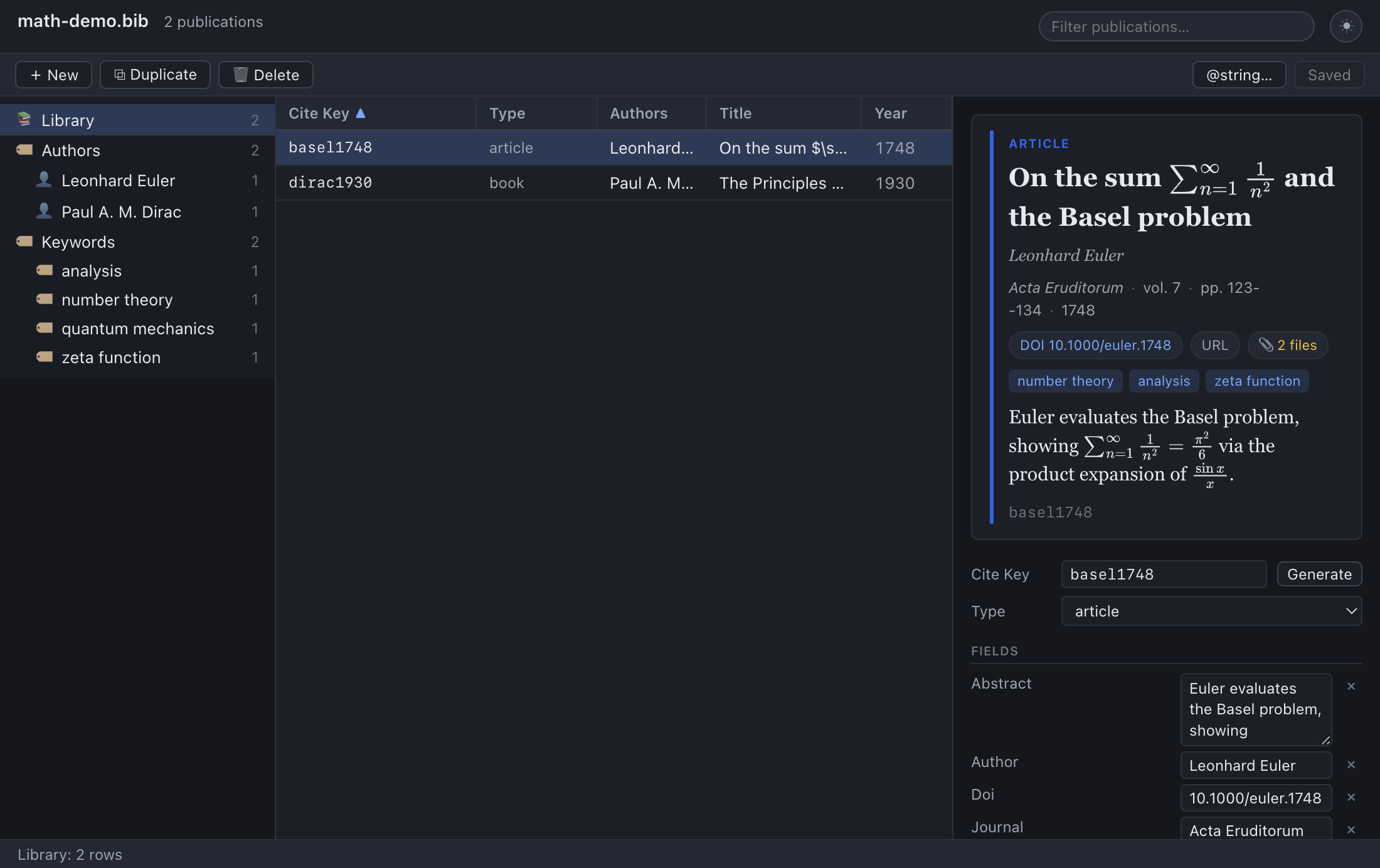
Urland aDoiare links, not files, so they don't count toward the entry's attachment count — the table paperclip and the preview card's "📎 N files" chip count only local file attachments. An entry with just a DOI and a URL has no file attachments (its Attachments section reads "No attachments."), and its links appear under Links and as DOI/URL chips on the preview card.
A single entry can mix both — for example a stored PDF (📄, under Attachments) plus the publisher's DOI link (🔗, under Links). Each distinct target appears once; duplicates are collapsed.
Adding an attachment#
- Select the publication you want to attach files to.
- In the Attachments section, click + Add (or choose Publication → Add File Attachment…).
- In the file dialog, choose one or more files. You can multi-select (Shift-click or Cmd/Ctrl-click) to attach several at once.
Each chosen file is attached to the entry immediately as a new managed
Bdsk-File-N link, and the document is marked unsaved.
Tip: You can also drag a file onto the detail (inspector) pane on the right to attach it to the entry currently shown there — no dialog needed. (Dropping an image onto the journal-cover thumbnail is separate: that sets the cover, not an attachment.) And dropping files onto the main publications list still creates new entries with the files attached — handy for importing a folder of papers in one go. See Importing & exporting → Drag and drop.
Warning: Adding an attachment is an in-memory edit, like any other. It is
not written to your .bib file until you Save (⌘S / Ctrl+S).
There is no Save button: a • follows the library name in the window header
until you do. See
Editing Entries → The dirty/save model.
Note: Adding an attachment records a link to the file where it currently
sits — it does not copy or move the file. For the link to stay valid as your
library travels, where the file lives relative to the .bib matters a great
deal; see How attachments are stored and
Best practices.
Finding open-access PDFs#
Rather than tracking down a PDF yourself, you can ask the app to find a legal, open-access copy and attach it for you. Select one or more entries and choose Publication → Find Open-Access PDFs…, or right-click the selection and pick Find Open-Access PDF…. For each entry the app looks the work up via Unpaywall (a free database of open-access copies) — using Crossref first to find a DOI for entries that don't have one — and where an OA PDF exists, downloads and attaches it.
Note: This needs a contact email (Unpaywall requires one; Crossref uses it to serve you politely). Set it once in Preferences → Citations → Contact email. Until you do, the command will ask you to.
A small progress panel appears in the lower-right while it runs, filling in each entry's result as it goes — it doesn't block the app, so you can keep browsing and editing while the search continues. Entries that already have a file attached are skipped, so re-running never adds a duplicate.
It works with or without a DOI:
- With a DOI (or a
doi.orglink in theUrlfield), the lookup is exact. - Without one, it searches by title, author, and year. A confident match is attached automatically; a weaker, possible match is never attached on a guess — instead you can Review… it (the PDF opens in the app) and then Attach or Discard it yourself.
| Result | Meaning |
|---|---|
| Attached | An open-access PDF was found and attached (the row says whether it matched by DOI or by title). |
| Possible match | A plausible but unconfirmed title match — not attached automatically. Click Review… to open the PDF in the app and Attach or Discard it once you've checked it's the right paper. |
| No OA copy | The work was identified but has no open-access PDF available. |
| Skipped | The entry already has a file attached, or has neither a DOI nor a title to search with. |
| Error | The lookup or download failed (e.g. you're offline). |
The downloaded file is saved to your Papers folder if you've set one (and is
AutoFiled there), otherwise next to your
.bib so the link stays portable. Downloads are verified to really be PDFs, and
each one is its own undo step (so you can revert an individual attachment). As
with any attachment, the change isn't written until you Save.
Note: Big libraries — Unpaywall and Crossref are generous (tens of thousands of lookups a day), so a whole library is fine, but they're queried at a steady, polite pace, so a very large selection takes a while. The app times out and retries unresponsive requests, and stops with a clear message if a service is persistently rate-limiting (then try again later or in smaller batches).
Note: The downloaded copy is acquired for you, but viewing and annotating it is left to your preferred PDF app — clicking the attachment opens it there, exactly like any other file.
Warning: To look entries up, their DOIs and titles — and your contact email — are sent to Unpaywall and Crossref, third-party services. This is the same kind of request the app already makes for Online Search; it happens only when you run this command.
Opening an attachment#
Click an attachment in the Attachments list to open it:
- A 📄 file (a PDF, image, dataset,
.csv, …) opens in your operating system's default application for that file type — PDFs in your usual PDF reader, exactly as if you had double-clicked the file in your file manager. - A 🔗 link (under Links) opens the page in your default web browser. A
bare DOI is opened via
doi.org.
Opening from the preview card#
The preview card carries quick-open chips. A 📎 N files chip opens the entry's file attachments without scrolling down to the Attachments list:
- If the entry has one file attachment, clicking the chip opens it immediately.
- If it has several, clicking the chip drops down a short menu of the files; pick one to open it.
The DOI and URL chips on the same card open the link / DOI directly.
Removing an attachment#
There are two ways to detach a managed file from an entry:
- In the detail pane's Attachments list, click the × next to the file.
- In the bottom panel's Attachments tab, hover an attachment thumbnail and click the red ✕ in its upper-right corner.
Either way the removal is undoable (⌘Z / Ctrl+Z).
Note: Removing an attachment only deletes the link from your library
(the Bdsk-File-N entry). The file itself stays untouched on disk. If you want
to delete the actual file, do that in your file manager.
As with all edits, the removal is in memory until you Save. Remember that 🔗 URL/DOI links cannot be removed here — edit the corresponding field instead (see The attachment model).
How attachments are stored#
Understanding where attachments live will save you headaches when you move your library between folders or machines. File attachments are stored using BibDesk's own format, so a library edited here remains fully interoperable with macOS BibDesk.
The Bdsk-File-N format#
Each managed file attachment is stored as a numbered field on the entry:
Bdsk-File-1, Bdsk-File-2, and so on. The value of each is not a plain
path — it is a base64-encoded binary property list (a bplist), the same
container macOS BibDesk uses. Inside that plist is, among other things, the file's
path relative to the folder that contains your .bib file.
So an entry with one attached PDF looks, in the file, something like:
@article{einstein1905,
  author     = {Albert Einstein},
  title      = {Zur Elektrodynamik bewegter K{\"o}rper},
  journal    = {Annalen der Physik},
  year       = {1905},
  bdsk-file-1 = {YnBsaXN0MDD... (base64 binary plist) ...}
}
A few important points follow from this design:
- The path is relative, not absolute. The plist records something like
pdfs/einstein1905.pdf— a location relative to where the.bibfile is — rather than/Users/you/Documents/.../einstein1905.pdf. Bdsk-File-Nfields are hidden from the Fields list. You will not see them as editable rows in the Fields section; they appear only as attachments. This keeps the editor focused on bibliographic data and prevents accidental corruption of the encoded blob.- Numbering is automatic. When you add a file, the app assigns the next free index (one past the current maximum), so attachment numbers never collide even after removals.
Why relative paths?#
Relative paths make your library portable. Because each attachment is
recorded relative to the .bib file, the whole bundle — library plus its
files — can be moved, copied, zipped, or synced to another computer, and every
link still resolves, as long as the files keep the same position relative to the
.bib. An absolute path, by contrast, would break the instant the library left
the one machine and user account it was created on.
Remote links (Url / Doi)#
As noted above, an entry's Url and Doi fields are surfaced under a separate
Links section as 🔗 links (and as DOI/URL chips on the preview card). These
are stored as ordinary BibTeX fields (not Bdsk-File-N blobs), shown verbatim
(URLs are never TeX-transformed), edited like any other field, and — being links
rather than files — are not counted as attachments.
How attachments resolve#
When the app displays and opens a file attachment, it must turn the stored relative path into a concrete file on your disk. It does so as follows:
- It reads the relative path out of the
Bdsk-File-Nplist (for example,pdfs/einstein1905.pdf). - It takes the directory that contains your
.bibfile as the base — call it the library folder. - It joins the two: library folder + relative path → an absolute path
(
/path/to/library/pdfs/einstein1905.pdf). - Clicking the attachment hands that absolute path to the operating system to open.
If a stored path is already absolute (some files created elsewhere may be), it is used as-is. The display name shown for each file is just its last path segment (its filename); for links it is the URL's final segment or host.
Tip: The practical upshot of resolution is simple — keep your files in a
predictable place relative to the .bib, and they will always open. Move the
.bib and its files together and nothing breaks; move them apart and the
relative paths no longer point anywhere.
Finding and repairing broken links#
When files move, get renamed, or arrive from a library assembled on another machine, some attachments stop resolving. To find them all at once, choose Publication → Find Broken Links…. It scans every entry and lists each attachment whose file is missing on disk, showing the entry's cite key, the attachment's name, and the full path it expected to find.
For each broken managed attachment (a Bdsk-File-N link — see
below) you get two repair actions:
- Locate… — opens a file picker; choose the file's new location and the link
is rewritten (stored relative to the
.bib, as always). The entry is not marked broken any more, and the list re-scans so you can see your progress. - Remove — drops the attachment from the entry (the file itself is never touched; this only removes the dangling link).
Clicking a row's cite key selects that entry in the main list (and closes the
dialog) so you can inspect or edit it directly. Links that come from a plain
field (a Local-Url, say, rather than a managed Bdsk-File-N blob) are listed
for awareness but are fixed by editing that field on the entry.
Tip: If files merely moved together into a new folder, it is usually faster to fix them in bulk with AutoFile (which re-files into your Papers folder) than to Locate each one by hand — though AutoFile needs the originals to still exist, so genuinely missing files must be re-located or removed here.
Compatibility with macOS BibDesk#
Bibliofile is designed to share libraries seamlessly with the original macOS BibDesk. There are three things to know about attachment compatibility.
macOS bookmarks are written and preserved#
In addition to a relative path, a Bdsk-File-N blob created by macOS BibDesk
contains an Apple file bookmark (alias) — macOS's mechanism for tracking a
file even after it is renamed or moved within a volume.
Existing bookmarks are preserved untouched. An attachment you don't edit is re-emitted byte-for-byte, so a library you round-trip through Bibliofile stays fully valid for macOS BibDesk: the bookmarks BibDesk relies on are still there, intact.
New attachments get a real bookmark too. When you are running on macOS,
Bibliofile now writes the same { relativePath, bookmark } pair BibDesk itself
writes — when you add a file attachment, when AutoFile moves one, when you point
a broken link at a new file with Locate…, and when a
cloned bibliography is repointed at its copies.
So a library built entirely in Bibliofile is now one BibDesk can recover files
from, not just read.
Note: Bookmarks are a macOS API, so this happens only on macOS (and
only where the small helper the app uses for it is present). Everywhere else —
Windows, Linux — attachments are written as the portable relativePath-only
plist exactly as before. That plist is not broken or second-class: BibDesk
consults relativePath first, so such a library opens and resolves normally in
BibDesk; it simply has no bookmark to fall back on. Nothing here needs
configuring, and there is no setting for it.
Older libraries can be topped up in place. A library written before this (or
by the cross-platform writer) has attachments with no bookmark. Running
Publication → Consolidate Linked Files… (or AutoFile Linked Files on a
selection) backfills a bookmark into every such attachment whose file is
already where AutoFile wants it — nothing is moved or renamed, only the stored
blob gains its bookmark. That is why a run over a perfectly tidy library can
report Updated N attachment files with macOS bookmarks (no files moved).
rather than "No linked files needed filing." — and why it marks the document
unsaved even though nothing moved on disk. Existing bookmarks are left alone (a
bookmark tracks the file by identity, so it is still valid even after a rename).
Moved-file resolution by bookmark is not (yet) implemented here#
The flip side of the previous point: Bibliofile writes and preserves macOS bookmarks, but it does not yet use them to find a moved file. macOS BibDesk can follow a bookmark to locate a PDF you renamed or moved elsewhere; Bibliofile, being cross-platform, still resolves attachments by their relative path only (as described in How attachments resolve).
The honest consequence:
- If you move or rename a file but keep its relative path correct (e.g. you
move both the
.biband itspdfs/folder together), the link works fine. - If you move a file independently of the library so that its relative path no longer points to it, this app will not silently re-find it by bookmark the way macOS BibDesk might. Fix it by restoring the relative layout, or re-add the file from its new location (and remove the stale link).
Note: This is a difference in resolution behavior only — your file is not harmed and the bookmark is not discarded. Open the same library in macOS BibDesk and its bookmark-following still works; the bookmark survives the round-trip through this app.
Finder tags and other file metadata survive a copy#
A PDF can carry more than its bytes: on macOS, Finder tags and comments, plus ACLs and resource forks, live in the file's extended attributes. A naive copy carries only the bytes and silently drops all of that.
Where Bibliofile copies an attachment rather than moving it — which is what
Clone Bibliography… does when it duplicates a
library's files — it copies with the extended attributes on macOS, so a paper
you filed under a Finder tag arrives in the clone still wearing it. On Windows
and Linux the copy carries the bytes only. Copies never overwrite: if something
already sits at the destination name, the copy is given a -1, -2… suffix
instead.
Note: AutoFile moves files, and a move keeps a file's metadata by definition. The one gap is a move that crosses to a different drive, which AutoFile completes as a plain byte copy plus a delete — Finder tags on that file are not carried across.
Best practices for portable attachments#
Because attachments resolve by relative path, a little organization keeps every link healthy forever:
Keep attachments beside the library. Put your
.bibfile and your PDFs in the same directory tree. The most common arrangement is a subfolder next to the library:MyLibrary/ ├── library.bib └── pdfs/ ├── einstein1905.pdf ├── ng2024types.pdf └── ...Move the whole folder, not just the file. When you copy or sync the library to another machine, move the entire
MyLibrary/folder so the.bibandpdfs/keep their relative positions. Every link resolves on the new machine without any path fixing.Avoid absolute paths and scattered files. If files live all over your disk and get recorded with absolute paths, the links break the moment the library moves. Consolidate them into the library folder instead.
Use version control or a synced folder for the bundle. Because the
.bibis plain text and the PDFs are ordinary files, the wholeMyLibrary/folder drops cleanly into Git, Dropbox, iCloud Drive, or similar — and the relative links travel intact.
Tip: A single tidy library folder per project — .bib plus a pdfs/
subfolder — is the layout that "just works" everywhere and is also the easiest
to back up and share.
AutoFile: organising linked files#
Keeping attachments tidy by hand — naming each PDF consistently and filing it in
the right place — is tedious. AutoFile does it for you: it moves an entry's
attached files into a single Papers folder and renames them by a format you
choose, then updates the Bdsk-File-N links to point at their new homes. It is
the same idea as BibDesk's AutoFile.
Setting it up#
Before AutoFile can run, tell it where your Papers folder is and how to name files, in Preferences → Files → AutoFile:
- Papers folder — click Choose… and pick the folder where filed attachments should live (the × clears it). AutoFile is disabled until this is set.
- File name — the file-name format. The default is
%p1/%T5, which files each paper in a first-author subfolder and names it by the first significant words of the title. - AutoFile attachments when added — a checkbox (disabled until a Papers folder is set). When on, a newly-added attachment is filed into the Papers folder immediately — whether you added it by drag-and-drop, the file picker, or a PDF import. When off (the default), attachments stay where they are until you run AutoFile manually.
Understanding the default %p1/%T5#
%p1is the first author's last name. Crucially,%pfalls back to the first editor when an entry has no author (whereas%awould not), so an edited book with no author is filed under its editor.- The
/makes a subfolder. %T5is the title's first significant words — it counts words longer than three letters, keeping short connector words like the / of along the way. (For the literal first five words, use%T[0]5.)
Two niceties are handled for you, so you need not encode them:
- The file extension is appended automatically — do not put
%ein the format. - Filename collisions get a numeric suffix automatically — you don't need
%u/%nto disambiguate.
The destination name also strips LaTeX and math markup, so a title like
$O(\log n)$ files as O(log n).
The file-name format otherwise uses the same mini-language as the cite-key format
(see
Editing entries → How Generate works).
Useful specifiers include %p1 / %a1 (first author's surname, with/without the
editor fallback), %A (authors with initials), %Y / %y (4- or 2-digit year),
%t / %T (title characters / words), %f{Field} (any field's value), and a
literal / to create a subfolder.
Running it#
Select one or more entries and choose Publication → AutoFile Linked Files. For each selected entry, every managed file attachment is:
- Moved into the Papers folder, into the subfolder and under the name the
format produces (e.g.
Einstein/On the electrodynamics.pdf). If a file with that name already exists, a numeric suffix keeps it unique. - Re-linked — the
Bdsk-File-Nlink is rewritten to the file's new location (still as a path relative to your.bib, so the library stays portable).
A file that is already where AutoFile would put it is left exactly where it is — but on macOS its stored link is quietly topped up with a bookmark if it hasn't got one, which is how an older library is brought up to BibDesk parity without touching a single file.
AutoFile Linked Files works on the whole selection. With two or more entries selected it first shows a confirmation dialog (files are moved on disk, so this is a real change) and a summary once it finishes. As with any edit, the change is in memory until you Save — including a run that only added bookmarks and moved nothing.
Tip: To file the whole library (or just the selection) in one go, use Publication → Consolidate Linked Files… instead. It confirms first (naming the scope — every entry, or the N selected ones) and reports what it did: how many files it filed, and separately how many links it topped up with bookmarks.
Note: AutoFile moves the actual file on disk (copying then deleting if the destination is on a different drive). The original file leaves its old location. This is the point — it consolidates scattered downloads into one well-named library — but be aware it is a real file move, not a copy.
Tip: AutoFile pairs naturally with drag-and-drop import: drop a pile of PDFs to create entries with the files attached where they sit, fill in the author and year, then run AutoFile to move and rename each one into your Papers folder.
OCR: making scanned PDFs searchable#
Some PDFs are not documents so much as photographs of documents: a scanned book chapter, a paper someone photocopied in 1998. There is no text in them at all — you can't select a word, and neither full-text search nor any other tool can read them.
Publication → OCR Scanned PDFs… fixes that. Select one or more entries and run it; for every PDF attached to those entries the app checks whether there is already a text layer, and where there isn't, reads the pages with an optical character recogniser and writes the PDF back with an invisible, selectable text layer over the page image. The page still looks exactly as it did — it is the same scan — but now you can select and search its text, here and in any other PDF reader.
Progress appears in a small panel in the lower-right, one line per entry, with the page it is currently working on. It doesn't block the app, so you can keep browsing and editing while it runs. Clicking a finished row selects that entry.
| Result | Meaning |
|---|---|
| Text added | The PDF was image-only and now has a text layer; the row says how many pages, and that the original was backed up. |
| Skipped | Nothing to do — the entry has no PDF attachment, or its PDF already has a text layer (the row says which). |
| Error | The file couldn't be read, OCR failed, or the backup couldn't be written — in which case the original is deliberately left alone. |
What to know before you run it#
- It replaces the PDF in place — and it is not undoable. Unlike everything
else in this chapter, this is a change to a file, not to your library: no
Bdsk-File-Nlink changes, the document is not marked unsaved, and ⌘Z / Ctrl+Z will not bring the old file back. There is nothing to Save. - The original is backed up first. Before replacing anything, the app copies
the untouched PDF into an OCR Backups folder inside Bibliofile's own
application-data directory (on macOS,
~/Library/Application Support/Bibliofile; the equivalent app-data folder on Windows and Linux), under a name likeeinstein1905 (before OCR 2026-07-24T…).pdf. If that copy can't be written the file is skipped rather than replaced. Backups are kept until you delete them — nothing prunes them for you, so that folder will grow. - Recognised text is a raster. The rewritten PDF is built from a 200 DPI rendering of each page, so a born-digital PDF that was wrongly treated as a scan would come back visually flattened — no selectable original vectors, and usually a larger file. The text-layer check is deliberately conservative (it samples the first few pages and only calls a PDF a scan when they are essentially empty of text), but the backup is your real safety net. If in doubt, try it on a cloned bibliography first.
- English only. The recogniser ships with English training data and the app doesn't offer a language picker, so a scan in another language will produce poor results.
- Entirely offline. OCR is bundled with the app — nothing is uploaded, no service is contacted, and there is nothing to install alongside it. It is, however, real work: every page is rendered and then read, so a long scan takes a while. Try a handful of entries before turning it loose on a shelf of scanned books.
Once a PDF has gained its text layer, the app notices the file changed and re-reads it into the full-text index by itself, so the newly recognised text becomes searchable without you doing anything — provided full-text search is switched on (see below).
Attachments and full-text PDF search#
The app can index the text inside your attached PDFs, so the search box finds papers by their actual contents, not just their bibliographic fields. This is what the PDF toggle beside the search box buys: with it off, PDFs are neither searched nor read — the app doesn't spend the time extracting their text at all. Switch it on and the extraction starts, for that library and every one you open afterwards. See Browsing & Searching for how the search itself behaves and how to cap how many pages of each PDF are indexed.
Indexing relies on exactly the attachment links described in this chapter: the index can only read a PDF that the app can resolve and open, so keeping your files reliably reachable (the best practices above, or AutoFile) is what lets full-text search reach into them. Extraction runs in the background shortly after a library opens, so PDF matches may appear a moment after the first results. And a scanned PDF has no text to extract until you OCR it.
Quick reference#
| Action | How |
|---|---|
| Add file attachment(s) | Select entry → + Add in Attachments (or Publication → Add File Attachment…) → pick one or more files |
| Attach via drag-and-drop | Drag a file onto the detail pane → attaches to the shown entry; drag onto the publications list → new entry with the file attached |
| Find & attach an open-access PDF | Select entries → Publication → Find Open-Access PDFs… or right-click → Find Open-Access PDF… (matches by DOI, or by title when there's none) |
| Make a scanned PDF searchable | Select entries → Publication → OCR Scanned PDFs… (replaces the PDF in place; the original is backed up, but this is not undoable) |
| Open an attachment | Click it → opens in your OS default app (PDFs in your usual reader); or click the 📎 N files preview chip |
| Open another file / link | Click it (file → default app; link → browser) |
| Remove a file attachment | Click × beside it in the detail pane, or the red ✕ on its thumbnail in the bottom panel's Attachments tab |
| Remove a URL/DOI link | Edit/delete the Url or Doi field in Fields |
| File selected entries into the Papers folder | Publication → AutoFile Linked Files (works on the whole selection; set the Papers folder + format in Preferences → Files → AutoFile) |
| File the whole library into the Papers folder | Publication → Consolidate Linked Files… (also backfills macOS bookmarks into already-filed attachments) |
Reveal the .bib in your file manager |
File → Show in Finder (macOS) / Show in File Manager |
| Persist attachment changes | Save (Cmd+S / Ctrl+S) — attachments are in memory until saved |
Troubleshooting#
"An attachment won't open." The file has almost certainly moved, been renamed, or been deleted, so its stored relative path no longer points to it. Check that the file still exists at library-folder + relative-path. If you moved it, either restore the original layout, or remove the stale link (×) and re-add the file from its new location. Remember this app resolves by relative path, not by macOS bookmark, so a file moved out from under the library is not auto-relocated here.
"My links broke after I moved the library to another machine."
You probably moved the .bib without its files, or changed the relative layout.
Move the entire library folder (the .bib and the pdfs/ subfolder, keeping
their relative positions) together. See
Best practices.
"I added a file but it's gone after restarting." Adding an attachment is an unsaved edit. If you closed the app without saving, the change was discarded. Add it again and save (⌘S / Ctrl+S); a • follows the library name in the window header while there are unsaved changes.
"There's no × to remove this link."
It is a 🔗 URL/DOI link synthesized from a field, not a managed file. Remove or
edit the Url/Doi field in the Fields section instead.
"My DOI/URL link goes to the wrong place."
The link is taken verbatim from the entry's Doi/Url field. Correct the field
value in the Fields section.
"AutoFile says no Papers folder is configured." AutoFile needs a destination folder before it can run. Open Preferences → Files → AutoFile and choose a Papers folder (and, if you like, adjust the File name format). Then select one or more entries and run Publication → AutoFile Linked Files again.
"An attachment won't open / nothing happens."
Opening hands the file to your OS through its attachment link, so the same things
that break a link break opening: the file has moved, been renamed, or been
deleted relative to the .bib. Restore the layout or re-add the file (or use
Find Broken Links to locate it).
"OCR said 'Skipped — PDF already has a text layer', but I can't search it." That PDF does carry text, so OCR correctly left it alone; the problem is elsewhere. Check the PDF toggle beside the search box is on (with it off, PDF contents are never indexed), and give the background extraction a moment after opening the library. See Browsing & Searching.
"OCR flattened a PDF that was fine."
It was misjudged as a scan. Nothing is lost: the untouched original is in the
OCR Backups folder in Bibliofile's application-data directory (on macOS,
~/Library/Application Support/Bibliofile), named
<file> (before OCR <timestamp>).pdf. Copy it back over the replaced file in
your file manager — the attachment link is unchanged, so it will simply open the
restored file. Undo cannot do this for you: OCR rewrote a file, not your library.
Cross-machine sync tips.
Sync the whole library folder (e.g. via Git, Dropbox, or iCloud Drive) rather
than the .bib alone. The plain-text .bib plus a pdfs/ subfolder with
relative links is sync-friendly and conflict-resistant. If you also use macOS
BibDesk on one of the machines, rest assured the file bookmarks it relies on are
both written and preserved by this app, so the library stays usable from
both — and if it was built on Windows or Linux, one run of Consolidate Linked
Files… on the Mac will add the bookmarks it is missing.
See also#
- Editing Entries
- Getting Started
- Browsing & Searching
- Importing & Exporting — dropping a PDF to create an entry with the file attached.
- Online Search
- Shortcuts & Reference