One of the headline goals of Bibliofile — and a deliberate step up from classic BibDesk — is a rich, themed presentation of your references. When you select an entry, the view pane on the right of the main window shows two reading-oriented views near its top, above the entry's fields, notes, and attachments:
- A preview card — a typeset, magazine-style summary of the entry, with a colour-coded entry type, the title and authors, the venue line, clickable chips for links and attachments, keyword tags, the rendered abstract, and the cite key.
- A formatted citation — the same entry rendered in a real citation style (APA, Vancouver, Harvard, or any CSL style you install), generated by a genuine CSL engine and updated live as you edit.
Both views adapt to the light or dark theme, and both can contain typeset mathematics. The same pair appears in the editor window, where they sit together in a fixed left column beside the fields you are editing (see Editing Entries). This chapter walks through every element of each view, explains how they are produced, and notes the current limitations honestly.
Tip: The preview card and the formatted citation are views, not editors — and in the main window the whole pane is read-only. To change what they show, open the entry in the editor window (the Edit… button, a double-click on the row, or Publication → Edit Publication…, ⌘E / Ctrl+E) and edit its fields there (see Editing Entries); the views refresh automatically.
Note: The formatted citation here is a CSL rendering (APA / Vancouver /
Harvard, or any style you install) — convenient and copy-ready, but independent
of LaTeX's .bst system.
If you want to see exactly what bibtex will produce for the .bst style you
cite with, open the LaTeX Preview in the bottom panel: it typesets the
selected entries' bibliography with your local TeX install and chosen .bst.
See Configurable Panels → LaTeX preview.
The preview card#
Near the top of the pane — under the Edit… button and the journal cover, when the entry has one — sits the preview card: a clean, typographic summary of the selected entry, set in a serif face to read like a printed reference rather than a form.
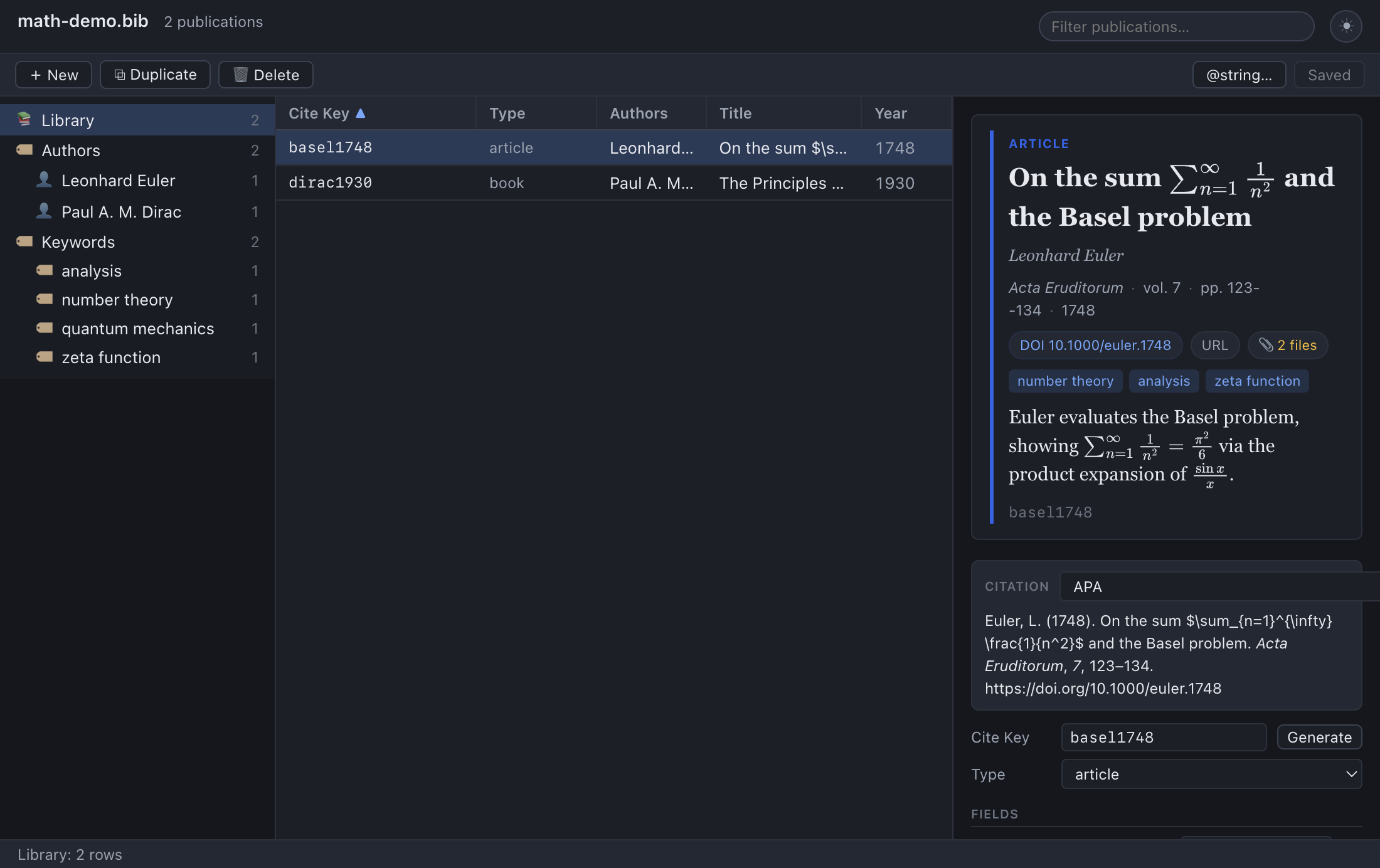
The card appears only when the entry has enough to show — at minimum a title, author, venue, or year. A completely empty entry shows no card; the rest of the pane (fields, notes, attachments) and the editor window still work as normal.
Anatomy of the card#
The card is composed, top to bottom, of the following elements. Each is present only when the entry has the corresponding data.
| Element | Source field(s) | Notes |
|---|---|---|
| Entry-type label + colour accent | the entry's BibTeX type | Small uppercase label (e.g. ARTICLE); a coloured left border keyed to the type |
| Title | Title |
Rendered with maths; protective braces stripped for display |
| Authors | Author (falls back to Editor) |
Italic; joined with commas and a final "and"; "et al." when the field ends in and others |
| Venue line | Journal (or Booktitle), Volume, Pages, Year |
Dot-separated; journal/booktitle in italics |
| Chips | Doi, Url, attachment count |
Clickable pills (see below) |
| Keyword tags | Keywords |
One small pill per keyword (split on ,/;) |
| Abstract | Abstract |
Rendered as Markdown + maths |
| Cite key | the entry's cite key | Monospaced, muted, at the foot of the card |
Entry-type accent#
The card carries a coloured left border and a small uppercase type label
(for example ARTICLE or BOOK) so you can tell at a glance what kind of
reference you're looking at. The colour is chosen from the entry type:
| Entry type(s) | Accent colour |
|---|---|
article |
Blue |
book |
Violet |
incollection, inbook |
Purple |
inproceedings, conference, proceedings |
Cyan |
phdthesis, mastersthesis |
Green |
techreport |
Amber |
misc, unpublished |
Grey |
| any other type | The app's default accent (blue) |
Note: The label text always reflects the entry's actual type (so an
unusual type such as dataset shows DATASET); only the colour falls back to
the default accent when the type isn't in the table above.
Title and authors#
The title is shown in a large serif weight. It is de-TeXified for display —
control sequences such as {\"a} become ä, and BibTeX case-protection braces
are removed ({C}alabi-{Y}au shows as Calabi-Yau) — while any $…$/$$…$$
maths is preserved and typeset, so a title like On $SU(2)$ gauge fields renders
with proper maths.
The author line is set in italics. Names are formatted from the Author
field (or the Editor field if there are no authors): joined with commas, with a
final "and" before the last name, and capped with "et al." when the BibTeX value
ends in and others.
Venue line#
A single dot-separated line summarises where the work appeared, assembled from whichever of these are present: the journal (or, failing that, the book title), the volume (shown as "vol. N"), the pages (shown as "pp. N"), and the year. The journal/booktitle is italicised.
Chips#
Below the venue line, the card shows a row of chips — small pill-shaped controls — for the entry's links and attachments:
- DOI chip — shown when the entry has a
Doifield. It displays the DOI and, when clicked, opens the resolver link (the DOI) in your external browser. - URL chip — shown when the entry has a
Urlfield. Clicking it opens that URL in your external browser. - Attachments chip — a paperclip pill showing the count of attached files
(for example "📎 2 files"). It counts only real file attachments — remote
Url/Doilinks have their own chips. Clicking it opens the file; if the entry has more than one, a small menu drops down so you can choose which. The same files are also listed individually in the Attachments section lower in the pane (see Attachments).
Note: Like links in abstracts and notes, the DOI and URL chips open externally — they hand the address to your operating system's default browser rather than navigating inside the app.
Keyword tags#
If the entry has a Keywords field, each keyword is shown as a small coloured
tag pill. Keywords are split on commas or semicolons, so
Keywords = {gravity, relativity; cosmology} becomes three tags. (These are the
same keywords that drive the dynamic Keywords category groups in the sidebar
— see Getting Started.)
Abstract#
If the entry has an Abstract, its rendered Markdown appears here — bold,
italics, lists, links, and typeset maths included. This is the same rendering
described in full in Notes & Abstracts; the card is
simply where the result is displayed.
Cite key#
Finally, the entry's cite key is shown in a muted monospaced font at the foot
of the card — the handle you'd use in a \cite{…} command.
How the card is built#
The card's HTML is composed in the app's main process from the entry's fields, not assembled in the browser. A few details follow from that:
- Everything is escaped and de-TeXified. Field text is HTML-escaped and run
through the display transform (de-TeXify + strip protective braces), with the
transform kept maths-aware so
$…$spans pass through untouched. - The card is themeable, not hard-styled. It emits semantic CSS classes
(
bd-card__title,bd-chip,bd-tag, …) rather than inline colours, which is what lets the same markup restyle itself for light and dark mode. - Maths is typeset on display. When the card is shown, the app runs MathJax
over it — but only if it actually contains a maths delimiter (
$…$,\(or\[), so ordinary entries pay nothing. Maths spans become SVG that inherits the surrounding text colour.
Formatted citations#
Just below the preview card is the Citation block: the selected entry rendered as a finished bibliography entry in a real citation style.
This is genuinely formatted output — author ordering, italics, punctuation, edition and page conventions — produced by a proper CSL (Citation Style Language) processor, not a hand-rolled approximation. It's exactly what you'd want to paste straight into an email, a reading list, or a document.
Choosing a style#
The citation style is a preference, set once in Preferences → Citations, and the Citation block shows the chosen style's name (e.g. APA) in its header. Three styles are bundled:
| Style | What it is |
|---|---|
| APA | American Psychological Association — common in the social sciences |
| Vancouver | Numbered style common in medicine and the life sciences |
| Harvard | Author–date style widely used across the humanities and sciences |
Change the Default style in Preferences and every citation block — in the
view pane and in any open editor window — re-renders in that format. (Earlier
versions had a per-block dropdown; it moved to Preferences so the style is
consistent everywhere and doesn't crowd the narrow pane.) The Default style
also drives Print…, Copy Citation, Copy Citation as RTF,
Copy As → LaTeX \bibitem, and the RTF (formatted bibliography) export.
Installing & managing your own styles#
You're not limited to the three bundled styles. The Citation styles section
of Preferences → Citations lets you add and remove CSL (.csl) styles:
- Install CSL file… validates and installs any Citation Style Language file — for example one downloaded from the Zotero / CSL style repository — so you can cite in thousands of journal and discipline styles. Validation is real: the file has to look like a CSL style and survive a trial format, or the install is refused with an error rather than leaving you a broken style.
- Installing a style does not switch to it. Pick it from Default style (or Inline citation style) afterwards — installing never silently changes the styles you had chosen.
- Installed styles appear in both style menus, marked with a ★, and are listed in the Citation styles section with a × to Remove any you no longer want. Removing the style currently in use falls back to APA for the Default style, and to Same as default style for the Inline citation style.
A separate style for notes#
Citations inside notes — \cite{…} commands and the @references
bibliography (see Notes & abstracts) — have their
own Inline citation style, so you can, say, keep the detail pane in APA
while your notes read in a numbered style. Leave it on Same as default style
to follow the Default style. Both menus list every bundled and installed style.
Clickable URLs & DOIs#
Preferences → Citations → Link URLs & DOIs (on by default) runs the
formatted citation through Autolinker, so any URL — and a DOI rendered as a
https://doi.org/… link — becomes a clickable link that opens in your external
browser. The same applies to \cite/\fullcite/@references output in notes.
Turn it off to keep citations as plain, unlinked text.
Only addresses that carry an explicit scheme are linked (https://example.org/x,
http://…): a bare example.org in a style's output stays plain text, on
purpose, so ordinary prose isn't turned into links by accident. A DOI is linked
when the chosen style prints it as a https://doi.org/… URL — not when it prints
a bare 10.xxxx/….
Copying a citation or the BibTeX#
The Citation block is for reading, but three Edit-menu commands put the entry on the clipboard so you can paste it elsewhere:
- Edit → Copy Citation copies the formatted citation (in the Default style) as plain text — ready to drop into an email, a reading list, or a document.
- Edit → Copy Citation as RTF (⌥⌘R / Alt+Ctrl+R) copies the same citation as rich text, so its italics and formatting survive the paste into a word processor. (Plain text goes on the clipboard alongside it, for apps that can't take RTF.)
- Edit → Copy as BibTeX (⌥⌘B / Alt+Ctrl+B) copies the entry's raw
BibTeX source instead — handy for pasting one entry into another
.bibfile or a LaTeX project.
There are also commands to copy just the cite key or a \cite{…} command, and you
can drag a row out to insert a citation in a TeX editor — see
Editing entries → Copying entries.
Live updates#
The citation updates live as you edit the entry. Change the title, fix an author, correct the year — and the formatted citation refreshes to match, so what you see is always an accurate reflection of the entry's current fields. (Under the hood, every edit reloads the entry's detail, which re-runs the citation formatter.)
How an entry becomes a citation#
Formatting happens in two conceptual steps:
Map the BibItem to CSL-JSON. The app projects the entry into the citation processor's native data model, CSL-JSON. This is a field-by-field translation, for example:
BibTeX CSL-JSON entry type ( article,book,inproceedings, …)CSL type(article-journal,book,paper-conference, …)TitletitleJournal/Booktitlecontainer-titleVolumevolumeNumberissuePagespage(with--normalised to an en-dash)PublisherpublisherAddresspublisher-placeDoiDOIUrlURLAbstractabstractAuthorauthor(parsed into family/given/particle/suffix)EditoreditorYearissueddateAuthor and editor names are parsed into their components (family name, given name, a "von"-style particle, a "Jr."-style suffix), with a fallback to a literal name for corporate authors or mononyms. The same de-TeXified text the card uses feeds the citation, so accents and braces come out correctly.
Format with CSL. The CSL-JSON item is handed to the citation engine along with the chosen style and an English (
en-US) locale, and the engine returns a formatted HTML bibliography entry — which is what the Citation block displays. Any maths in the result is typeset with MathJax, just like the card.
Note: The citation engine is citeproc-js, the reference CSL implementation, bundled to run offline (no network needed). It is the one dependency in the app under a non-permissive licence (AGPL/CPAL), included deliberately and with the user's explicit acceptance because there is no equally capable permissive CSL processor. Everything else in the app uses permissive licences.
Themes (light and dark)#
The ☾ / ☀ toggle in the window header — or View → Toggle Light / Dark Theme (⇧⌘L / Shift+Ctrl+L) — switches between light and dark appearance, and the entire preview adapts: the card, its type accent, the chips and tags, the rendered abstract, and the formatted citation all recolour to match. Because the card and citation are styled with CSS variables rather than fixed colours, the switch is instantaneous and consistent. Typeset maths uses the current text colour, so equations stay legible in either theme.
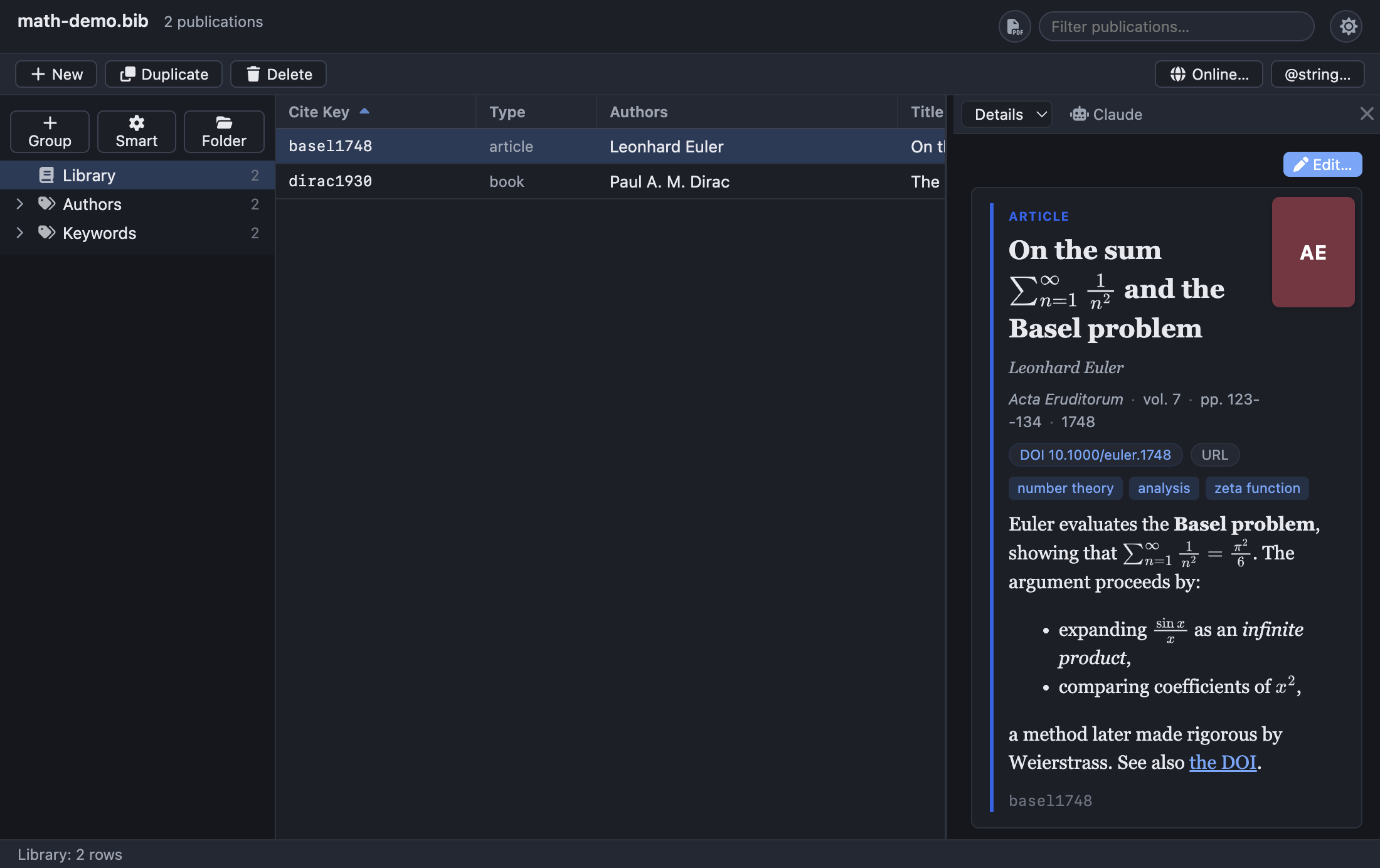
Your theme choice is remembered between sessions (it's saved in the app's local settings), so the app reopens in the theme you last used. The toggle and the menu item both set Light or Dark outright; Preferences → General → Appearance → Theme additionally offers System, which follows your operating system's appearance. See Getting Started for the toggle's location in the header.
Why rich views?#
Classic BibDesk presents references fairly plainly. Bibliofile leans the
other way on purpose: it treats browsing your library as something you should
enjoy. Rendered maths in titles and abstracts, formatted Markdown, clickable
links and attachments, colour-coded entry types, keyword tags, and proper CSL
citations — all in a light or dark theme — turn the detail pane from a data form
into a readable reference card. The aim is to make scanning, reading, and
checking your library a pleasure rather than a chore, while the underlying .bib
file stays exactly as portable and faithful as ever.
Limitations and honest notes#
A few things are worth setting expectations on:
- Styles are added by file, not browsed. APA, Vancouver, and Harvard ship
bundled; you can install any other CSL style with Install CSL file…
(see Installing & managing your own styles).
What's missing is an in-app browser of the CSL repository — you supply the
.cslfile yourself. - CSL is not BibTeX
.bst. The formatted citation comes from the CSL ecosystem, which is independent of LaTeX'sbibliographystyle/.bstsystem. A CSL style of the "same name" may differ in small ways from the.bstyou use when typesetting a document. Treat the Citation block as a convenient, copy-ready reference, not as a preview of whatbibtex/biberwill produce in your paper — for that, use the LaTeX Preview in the bottom panel, which runs your local TeX install with the chosen.bst. - The card needs data. Elements only appear when their fields are present; an entry missing a title, authors, venue, and year shows no card at all.
- English locale. Citations are formatted with the
en-USlocale, whatever the interface language. Changing Preferences → General → Appearance → Language translates the app's own labels, not the "and", "eds." or "Retrieved from" wording a CSL style produces. - The Citation block is one entry at a time. Select two or more rows and the
pane switches to a list of preview cards for the selection — there is no
formatted citation per row and no combined reference list in the pane.
Copy Citation and Copy Citation as RTF likewise act on the single
selected entry. For several entries at once, use Edit → Copy As → LaTeX
\bibitem(one formatted\bibitemper selected entry, in the Default style), File → Print… (the selection, or everything currently shown), or the whole-library RTF (formatted bibliography) export — see Importing & Exporting.
Troubleshooting#
The citation looks wrong or is missing information#
The formatted citation is only as good as the entry's fields and type. Check that:
- The entry type is appropriate — a journal paper filed as
miscwon't get article formatting. Set it toarticle,book,inproceedings, etc. in the type dropdown (see Editing Entries). - The expected fields are present and correctly named — for instance, a
journal name belongs in
Journal, a book/proceedings title inBooktitle, pages inPages, issue inNumber. - Author names parse correctly — use BibTeX's
Last, Firstform for reliable family/given splitting, andandbetween authors.
Because the citation updates live, you can fix a field and watch the citation correct itself.
Maths shows as raw $…$ in the card or citation#
MathJax typesets on display and is best-effort; if you see raw TeX, check your dollar-sign pairing as described in Notes & Abstracts → Troubleshooting.
The card is empty#
The entry has no title, authors, venue, or year for the card to summarise. Add at least one of those fields in the editor window; everything else about the entry keeps working regardless.
Clicking a DOI/URL chip does nothing visible#
The link opens in your external default browser, not inside the app — check
there. If nothing opens, the address is probably one the app declines to hand to
the system: only http:, https: and mailto: are opened, plus a bare DOI
(10.1234/…), which is expanded to https://doi.org/10.1234/… first. A Url
holding something else — a file: path, a custom scheme, or plain prose — is
refused rather than launched.
See also#
- Notes & Abstracts — writing the Markdown and maths that the card renders, plus cross-references and embeds.
- Editing Entries — changing the fields and type that drive the card and citation.
- Attachments — the files behind the 📎 chip.
- Importing & Exporting — the HTML export produces a styled bibliography; Copy as BibTeX copies one entry's source.
- Configurable Panels — the LaTeX Preview in the
bottom panel: true BibTeX/
.bsttypesetting of the selected entries. - Scripting with JavaScript — produce
the same formatted citations and reference lists in bulk from a script
(
doc.cite,doc.bibliography,entry.citation). - Getting Started — the window layout and the theme toggle.