Every reference in your library can carry two kinds of free-form prose: an Abstract and a set of Notes. In Bibliofile both are written in Markdown — a handful of plain-text conventions that the app renders into clean, typeset prose in its panels and editor windows. Both can contain mathematics, which is typeset with MathJax; Notes can additionally hold cross-references to other entries in your library and inline embeds (such as a video player).
Crucially, the formatting is applied only when the app displays a value: no
HTML is ever written back into your .bib. The Abstract is stored exactly
as you typed it by default, so it stays portable, diff-friendly, and legible to
classic BibDesk, to bibtex/biber, and to anyone reading the file in a plain
editor. Notes are the one exception: because Markdown routinely contains
braces that would corrupt a BibTeX value, the app encodes them by default into a
private field — safe, and always decoded back, but not legible in a plain editor
unless you switch storage modes. See
How the fields are stored for both, and how to
change them.
This chapter explains the two fields in depth, gives a complete reference to the Markdown the app accepts, documents the maths, cross-reference, and embed features with worked examples, and finishes with edge cases and troubleshooting.
Tip: If you only remember one thing, remember this — Abstract is the field shown in the preview card at the top of the details panel; Notes are the entry's annotation, shown lower down in the section labelled Annotation. Notes can do everything Abstracts can, plus cross-references and embeds. The panels in the main window are read-only: you write both in the entry's editor window (Publication → Edit Publication…, ⌘E / Ctrl+E, or double-click the row), and notes also have a window of their own.
Two fields, two purposes#
Bibliofile deliberately keeps the two prose fields distinct, because they play different roles in a reference library.
The Abstract field#
The Abstract is the summary of the work itself — typically the author's own
abstract, pasted in from a paper or a database record. It belongs to the
reference. The app reads it from the standard BibTeX Abstract field and
renders it as Markdown inside the preview card at the top of the details
panel, immediately below the venue line, chips, and keyword tags (and above the
cite key). See Preview & Citations for the full
anatomy of the card. The same rendered abstract is also what the bottom panel's
Tabbed view shows under its Abstract tab — see
Configurable Panels.
Because the Abstract is part of the citation record, it is also handed to the citation processor: when a CSL style asks for an abstract (some annotated bibliography styles do), the text comes from this same field. What the style receives is the source text — decoded from whichever storage mode you use and stripped of TeX markup — not the Markdown rendering.
The Abstract uses the strict Markdown profile (see
The sanitizer below). It supports
headings, emphasis, lists, links, code, blockquotes, and maths — but it does
not allow embedded <iframe> players or [[citeKey]] cross-references. Those
are reserved for Notes.
The Notes field#
Notes are your commentary — what you thought about the paper, how it
connects to your own work, the page where the key result lives, a reminder to
follow up a reference. Notes correspond to BibDesk's long-standing Annote
annotation field, but — because Markdown notes routinely contain braces and other
BibTeX-unsafe characters — they are stored encoded rather than as raw text (by
default, compressed in a private Bdsk-Annotation field; see
How the fields are stored). Throughout the app the
section that holds them is labelled Annotation: read-only in the main
window's details panel and bottom panel, and editable — with an Edit /
Done toggle — near the bottom of the entry's editor window. There is
also a standalone annotation editor for one
entry at a time.
Notes use the richer Markdown profile. On top of everything the Abstract supports, Notes additionally allow:
- Cross-references written
[[citeKey]], which become clickable links that select the referenced entry — the foundation of a linked knowledge base. - Formatted citations written
\cite{…}/\citep{…}/\citet{…}/ … — LaTeX-style commands that render a styled citation of an entry (see Formatted citations). - Inline embeds via an
<iframe>(restricted tohttp/https), so you can drop in a video, a slide deck, or an interactive widget.
Comparison at a glance#
| Aspect | Abstract | Notes |
|---|---|---|
| Stored in BibTeX field | Abstract (plain text) |
Bdsk-Annotation (encoded; or Annote in Readable mode) |
| Where it appears | Preview card (top of the details panel); Abstract tab of the Tabbed bottom panel | Annotation section (details panel, bottom panel, editor window) |
| How you edit it | As a normal field in the Fields list of the editor window | Edit / Done in the editor window, or the standalone annotation editor |
| Markdown | Yes (strict profile) | Yes (richer profile) |
Maths ($…$, $$…$$) |
Yes | Yes |
Links ([text](url)) |
Yes (open externally) | Yes (open externally) |
[[citeKey]] cross-refs |
No | Yes |
\cite{…} formatted citations |
No | Yes |
Inline <iframe> embeds |
No | Yes (http/https only) |
| Fed to CSL citation engine | Yes (as abstract) |
No |
Writing an Abstract#
The Abstract is edited like any other field, in the entry's editor window. Open it (Publication → Edit Publication…, ⌘E / Ctrl+E, or double-click the row), find Abstract in the Fields list, and type or paste Markdown into its box. (Because abstracts tend to be long, the editor gives the Abstract field a multi-line text area automatically — which means Enter inserts a line break rather than committing; click away to commit.) The moment the edit is committed, the preview card re-renders with the formatted result — in the editor window's preview column, and in the main window's details panel behind it.
Procedure — set an abstract
- Select the entry in the publications table and open its editor window (⌘E / Ctrl+E, or double-click the row).
- In the Fields list, locate the Abstract row. Most entry types don't offer one, so if there is no Abstract row, click the green + below the list and type
Abstractas the field name.- Type or paste Markdown into the value box.
- Click elsewhere to commit (the Abstract's box is a text area, so Enter just starts a new line).
- Watch the preview card re-render with your formatting.
A worked example#
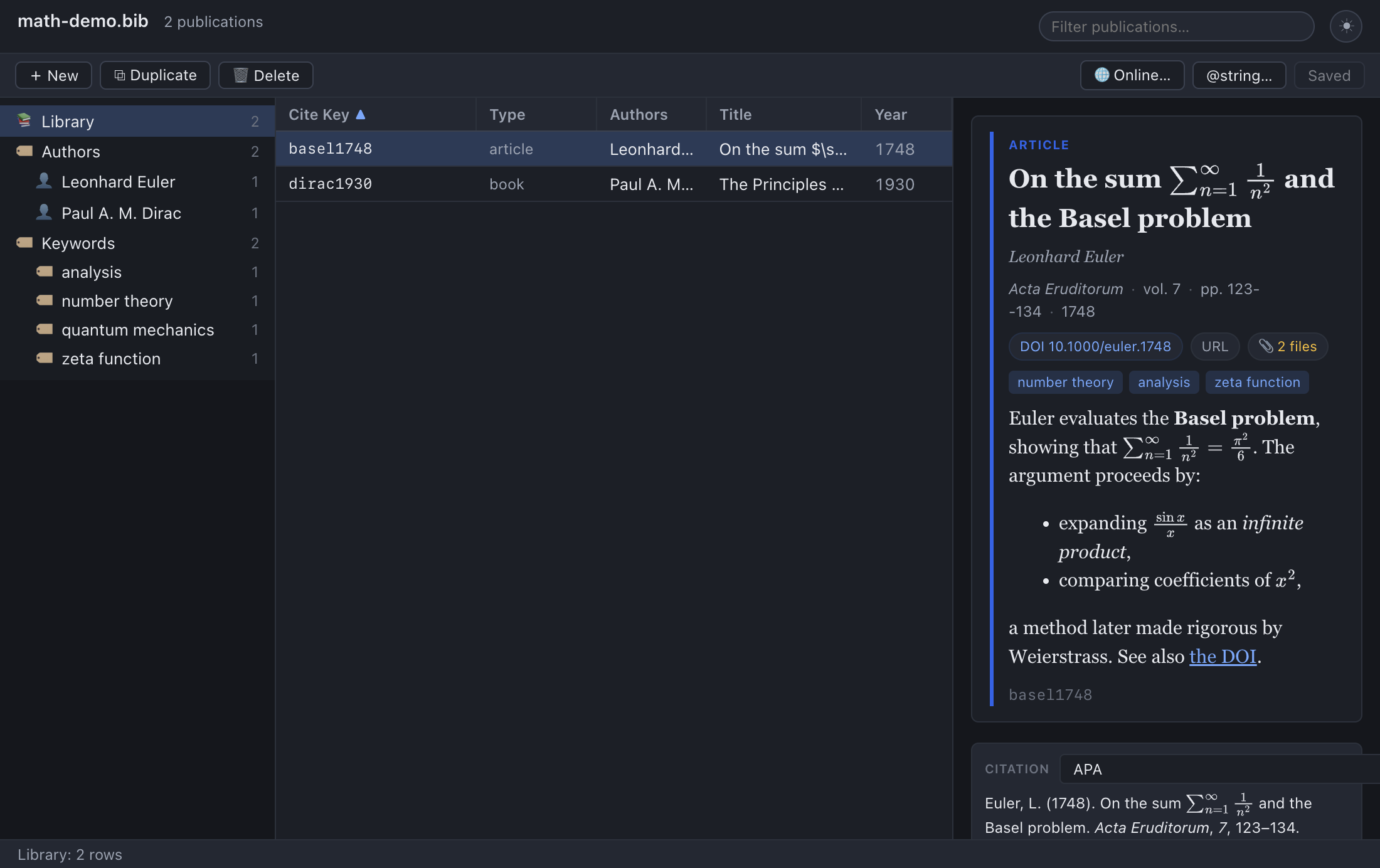
Typing this into the Abstract field:
We show that **gravity** bends light, with deflection

$$\theta = \frac{4GM}{c^2 b}.$$

See the *original* result in the [1919 eclipse data](https://example.org).
…renders in the preview card as a paragraph with a bold "gravity", a centred display equation, a second paragraph beginning with an italic "original", and a clickable "1919 eclipse data" link that opens in your browser.
Writing Notes#
Notes live in their own section, labelled Annotation, toward the bottom of the entry's editor window. Unlike the Abstract — which you edit inline as a field — Notes have an explicit editing mode so the rendered view (with its clickable cross-references and embeds) does not get in the way of typing.
Procedure — write notes
- Select the entry and open its editor window (Publication → Edit Publication…, ⌘E / Ctrl+E, or double-click the row).
- Scroll to the Annotation section. If the entry has no notes yet, you'll see "No annotation. Click Edit to add markdown notes."
- Click Edit. The section becomes a Markdown editor (CodeMirror, with syntax highlighting for headings, emphasis, and maths).
- Type your notes — Markdown, maths,
[[citeKey]]links, and<iframe>embeds are all allowed.- Click Done to leave editing mode and see the rendered result.
The editor commits whenever it loses focus, so clicking Done (or clicking
anywhere outside the editor) saves your text as the entry's annotation — into
whichever field your storage mode uses, not necessarily Annote; see
How the fields are stored. The placeholder text in
an empty editor reminds you of the extras: "Markdown notes. Link entries with
[[citeKey]]. Inline <iframe> embeds allowed."
The main window's panels don't edit notes: the details panel and the bottom panel both show the rendered annotation read-only, with an Edit… button at the top of the details panel that opens the editor window. See Configurable Panels. (The same editable form — Fields, Annotation, Attachments — also drives the review dialog for dropped PDFs the app couldn't identify, so a draft can be annotated before you Accept it; see Importing & Exporting.)
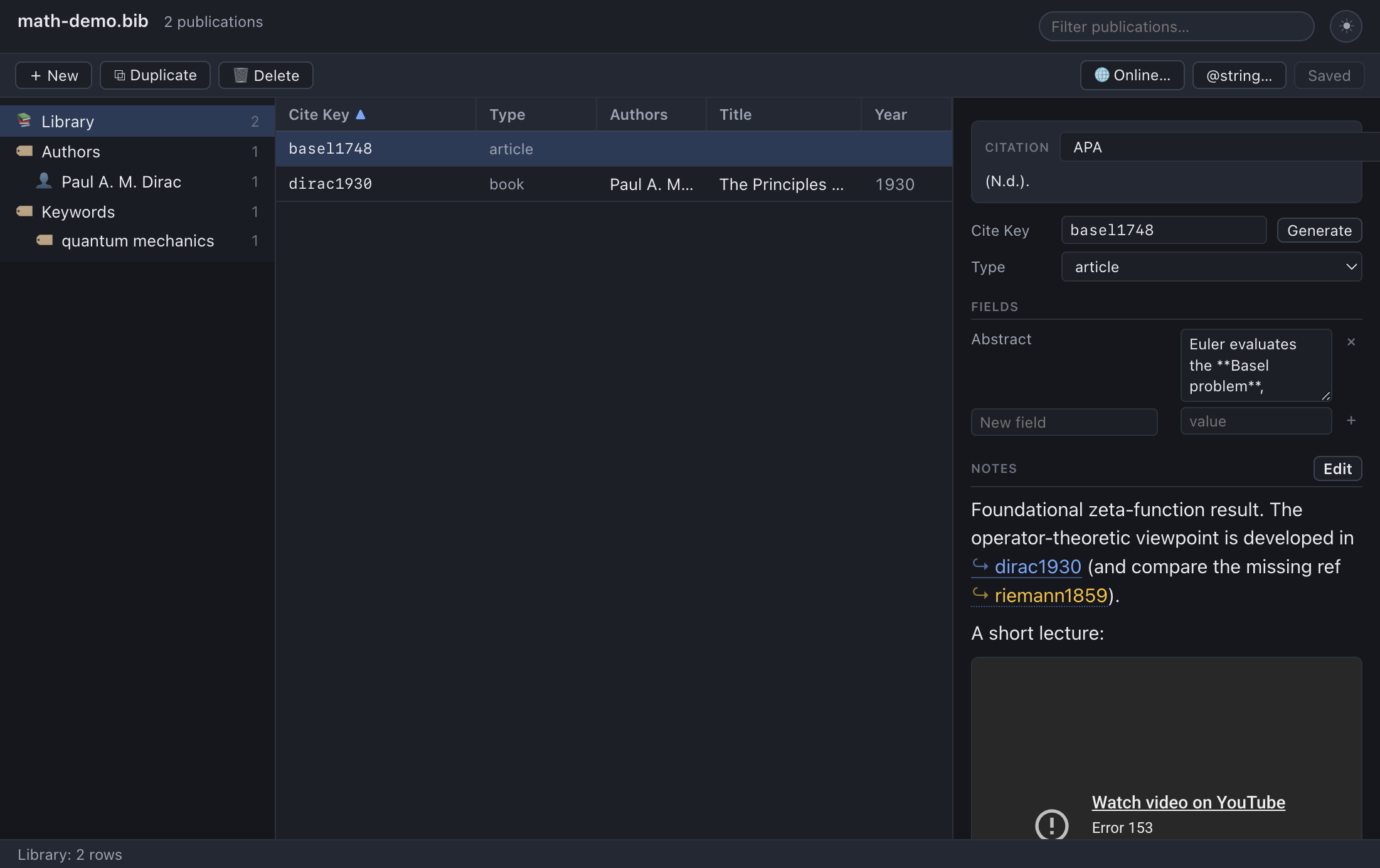
(That screenshot is from an earlier build, when the side panel was itself editable — the rendered notes are current, the surrounding pane is not.)
Note: Editing notes marks the document as having unsaved changes, exactly
like editing any other field. Your text is held in memory until you Save
(⌘S / Ctrl+S), at which point it is written to the entry's annotation
field in the .bib file — encoded for safety (the private Bdsk-Annotation
field by default; see How the fields are stored
below). See Editing Entries.
Tip — see which entries have notes at a glance: Add the Annotation indicator column to the publications table (Preferences → Display → Columns, then pick Annotation from the Add column… dropdown). It shows a file icon in any row whose entry carries an annotation. This works for Markdown notes too: by default notes are stored encoded in a private
Bdsk-Annotationfield (in Readable mode they live in the standardAnnotefield), and the indicator detects both. Choose the builtin Annotation column, not a raw Annote field column — the latter reads the (usually empty) plain field and won't show the icon for the default encoded notes. View → Columns doesn't offer Annotation until it has been added this way; once it has, it appears there as a checkbox like the other columns.
The annotation editor window#
When you want to write a longer annotation without a side panel feeling cramped, open a dedicated editor window for one entry.
Procedure — open the annotation editor
- Right-click the entry in the publications table.
- Choose Edit Annotation… from the context menu.
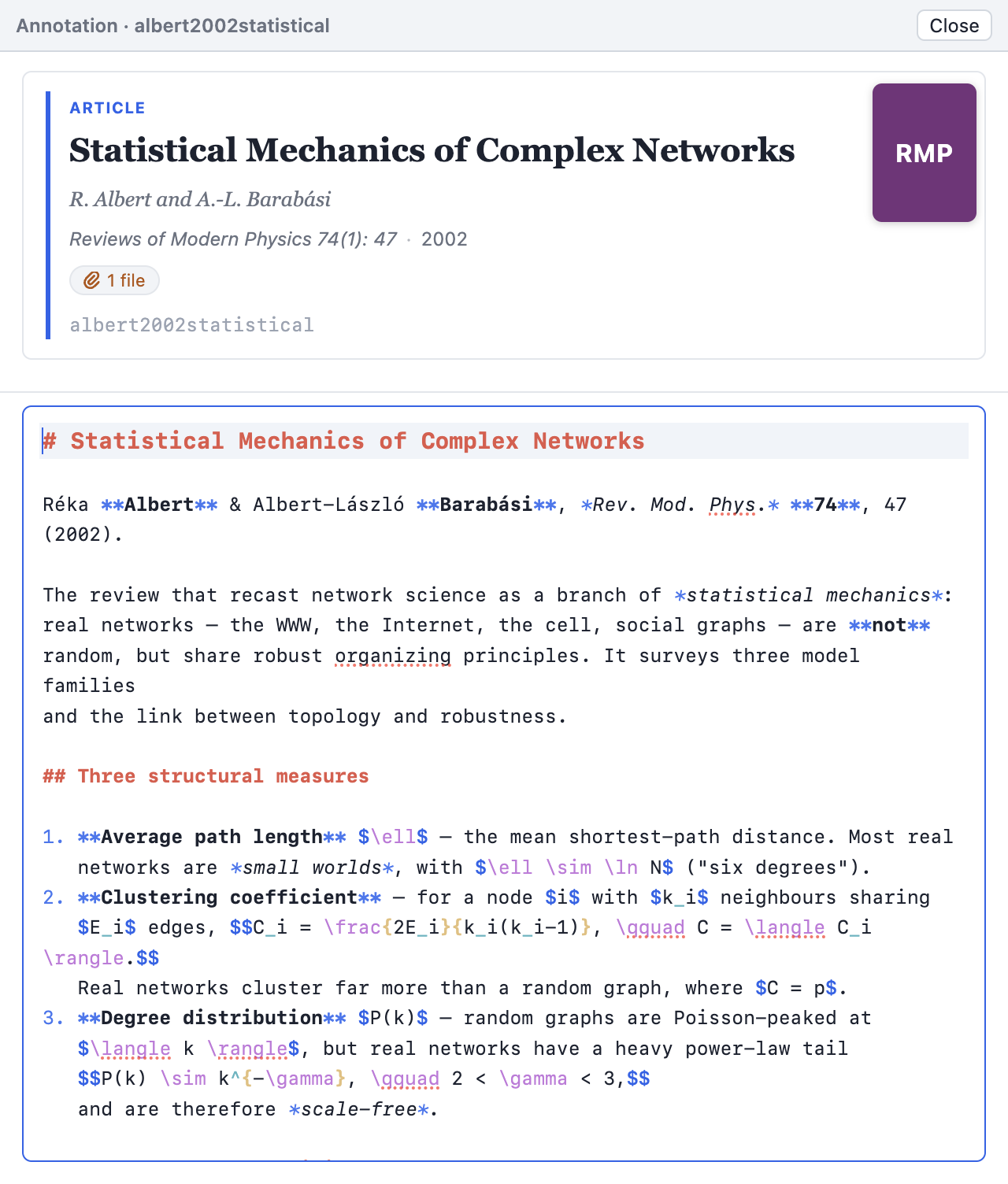
A separate, top-level window opens — it is non-blocking, so the main window stays fully usable behind it (keep browsing, search, or open editors for other entries side by side). The window has two parts:
- A pretty-printed summary at the top — the same card the details panel shows, including the journal thumbnail / book cover when one exists. It's a quick reminder of which entry you're annotating. It is capped to the top ~45% of the window and scrolls if the card is long.
- A full-height Markdown editor below — the same editor as the Annotation
section, with Markdown, maths,
[[citeKey]]links, and<iframe>embeds all allowed.
Both the window's OS title bar and the small bar inside it read Annotation · cite key, so several open at once stay easy to tell apart.
Auto-save#
You don't click Save or Done in this window (its only button is Close). Your text is auto-saved to the entry on a short debounce — about a second after you stop typing — and also when the editor loses focus and when you close the window. A small "Saving… / Saved" indicator in the bar at the top confirms it. The main window's panels (and the Annotation column) update automatically.
Note: "Saved to the entry" means the annotation is written into the open
document in memory, marking it as having unsaved changes — exactly like any
other edit. It is written to the .bib file on disk by the normal Save
(⌘S / Ctrl+S) or autosave, just like editing a field. Opening Edit
Annotation… again for the same entry simply focuses the window that's already
open rather than making a second one.
Markdown reference#
Bibliofile renders Markdown with a standard CommonMark-style parser and then runs the result through a sanitizer that keeps only a known-safe set of HTML tags. This section documents everything the renderer supports; the sanitizer section below explains what is allowed through and what is stripped.
Everything here works in both Abstracts and Notes unless noted otherwise.
Headings#
Begin a line with one to six # characters and a space:
# Top-level heading
## Section
### Subsection
These render as <h1>…<h6> elements. In practice abstracts and notes are
short, so you will rarely need more than ## or ###, but the full range is
available.
Emphasis#
| You type | You get |
|---|---|
*italic* or _italic_ |
italic |
**bold** or __bold__ |
bold |
***bold italic*** |
bold italic |
~~struck through~~ |
|
`inline code` |
inline code |
Emphasis renders as <em>/<i>, <strong>/<b>, and <del> (strikethrough)
respectively; inline code becomes <code>.
Warning: Underscores and asterisks are also meaningful inside TeX maths
(think x_1 or a^*). The app protects maths spans before parsing Markdown
precisely so a subscript underscore is not mistaken for italics — see
How maths is protected. The protection
only works for properly delimited maths, so always wrap maths in $…$.
Lists#
Unordered lists use -, *, or +:
- First point
- Second point
  - A nested point (indent by two spaces)
- Third point
Ordered lists use a number followed by .:
1. Set up the experiment
2. Collect the data
3. Analyse the results
These render as <ul>/<ol> with <li> items, with nesting preserved by
indentation.
Links#
Write [link text](https://example.org):
The dataset is published at [Zenodo](https://doi.org/10.5281/zenodo.123456).How links work: For safety, the app does not let a rendered link navigate the window. The
hrefis dropped at render time and the destination is carried on the element instead; when you click it the app opens the URL in your external browser via the operating system. This is why every link in an abstract or note opens outside the app rather than replacing the view. (Plain[[citeKey]]cross-references are the exception — those navigate within the library; see below.)Only
http:,https:andmailto:links are opened; anything else is refused. A bare DOI (10.1000/xyz123) used as a link target is turned intohttps://doi.org/…for you.
Code#
Inline code uses backticks (above). Fenced code blocks use three backticks:
```
@article{key,
  title = {A title},
  year  = {2020},
}
```
…which renders as a <pre><code> block. A language hint after the opening fence
(for example ```python) is accepted by the parser; the rendered output
is a monospaced block either way.
Blockquotes#
Prefix lines with >:
> The result holds only under the stated assumptions.
> The authors flag this explicitly in §4.
…which renders as an indented <blockquote>.
Horizontal rules#
Three or more hyphens on their own line (---) render as a horizontal rule
(<hr>).
Tables — not supported#
Markdown tables do not render. The parser understands GFM pipe tables (and
the note editor even syntax-highlights them), but <table> and its friends are
not on the sanitizer's allow-list, so the table markup is stripped and you are
left with a run of the cell text. If you need tabular data in a note, use a list
or a fenced code block instead. The same goes for task-list checkboxes
(- [ ] …): the <input> is dropped and only the item text survives.
Superscripts and subscripts#
The sanitizer allows <sup> and <sub> if your Markdown produces them, which
is occasionally handy for chemistry or ordinals (1<sup>st</sup>). For
mathematical sub/superscripts, prefer real maths ($x_1$, $x^2$) so they
typeset correctly — see Mathematics.
The sanitizer: what survives rendering#
After Markdown is parsed to HTML, the app sanitizes it: any tag not on the
allow-list is removed, and dangerous content (script, event handlers, inline
styles, unknown attributes) is stripped. This is a security boundary — your
.bib files might come from colleagues or the web, and rendered prose must never
be able to run code.
The Abstract (strict) profile permits these tags:
p,br,em,strong,b,i,code,pre,ul,ol,li,blockquote,h1–h6,a,sup,sub,hr,del,span
The Notes profile permits everything above plus iframe (see
Inline embeds).
Anything else is dropped. In particular:
<script>tags and any JavaScript are removed entirely.- Event-handler attributes (
onclick,onload, …) are removed. - Inline
styleattributes are not preserved. Attributes in general are stripped:<a>keeps onlyclass,titleand the app's own link markers,<span>keeps onlyclass, and a Notes<iframe>keeps only the presentation attributes listed under Inline embeds. Every other tag comes through bare — which is why a fenced block's language hint leaves no class behind. - Images (
<img>) are not in the allow-list, so raw image tags are stripped. - Tables and form controls are not in the allow-list either (see Tables above).
- In Abstracts, an
<iframe>is stripped (it is a Notes-only capability).
Note: This means you cannot "break out" of the formatting by pasting raw
HTML — only the documented Markdown and (in Notes) http/https iframes get
through. That is by design.
Mathematics#
Both Abstracts and Notes can contain TeX-style mathematics, typeset by MathJax (the same engine used across the preview). MathJax is bundled with the app and runs fully offline — there is no call to a CDN, so maths renders even with no network connection.
Inline and display maths#
| Syntax | Meaning | Example | Renders as |
|---|---|---|---|
$ … $ |
Inline maths (in the flow of text) | the mass $m$ and energy $E$ |
the mass m and energy E |
$$ … $$ |
Display maths (centred, on its own line) | $$E = mc^2$$ |
a centred equation |
\( … \) |
Inline maths (alternative delimiter) | \(\alpha + \beta\) |
inline α + β |
\[ … \] |
Display maths (alternative delimiter) | \[\int_0^1 x\,dx\] |
a centred integral |
A few concrete examples:
The first eigenvalue is $\lambda_1$, and we index the sequence by $x_1, x_2, \dots$.

The harmonic mean of $a$ and $b$ is

$$H = \frac{2}{\tfrac{1}{a} + \tfrac{1}{b}} = \frac{2ab}{a+b}.$$
This renders with inline "λ₁" and "x₁, x₂, …" sitting in the running text, then a
centred display equation for the harmonic mean. Notice that $x_1$ produces a
proper subscript — the underscore is not turned into Markdown emphasis (see
the next subsection for why), and $\frac{a}{b}$ keeps its braces, so the
fraction lays out correctly.
Tip: processEscapes is enabled, so to write a literal dollar sign in
prose, escape it as \$. For example, a \$5 fee shows a literal $5 and is
not mistaken for the start of a maths span.
How maths is protected and typeset#
Understanding the rendering pipeline explains why some things work and others don't:
- Protect maths. Before any Markdown is parsed, the app finds every maths
span —
$$…$$first, then$…$, then\[…\]and\(…\)— and replaces each with a placeholder. This is what stops Markdown from "seeing" the_,*,{, or}characters inside maths and misinterpreting them as emphasis or stray markup (and stops\[from being eaten as an escaped bracket). - Render Markdown. The placeholder-protected text is parsed to HTML and sanitized.
- Restore maths. The placeholders are swapped back for your original maths text, character for character. Because the maths never went through the sanitizer, it is put back HTML-escaped — invisible to you and to MathJax (which reads the text back decoded), but it means a maths span can't smuggle live markup into the page.
- Typeset. When the rendered card or note is shown, the app runs MathJax
over it, turning the
$…$/$$…$$spans into crisp SVG equations that inherit the surrounding text colour (so maths looks right in both light and dark themes).
Two consequences worth knowing:
- Inline maths may wrap across lines, but not across a blank line. A long
inline
$…$expression can break across soft line breaks within a paragraph, so you can wrap it for readability. It must not span a blank line (a paragraph break), which is also what stops a stray$— a price like$5— from accidentally pairing with a later one across paragraphs. (For a real dollar sign next to digits, write\$to be safe.) Display$$…$$spans lines too. - Braces inside maths are preserved. Elsewhere the app strips BibTeX
case-protection braces for display (so
{C}alabi-{Y}aushows as Calabi-Yau), but it is maths-aware: braces inside a$…$/$$…$$span are left untouched, so$\frac{a}{b}$and$\sqrt{x}$survive intact.
Note: MathJax typesetting is best-effort. In the unlikely event the engine
fails to load, the raw TeX text (e.g. $E = mc^2$) is simply left in place
rather than crashing the view — readable, just not typeset.
Cross-references (Notes only)#
Notes can link to other entries in the same library using a wiki-style
double-bracket syntax. Write a cite key inside [[ … ]]:
This extends the argument in [[einstein1905]] and corrects [[smith2010]].
It should be read alongside [[bohr1913]].
Each [[citeKey]] becomes a clickable link (prefixed with a small ↪ marker).
Clicking it selects that entry — the publications table jumps to the
referenced item and the panels show it, just as if you'd clicked the row
yourself. This turns your notes into a navigable web of connections: a
literature trail, a "cited by / builds on" graph, or a running argument that
threads through many papers.
Matching and missing keys#
- Cite-key matching is case-insensitive, so
[[Einstein1905]]findseinstein1905. - The target does not have to be visible in the group you're browsing. If the key isn't among the rows currently shown, the app switches to the whole Library and selects it there.
- If two entries somehow share a cite key, the link resolves to the first match (matching BibDesk's own behaviour).
- If a cite key matches no entry in the library, the link is rendered in a distinct warning style — coloured differently and with a dotted underline — so you can spot typos or not-yet-added references at a glance. The link is still shown; it simply has nowhere to go until the entry exists.
Tip: The missing-key styling makes cross-references a lightweight
"to-import" list. Jot [[chen2024]] in a note while reading; it shows as
missing until you add Chen 2024 to the library, at which point the same link
lights up and starts working — no need to edit the note again.
Note: [[citeKey]] cross-references are recognised in Notes only.
They are not interpreted in the Abstract, where the text would simply show the
literal brackets.
Formatted citations — \cite{…} (Notes only)#
Where [[citeKey]] gives you a bare link, the LaTeX/natbib-style \cite
commands render a properly formatted citation of an entry in your library,
in your inline citation style (Preferences → Citations). They're handy for
writing a literature note that reads like prose:
| You write | It renders as |
|---|---|
\citet{einstein1905} (or bare \cite{…}) |
Einstein (1905) — textual |
\citep{einstein1905} |
(Einstein, 1905) — parenthetical |
\citeauthor{einstein1905} |
Einstein — authors only (\citeauthor* lists all, no "et al.") |
\fullcite{einstein1905} |
the full reference entry, inline |
\nocite{einstein1905} |
nothing (a silent reference) |
- Optional arguments work on every variant — one is a post-note, two are a
pre-note then post-note:
\citep[see][p. 5]{einstein1905}→ (see Einstein, 1905, p. 5);\citet[ch. 2]{einstein1905}→ Einstein (1905, ch. 2). - Several keys in one command share the citation:
\citep{a, b}→ (A, 2019; B, 2020). - Each rendered citation is clickable — it jumps to the cited entry (like a
cross-reference). A citation of several works (
\citep{a, b}) selects all of them at once. An unknown key shows a muted?keymarker so typos stand out.
A bibliography of the cited works — @references#
Put @references on its own line anywhere in a note and it expands to a
formatted bibliography of the works you cited in that note (with \cite,
\nocite, etc.), in your inline citation style. Each work appears once, however
many times you cited it. \nocite{…} is handy here: it adds a work to the
bibliography without printing an inline citation.
The result follows from \citet{einstein1905} and the pair \citep{bohr1913, dirac1928}.

## References

@references
Tip: Set the style under Preferences → Citations → Inline citation
style — switch it (APA, Vancouver, an installed .csl…) and every \cite
and the @references bibliography re-render in that style. Leave it on Same
as default style to follow the Default style (which also drives the detail
pane's citation block, printing, and RTF copy). Both menus list every bundled
and installed style; the Citation styles section just below lets you
install your own .csl files and delete ones you no longer want. Citations are
powered by the same citeproc engine as the detail pane's citation block.
Note: Like [[citeKey]] links, \cite{…} commands and @references are
interpreted in Notes only, not in the Abstract.
Inline embeds (Notes only)#
Notes may contain a single inlined <iframe> (or several) to embed external
content — a conference talk, a slide deck, an interactive demo — right inside the
note. Paste the iframe markup directly into the note text:
Here's the talk that inspired this line of work:

<iframe src="https://www.youtube.com/embed/dQw4w9WgXcQ"
        width="480" height="270"
        title="Conference talk"
        allowfullscreen></iframe>
When the note is rendered, the iframe appears in place, framed to match the theme, and capped to the width of the pane.
What is allowed#
The sanitizer is strict about iframes:
- Scheme. Only
httpandhttpssources are permitted. Asrcusing any other scheme (file:,javascript:,data:, a relative path, …) is rejected and the iframe is dropped. - Attributes. A fixed set of presentation/behaviour attributes is allowed:
src,width,height,frameborder,allow,allowfullscreen,loading,title, andsandbox. Anything else is stripped. - No scripts. As everywhere,
<script>tags and event handlers are removed. An iframe loads its own page in an isolated frame; the surrounding note never runs the embedded site's code directly.
Warning — a security note: An embedded iframe loads a live external page over the network. Only embed sources you trust, and prefer providers' official "embed" URLs (for example, a site's
…/embed/…player URL) over arbitrary pages. Embeds are a capability you opt into by pasting an iframe; the strict scheme and attribute filtering exists to keep that opt-in as safe as possible, but it cannot vouch for the content of a third-party site. Embeds are a Notes-only feature for this reason — Abstracts keep the simpler, stricter profile with no embedding at all.Be aware that the opt-in belongs to whoever wrote the note. If you open a
.biba colleague sent you, an<iframe>in their annotation loads from their chosen host the moment you view that entry's notes — which tells that host you read it. Nothing runs in the app itself, but the request does go out. The app's content-security policy deliberately allowshttp/httpsframes so the embed feature works; that is an accepted cost of the feature, not an oversight.
How the fields are stored#
The two fields are stored differently, and the difference matters.
The Abstract — a plain field (by default)#
The Abstract is an ordinary BibTeX field, and by default it's stored as plain text exactly as you typed it:
@article{einstein1916,
  author   = {Einstein, A.},
  title    = {Die Grundlage der allgemeinen Relativit{\"a}tstheorie},
  journal  = {Annalen der Physik},
  year     = {1916},
  Abstract = {We derive the field equations from the equivalence principle.

$$G_{\mu\nu} = 8\pi T_{\mu\nu}.$$},
}
The Markdown and the maths sit in the file as ordinary characters; the app renders them on display but adds nothing beyond what you typed, so the abstract is readable in any editor and round-trips through classic BibDesk and the TeX/LaTeX ecosystem.
The trade-off is the same brace hazard as notes: an unbalanced } pasted into
an abstract could terminate the field early and corrupt the .bib. If that worries
you, Preferences → Files → Abstract storage ("Write abstracts as") offers the
same opt-in encodings as the annotation:
- Plain text (the default) — verbatim, fully portable, fed to citation styles.
- Readable — only
% { }percent-escaped, kept in the standardAbstractfield: brace-safe and still readable, at the cost of%7B/%7Din other tools. - Compressed — an lz-string + base64 blob in a private
Bdsk-Abstractfield: brace-safe and compact, but opaque to everything that reads the.bibwithout knowing the encoding — including any other tool's citation styles, which look for the standardAbstractfield and will find nothing. Bibliofile itself is unaffected: it decodes the blob before showing it, editing it, indexing it for search, or handing it to its own citation styles.
Leave it on Plain unless you specifically need the protection — the abstract is part of the citation record, so most libraries are best served keeping it portable. Existing entries convert on next edit; all three forms always read back.
The Annotation — encoded for safety#
Notes are not stored as raw text by default. Markdown notes routinely contain
characters that are unsafe in a BibTeX value — above all an unbalanced },
which would terminate the field early and corrupt the .bib (and BibTeX has no
way to store an unbalanced brace; even \} still counts toward brace depth). So
the app encodes the annotation. There are two modes, chosen in Preferences →
Files → Annotation storage ("Write notes as"):
Compressed (the default) — the note is
lz-string-compressed and base64-encoded (alphabetA–Za-z0-9+/=, so brace-safe by construction) onto a single line in a privateBdsk-Annotationfield; the standardAnnotefield is left out. It's safe and compact (Markdown compresses well, often smaller than the raw text), but opaque to other tools:Bdsk-Annotation = {N4Igxg9gJgpiBcIAuBnApgQwDYHMQF8g==…},Readable (opt-in) — kept in the standard
Annotefield with only the three unsafe characters%,{,}percent-escaped (%25/%7B/%7D). Human-readable and portable, but the flakier path, so not the default:Annote = {Builds on [[einstein1905]]; see %7Bthe lecture%7D.},
Reading is format-agnostic regardless of the active mode: the compressed blob,
the readable Annote, and a plain or BibDesk-written Annote all decode
correctly — so switching modes (or opening someone else's file) never loses notes.
Existing entries convert to the active mode the next time you edit them.
Edge cases and troubleshooting#
Maths isn't rendering (I see raw $…$)#
- Check your dollar-sign pairing. Every
$must be matched. An odd number of$on a line leaves the maths span open and it won't be recognised. - A blank line ends an inline span. Inline
$…$may wrap across soft line breaks, but not across a blank line — if an expression looks unrecognised, check there's no empty line inside it (use a$$…$$display block for anything that long). - Escape literal dollars. If you meant a real
$(a price, say), write\$so it isn't read as the start of a maths span. - If maths is genuinely failing to typeset (raw TeX everywhere), MathJax may have failed to initialise; the app degrades to showing the source text rather than erroring.
A cross-reference shows in the warning (missing) style#
The cite key in [[…]] doesn't match any entry in the current library.
Check for:
- a typo in the key (
[[smith2010]]vs[[smtih2010]]); - the entry not yet being imported (the link will start working once you add it);
- the link being in an Abstract rather than Notes —
[[citeKey]]is only interpreted in Notes.
Matching is case-insensitive, so capitalisation alone is never the problem.
An iframe didn't appear#
- It is in an Abstract, not Notes — iframes are Notes-only.
- Its
srcis nothttp/https(relative paths andfile:/data:/javascript:URLs are rejected). - The provider blocks embedding (some sites refuse to be framed); that's a decision made by the remote site, not the app.
My table came out as a run of plain text#
Markdown tables aren't supported — the sanitizer removes the table markup and leaves the cell text behind. See Tables.
Emphasis appeared where I didn't want it#
A stray * or _ in prose can trigger italics. Escape it with a backslash
(\*, \_) to show it literally. Inside properly delimited maths, these
characters are protected automatically and need no escaping.
My formatting doesn't show in another tool#
Other BibTeX tools don't render Markdown — they show the raw field text. For the
Abstract that's the plain Markdown, just unformatted. For Notes, what they
show depends on the storage mode (see
How the fields are stored): in Readable mode the
Annote text appears (lightly percent-escaped); in the default Compressed mode
they'll see an opaque Bdsk-Annotation blob. Either way nothing is lost — the app
always decodes it back.
See also#
- Preview & Citations — where the rendered abstract appears, and how formatted citations work.
- Editing Entries — the editor window, editing fields, and saving.
- Configurable Panels — the details panel and the bottom panel that display an entry's annotation and abstract.
- Browsing & Searching — finding the entries you cross-reference.